Neuinstallation
Diese Anleitung beschreibt die Neuinstallation eines Gambio-Shops (GX26) — vom Hochladen der Dateien über den Gambio Installer bis zu den Zusatzmodulen.
1. Voraussetzungen
Systemvoraussetzungen:
- mindestens 120 MB Webspace
- eine Domain
- GDlib 2 oder neuer
- smtp, sendmail oder mail
- die genauen PHP-, MySQL- und MariaDB-Anforderungen der Zielversion findest du in ihren Release Notes
Halte für die Installation bereit:
- Zugangsdaten zu deinem FTP-Server
- Zugangsdaten zu einer leeren MySQL-Datenbank
- ein FTP-Programm (z. B. FileZilla)
- das Gambio GX26 Softwarepaket (ZIP-Archiv)
2. Shopsystem
2.1 Installationspaket extrahieren
Nachdem du das Gambio GX26 Softwarepaket heruntergeladen hast, extrahiere das ZIP-Archiv auf deinem Computer. Unter Windows kannst du dazu einfach per Rechtsklick auf das Archiv Alle extrahieren wählen; alternativ funktioniert auch ein separates ZIP-Programm wie 7-Zip oder WinRAR.
Achtung
Bei Microsoft Windows kann es aufgrund der Pfadlängenbegrenzung zu Problemen beim Extrahieren oder Kopieren der Shopdateien kommen. Entpacke alle Dateien daher in einen Ordner möglichst weit oben im Verzeichnisbaum, z. B. C:\Gambio.
Wechsele nach dem Entpacken in das Verzeichnis GX_v26.x.x. Dort findest du das Handbuch, diese Installationsanleitung, das kostenlose FTP-Programm FileZilla, die Dateien des Shopsystems im Verzeichnis Shopsystem sowie die Zusatzmodule ResponsiveFilemanager und PdfCreator.
Achtung
Das Modul ResponsiveFilemanager ist für einzelne Shopfunktionen erforderlich und muss daher installiert werden.
2.2 Dateien und Verzeichnisse auf den FTP-Server übertragen
Starte dein FTP-Programm und verbinde dich mit dem FTP-Server. Wechsele in das Verzeichnis, in das du deinen Shop installieren möchtest — wir empfehlen das Stammverzeichnis deiner Domain. Übliche Namen für das Stammverzeichnis sind html, httpdocs oder www; wird keines davon angezeigt, befindest du dich in der Regel bereits im Stammverzeichnis. Wenn du dir nicht sicher bist, wende dich an deinen Hosting-Provider.
Lade sämtliche Dateien und Ordner aus dem Verzeichnis GX_v26.x.x\Shopsystem\Dateien in das Installationsverzeichnis auf deinem FTP-Server hoch (alle markieren mit Ctrl+A). Dieser Vorgang kann je nach Server und Internetverbindung mehrere Minuten dauern.
2.3 Aufruf des Gambio Installers
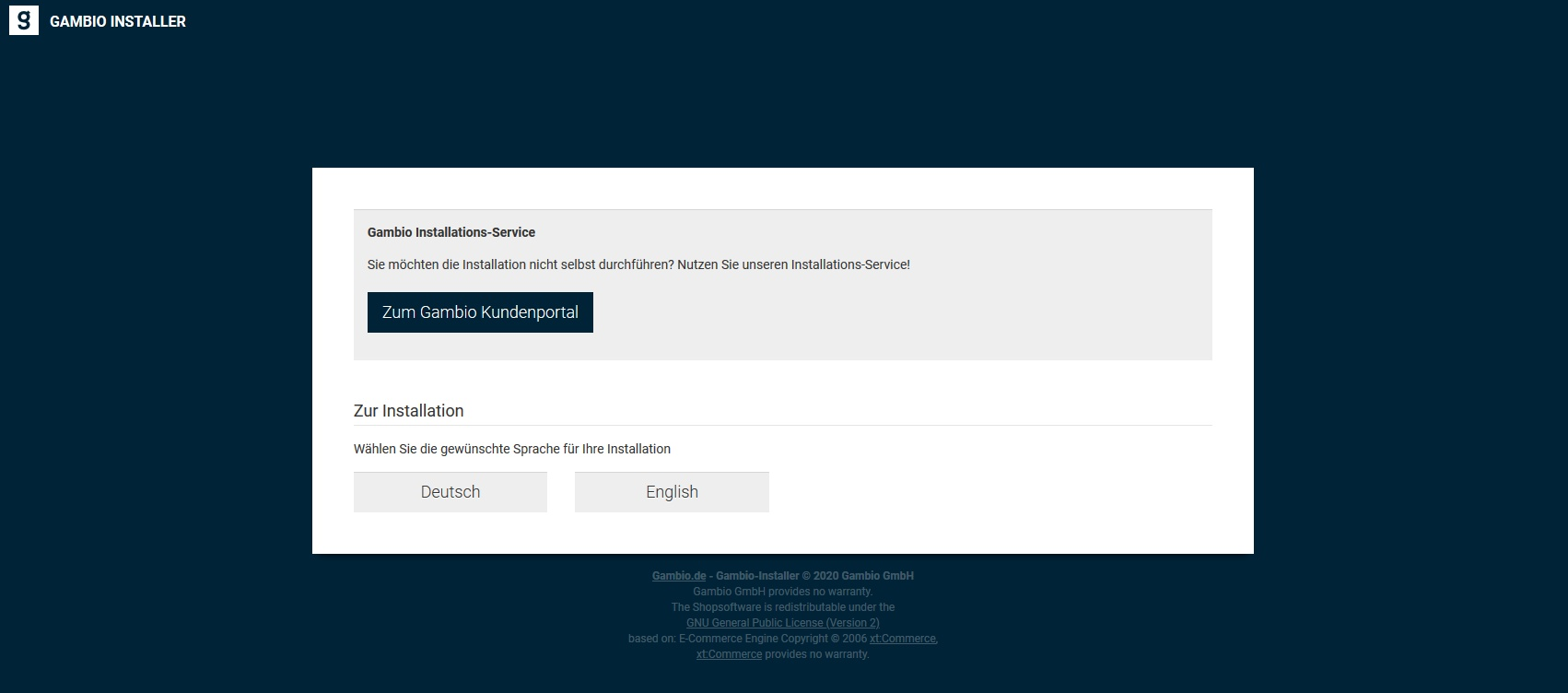
Rufe deinen neuen Onlineshop über deine Domain auf. Beim erstmaligen Aufruf wirst du automatisch auf die Installationsroutine weitergeleitet. Sollte das nicht passieren, rufe sie direkt über den Zusatz /gambio_installer auf (z. B. https://www.example.com/gambio_installer). Die Installationsroutine ist in Deutsch und Englisch verfügbar — wähle die gewünschte Sprache über die Schaltflächen aus.
Dateirechte setzen: Vor der Installation müssen die Datei- und Verzeichnisrechte einiger Shopdateien auf 777 gesetzt werden. Je nach Serverkonfiguration übernimmt die Installationsroutine das automatisch. Im Einzelfall wirst du nach deinen FTP-Daten gefragt: Trage sie ein, klicke auf Verbinden, wähle im Fenster Remote Konsole das Stammverzeichnis deines Shops und klicke auf Rechte setzen. Nach der Erfolgsnachricht geht es über Installation fortfahren weiter.
Hinweis
Wenn die Verbindung oder das Setzen der Rechte fehlschlägt, kannst du die Änderungen von Hand vornehmen — die Liste der betroffenen Dateien und Ordner findest du unter Fehlerbehebung. Prüfe anschließend über Rechte erneut prüfen, ob alle Rechte korrekt sind, und setze die Installation über Installation fortfahren fort.
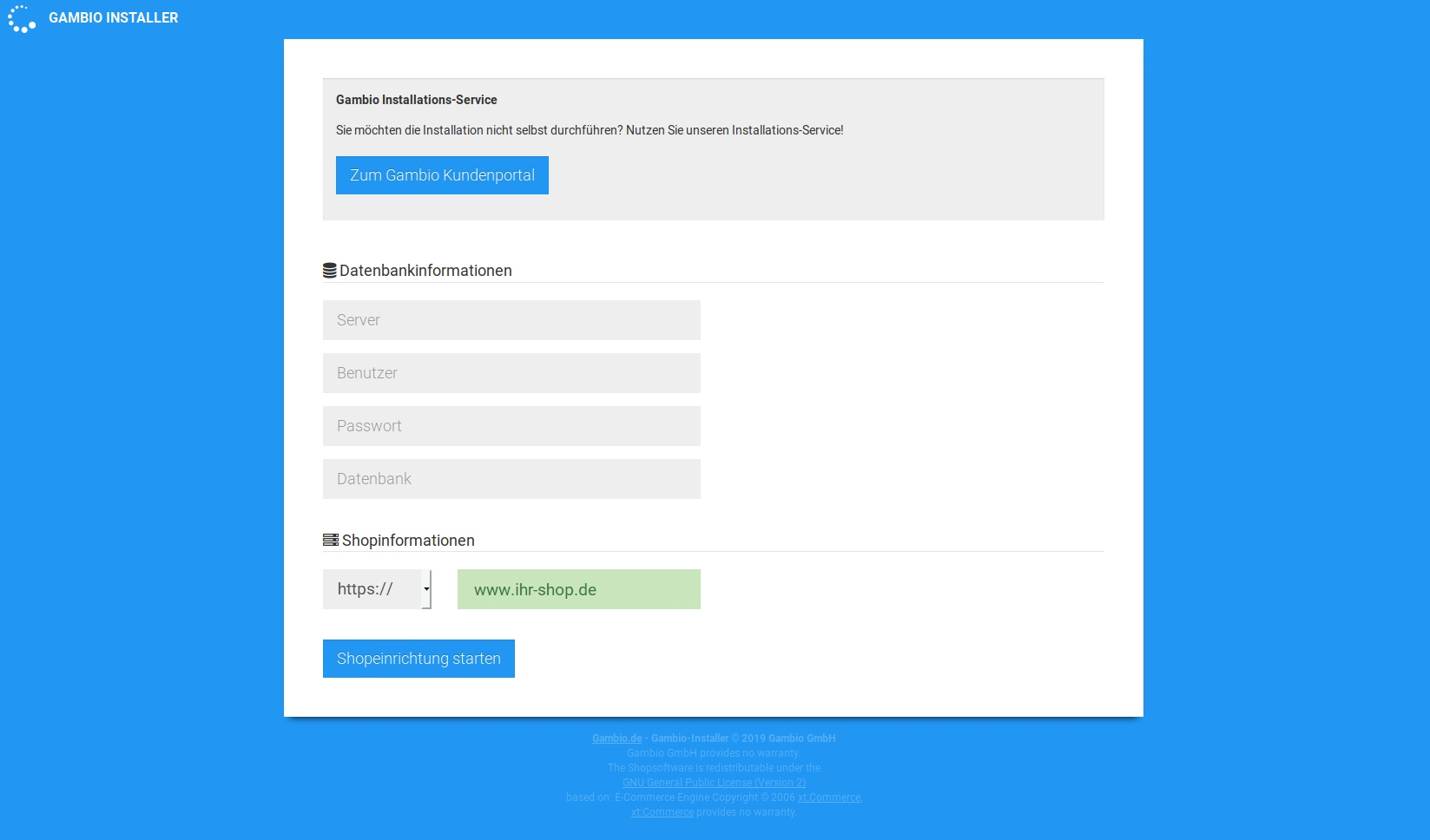
Datenbankinformationen: Trage die MySQL-Zugangsdaten ein — achte auf Groß- und Kleinschreibung. Bei korrekten Zugangsdaten werden die Textfelder grün hinterlegt, bei Fehlern rot.
Hinweis
Datenbankdaten und FTP-Daten nicht verwechseln! Der Datenbank-Server wird oft mit localhost angegeben — das ist aber von Hoster zu Hoster unterschiedlich. Der Support deines Hosters kann dir genau Auskunft geben.
Shopinformationen: Das Adressfeld ist bereits vorausgefüllt. Wir empfehlen, den Shop über www.example.com (mit deiner eigenen Domain) zu installieren, sofern eine entsprechende Weiterleitung seitens deines Hosting-Anbieters eingerichtet ist. Wenn du bereits ein SSL-Zertifikat hast, ändere die Einstellung im Dropdown-Menü von http:// auf https://.
SSL empfohlen
Wir empfehlen ausdrücklich die Einrichtung und Verwendung eines SSL-Zertifikats, sodass dein Shop über HTTPS aufrufbar ist und die Daten deiner Kunden nicht ungeschützt übertragen werden.
Achtung
Wenn kein SSL-Zertifikat besteht, kannst du dich bei aktiviertem SSL nicht mehr in deinem Onlineshop anmelden. Die SSL-Unterstützung kann jederzeit nachträglich aktiviert werden.
Starte die automatisierte Datenbank-Konfiguration über Shopeinrichtung starten. Lege im nächsten Schritt über die Felder E-Mail und Passwort ein Haupt-Administratorkonto an. Verwende ein sicheres Passwort aus mindestens acht Zeichen mit Groß- und Kleinbuchstaben, Zahlen und ggf. Sonderzeichen — am besten aus einem Passwort-Generator.
Vervollständige die Routine über Shopeinrichtung abschließen. Lade im letzten Schritt die automatisch generierte robots.txt herunter und lade sie per FTP in das Stammverzeichnis deiner Domain hoch. Rufe deinen Shop abschließend über Zum Shop auf.
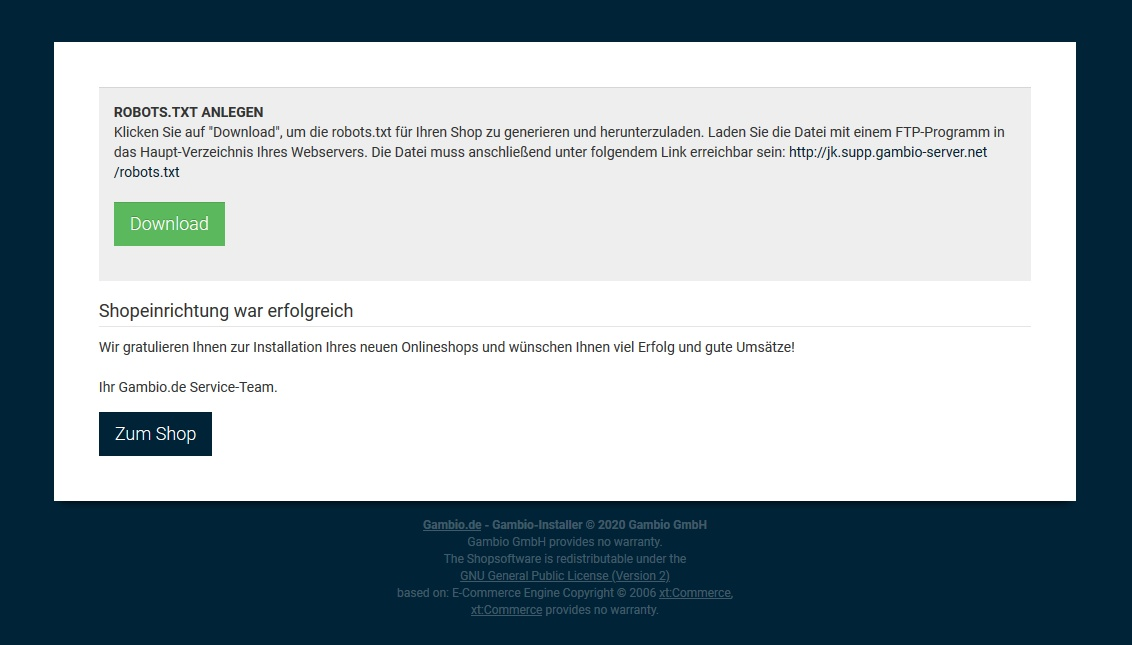
Herzlichen Glückwunsch, dein neuer Onlineshop ist nun installiert! Ändere zum Schluss per FTP die Dateirechte der folgenden Dateien auf 444:
admin/includes/configure.php
admin/includes/configure.org.php
includes/configure.php
includes/configure.org.php
3. PDF-Creator (optional)
Die Installation des Zusatzmoduls PdfCreator ist optional. Mit ihm kannst du PDF-Rechnungen und -Lieferscheine direkt aus deinem Onlineshop generieren; außerdem werden hierüber rechtliche Inhalte als PDF-Anhang für die Bestellbestätigung bereitgestellt. Lade den Ordner PdfCreator von deinem Computer in das Hauptverzeichnis des Shops auf dem FTP-Server hoch (erkennbar an den Ordnern admin und cache).
4. Filemanager
Mit dem Dateimanager kannst du aus dem Gambio Admin heraus auf das Shopverzeichnis zugreifen. Die Installation ist notwendig. Lade hierzu den gesamten Ordner ResponsiveFilemanager (nicht nur den Inhalt) in das Hauptverzeichnis deines Shops hoch.
5. Fehlerbehebung
Achtung
Die nachfolgenden Schritte sind nur nötig, wenn im Installationsverlauf Fehler bei der Rechtevergabe aufgetreten sind. Bei anderen Problemen mit der Installationsroutine wende dich an den Technischen Support unter info@gambio.de — gib dabei die unter Voraussetzungen im Abschnitt Halte für die Installation bereit angegebenen Daten mit an.
Nachfolgend die Dateien und Verzeichnisse, die für die Installation mit den Rechten 777 versehen werden müssen.
Rekursiv auf 777 (inklusive aller enthaltenen Dateien und Verzeichnisse)
/ext/mailhive
/media
Rekursiv auf 777 (inklusive aller enthaltenen Verzeichnisse, exklusive der enthaltenen Dateien)
/admin/html
/admin/includes
/admin/javascript
/admin/styles
/cache
/gambio_installer
/gambio_updater
/gm
/GXEngine
/GXMainComponents
/GXModules
/inc
/includes/classes
/includes/modules
/JSEngine
/lang
/public
/public/error_pages
/ResponsiveFilemanager/thumbs
/StyleEdit3/templates
/system
/templates
/themes
/vendor
Auf 777 (ohne enthaltene Dateien und Verzeichnisse)
/admin
/admin/backups
/admin/backups/temp
/admin/html/assets/images/legacy/hermes_labels
/admin/html/assets/images/legacy/icons
/admin/includes/configure.org.php
/admin/includes/configure.php
/admin/magnalister.php
/admin/sync4
/analytics
/config
/config/.env.php
/download
/export
/export/inventory
/export/invoice
/export/packingslip
/export/personal_data
/export/sepa
/export/dhlreturns
/ext
/gm/customers_uploads/gprint
/images
/images/banner
/images/categories
/images/categories/icons
/images/categories/og
/images/gm/gprint
/images/logos
/images/logos/favicon.ico
/images/logos/favicon.png
/images/manufacturers
/images/product_images/gallery_images
/images/product_images/option_images
/images/product_images/info_images
/images/product_images/original_images
/images/product_images/popup_images
/images/product_images/thumbnail_images
/images/slider_images
/images/slider_images/thumbnails
/import
/includes/configure.org.php
/includes/configure.php
/includes/modules/payment
/logfiles
/magnaCallback.php
/system/conf/admin_menu
/themes/Honeygrid/theme.json
/uploads
/uploads/attachments
/uploads/tmp
/version_info
/version_info/lists
/GProtector/cache
/GambioAdmin/Modules/UserFriendlyErrorPage/App/Data/error_pages
/GambioAdmin/Modules/Statistics/App/Overview/Data/Storage
6. Lizenzhinweise
- Shopsystem: steht unter der GNU General Public License Version 2 (GPL) — eine deutsche Übersetzung ist verfügbar.
- PDFCreator: steht nicht unter der GPL — siehe Lizenzhinweise.