Update-Paket installieren
Mit einem Update-Paket aktualisierst du deinen Shop über mehrere Versionen hinweg — z. B. mit dem Update-Paket 26.06.0 von jeder Shopversion zwischen 2.0.7c und 26.05.0.
Wichtige Hinweise
- Die Shopversion 26.x.x ist nicht mit den bisher verwendeten Templates kompatibel. Das Template-System steht im Anschluss an das Update nicht mehr zur Verfügung! Wurde bisher ein Honeygrid-Template verwendet, werden dessen Einstellungen in das Honeygrid-Theme importiert. Bei anderen Templates wird ohne Import auf das Standardtheme Malibu umgeschaltet.
- Die Zahlungsweisen Payone und Heidelpay werden mit der Installation dieses Updates unwiderruflich entfernt!
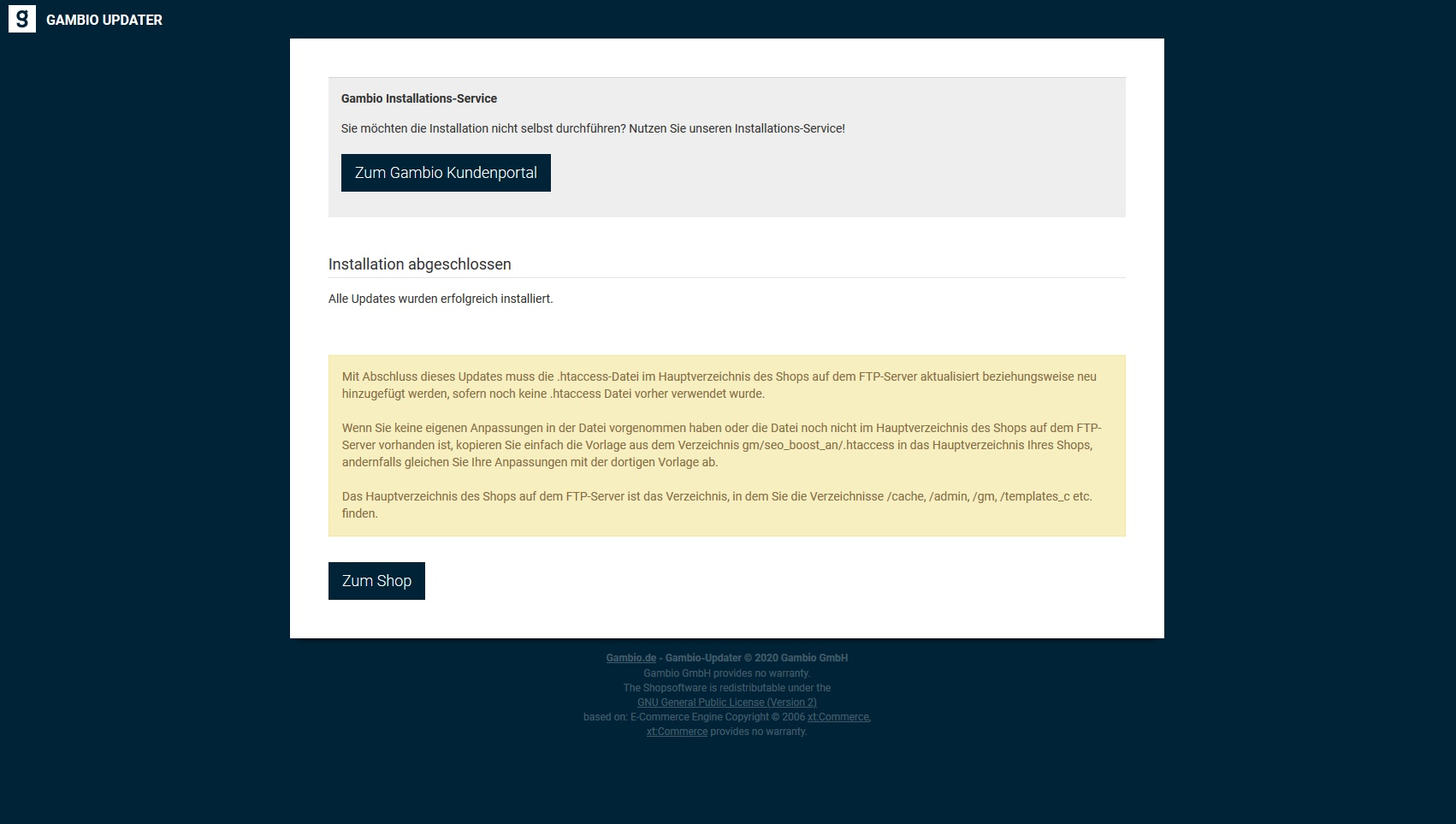
- Mit Abschluss des Updates muss die .htaccess-Datei im Hauptverzeichnis des Shops aktualisiert bzw. neu hinzugefügt werden.
- Die genauen Systemvoraussetzungen (PHP, MySQL, MariaDB, PHP-Erweiterungen) der Zielversion findest du in ihren Release Notes.
- Durch die Installation werden Dateien ersetzt — individuelle Anpassungen gehen verloren! Prüfe vorher die Kompatibilität von Drittanbieter-Modulen mit der Zielversion.
Dieses Updatepaket ist versionsgebunden
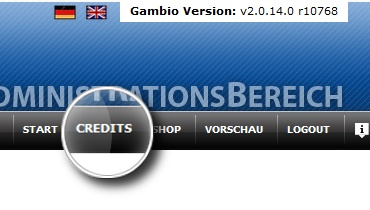
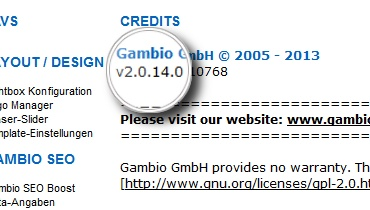
Stelle unbedingt sicher, dass die Versionsnummer im Dateinamen des Updates zu deiner bestehenden Shopversion passt. Es kann nicht als Update für Gambio GX, Gambio 2007 oder Gambio 2006 genutzt werden. Die Versionsnummer deines Shops findest du im Administrationsbereich unter Credits.
Hub-Connector Aktualisierung!
Bitte stelle vor dem Update sicher, dass der aktuelle Hub-Connector installiert ist. Die aktuelle Version zum Download ist im Gambio Kundenportal unter Hub-Connector Download nach Login verfügbar.
Hinweise für Updates von alten Shopversionen
Updates von Shops vor v3.1.x.x
In der Shopversion 3.3.x wurden Änderungen an der Rechnungserstellung vorgenommen: Ein Klick auf die Schaltfläche Rechnung erzeugt eine neue Rechnung mit einer neuen Rechnungsnummer!
MailBeez
Wenn du MailBeez verwendest, muss dieses vor dem Update aktualisiert werden, da es sonst zu kritischen Fehlern im Shop kommt.
Alte Templates
Die älteren gambio- und EyeCandy-Templates werden nach dem Update nicht mehr unterstützt. Schalte daher bereits vor dem Update unter Shop Einstellungen > Mein Shop auf das Honeygrid-Template um. Ist Honeygrid in deiner derzeitigen Version nicht vorhanden, sollte der Wechsel direkt nach dem Update erfolgen.
Updates von Shopversion v2.0: Änderungen an Zahlungsmodulen
- PayPal: bisherige PayPal-Module werden deaktiviert. Das klassische PayPal-Modul (
paypalbzw.paypalexpress) wird durch das PayPal und PayPal Plus-Modul in Version 3 ersetzt. Bisherige PayPal-API-Zugangsdaten können nicht weiterverwendet werden — neue Zugangsdaten erhältst du bei PayPal (Einrichtung siehe Kapitel PayPal und PayPal Plus des Handbuches). - Moneybookers: in Version 2.1 und neuer nicht mehr vorhanden. Alternativ kann Skrill verwendet werden (Module > Zahlungsweisen > Sonstige).
- CC: das alte Kreditkarten-Modul wurde aus dem Shop entfernt.
- iclear: dieses Modul ist ebenfalls nicht mehr im Shop vorhanden.
VRRL
Das Update-Paket enthält alle Bestandteile des Gambio VRRL-Updates in der aktuellen Version. Details zur Einrichtung findest du im Kapitel Verbraucherrechterichtlinie des Handbuches.
1. Changelog
Eine Liste der enthaltenen Änderungen findest du in der beigefügten Datei CHANGELOG.html sowie in den Release Notes.
2. Datensicherung
Führe zunächst eine komplette Datensicherung durch — sowohl aller Dateien und Ordner des Shops als auch der Shopdatenbank. Falls der Shop nach der Installation nicht wie gewünscht funktioniert, kannst du die Datensicherung einfach wieder einspielen. Eine Anleitung findest du in der Datei DATENSICHERUNG.txt.
3. Installation
3.1 Wichtig für Windows-Nutzer
Bei Microsoft Windows kann es aufgrund der Pfadlängenbegrenzung zu Problemen beim Entpacken kommen. Entpacke alle Dateien daher in einen Ordner möglichst weit oben im Verzeichnisbaum, z. B. C:\Gambio.
3.2 Update von Shopsystemen 2.0.7c bis 26.05.0
Achtung
Stelle vor dem Einspielen sicher, dass du im Gambio Admin eingeloggt bist! Das Update besteht aus zwei Schritten:
- Hochladen der Dateien
- Aufrufen des Gambio Updaters über
https://www.example.com/gambio_updater
Beide Schritte müssen vollständig erfolgt sein, damit das Update abgeschlossen werden kann!
Lade den gesamten Inhalt des Verzeichnisses Dateien aus dem Verzeichnis Shopsystem in das Hauptverzeichnis deines Shops auf deinem FTP-Server und überschreibe die vorhandenen Dateien.
3.3 Installation Filemanager
Lade den gesamten Ordner ResponsiveFilemanager (nicht nur den Inhalt) in das Hauptverzeichnis deines Shops hoch und überschreibe die vorhandenen Dateien.
Hinweis
Eine Aktualisierung des Filemanagers ist nur notwendig, wenn der Ordner ResponsiveFilemanager Bestandteil dieses Pakets ist.
3.4 Installation PDFCreator (optional)
Der PDFCreator ist ein eigenständiges Modul zum Erstellen von Rechnungen, Lieferscheinen und E-Mail-Anhängen (nicht unter GPL-Lizenz). Kopiere den gesamten Inhalt des Ordners PDFCreator in den Ordner PDFCreator im Hauptverzeichnis deines Shops und überschreibe die vorhandenen Dateien.
Hinweis
Eine Aktualisierung des PDFCreators ist nur notwendig, wenn der Ordner PdfCreator Bestandteil dieses Pakets ist.
3.5 Update der Shopdatenbank
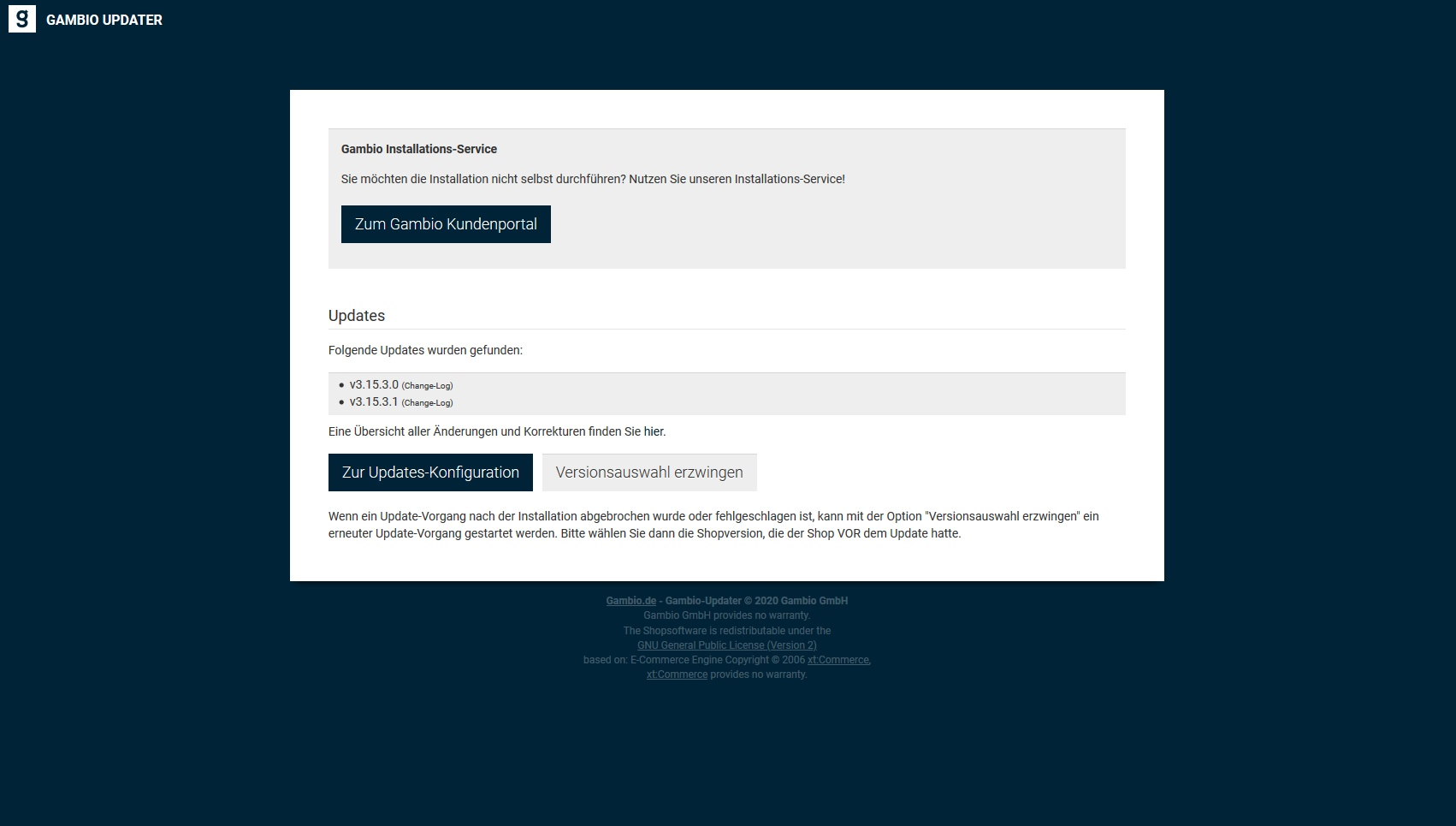
Rufe deinen Shop über https://www.example.com/gambio_updater auf (ersetze www.example.com durch die Domain deines Shops) und folge den Anweisungen des Gambio Updaters:
- Einloggen — mit deinen Admin-Daten, die du auch im Shop verwendest.
-
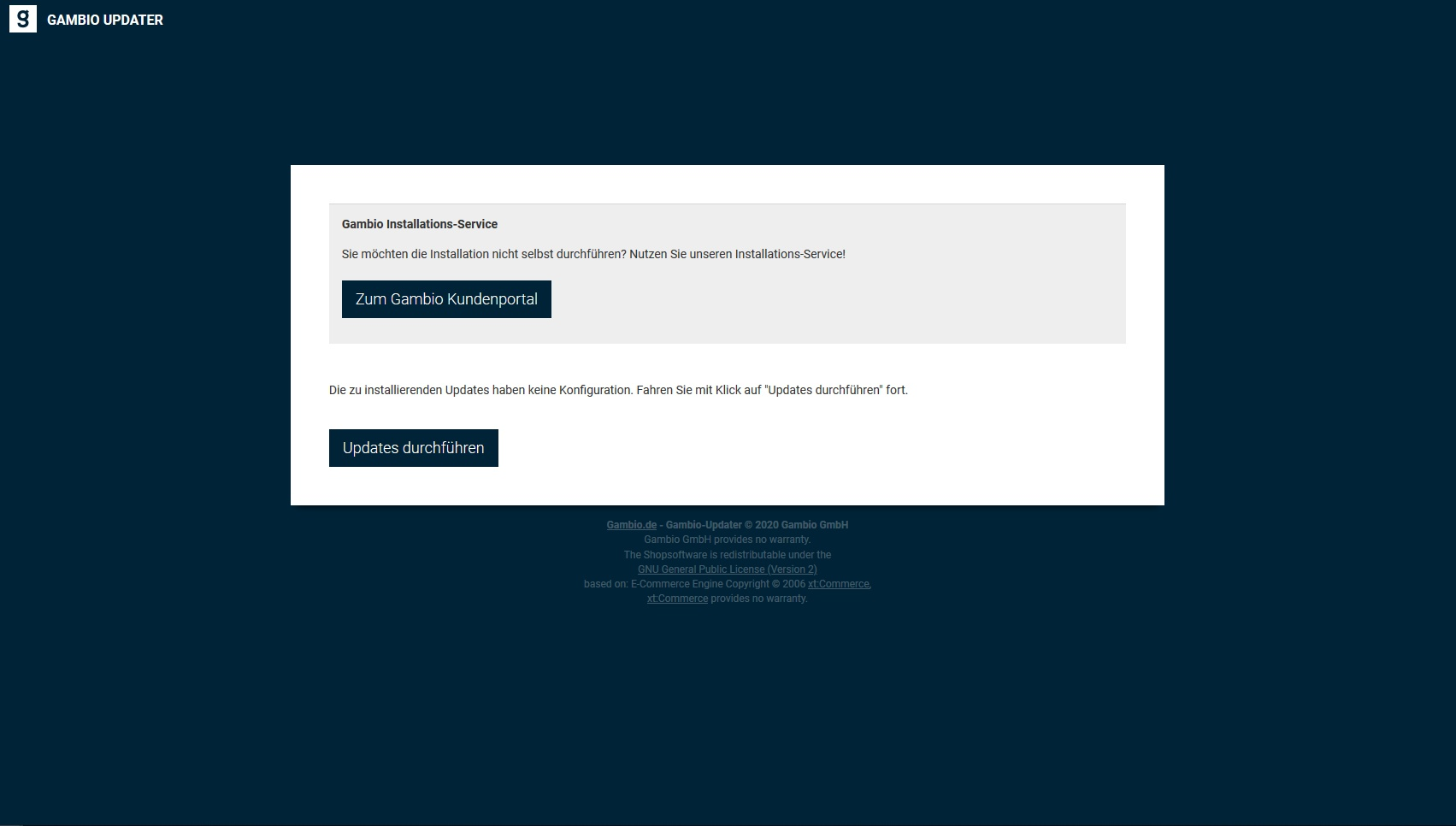
Updates bestätigen — klicke auf Zur Updates-Konfiguration, setze den Haken bei Versions-Info zur Kenntnis genommen und klicke auf Updates durchführen. Warte den Ablauf des Datenbankupdates ab.
-
Alte Dateien löschen — ggf. werden zu löschende Dateien in einer Liste angezeigt (Download der Löschliste / Dateien downloaden für eine Sicherung). Klicke Fortfahren.
- Klicke erneut auf Fortfahren — abschließend werden die Caches geleert, das kann einen Moment dauern.
-
Klicke auf Zum Shop, um den Gambio Updater zu verlassen.
Achtung
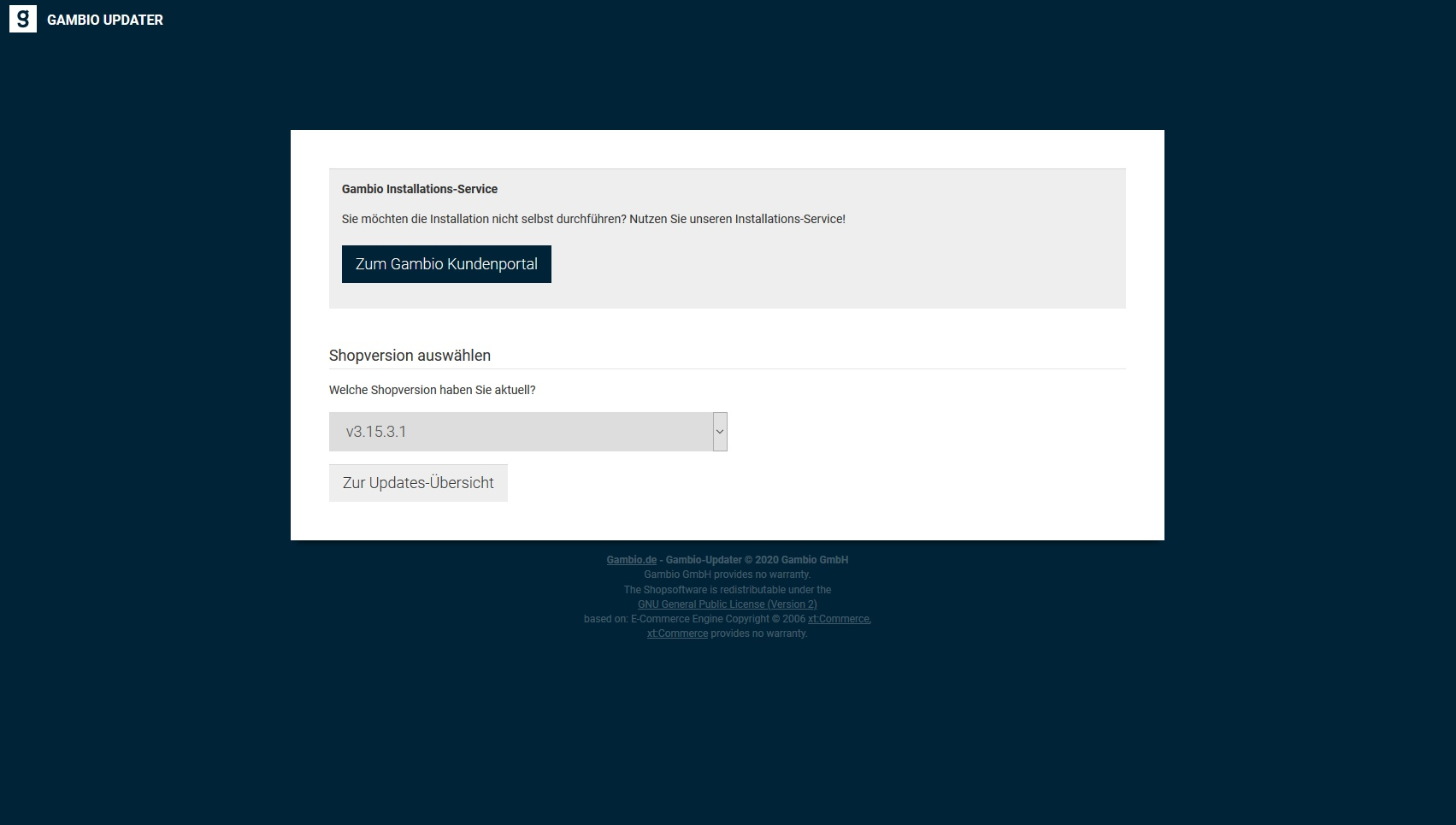
Die Schaltfläche Versionsauswahl erzwingen darf nur verwendet werden, wenn ein zuvor begonnener Update-Vorgang abgebrochen worden ist und der Updater erneut aufgerufen wird.
4. robots.txt aktualisieren
Nur nötig, falls dein Shop in einem Unterverzeichnis liegt: Wähle im Adminbereich Shop Einstellungen > SEO > Robots Datei, klicke auf Download und lade die neue robots.txt per FTP in das Hauptverzeichnis der Domain (nicht in den Shop-Ordner!). Die Datei muss über www.example.com/robots.txt erreichbar sein.
5. .htaccess aktualisieren
Die .htaccess-Datei im Hauptverzeichnis des Shops muss aktualisiert bzw. neu hinzugefügt werden. Ohne eigene Anpassungen kopierst du einfach die Vorlage aus gm/seo_boost_an/.htaccess in das Hauptverzeichnis; andernfalls gleiche deine Anpassungen mit der Vorlage ab.
Achtung
Wenn du zuvor Änderungen an einer bestehenden .htaccess-Datei vorgenommen hast, müssen diese erneut eingebunden werden.
6. Browser-Cache leeren
Nach der Installation kann es zu Darstellungsfehlern kommen, da alte Inhalte aus dem Browser-Cache geladen werden. Leere daher den Cache deines Browsers (meist Ctrl+Shift+R).
Weiße Seite im Admin?
Es kann vorkommen, dass statt des Gambio Admins nur eine weiße Seite angezeigt wird. Leere in diesem Fall den Browser-Cache.
7. Aktualisieren der E-Mail-Vorlagen
Nach dem Einspielen des Updatepakets sollten die Originalvorlagen für die E-Mails Bestellbestätigung, Admin: Änderung Bestellstatus und Passwortbestätigung wiederhergestellt werden, da es sonst zu Fehlern im Shop kommen kann:
- Gehe im Administrationsbereich zu Kunden > E-Mails > E-Mail Vorlagen.
- Wähle für die genannten Vorlagen Original wiederherstellen und klicke auf OK.
- Führe dies sowohl für die HTML- als auch die Textvorlagen in beiden Sprachen (Deutsch und Englisch) durch.
- Leere abschließend unter Toolbox > Cache den Cache für die E-Mail-Vorlagen.
Beachte, dass individuelle Änderungen hierdurch verloren gehen und ggf. erneut vorgenommen werden müssen.
8. Neuerungen in dieser Version
Die Neuerungen der jeweiligen Version findest du in den Release Notes.