Processing orders
In the Gambio Admin of your shop under Orders > Orders you will find an overview of all orders that were placed in the storefront or created manually in the Gambio Admin. The current state of an order is defined via order statuses, which are displayed in the Status column.
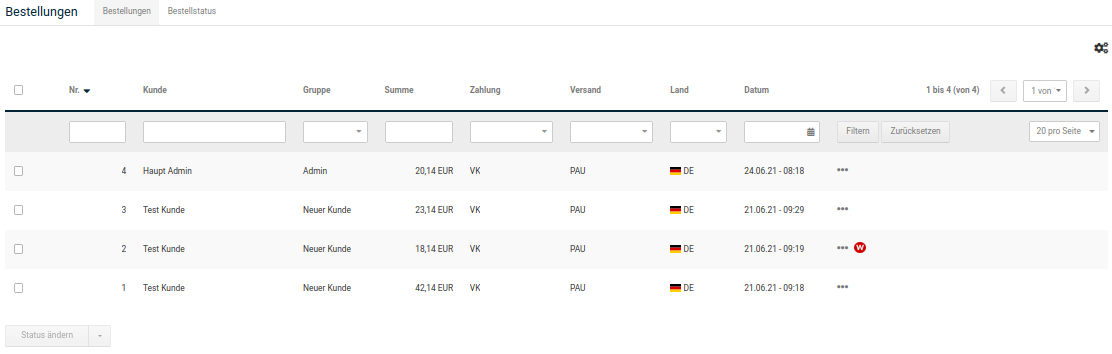
Via the gear icon (see red marking in the figure Order overview), the settings of the order overview can be accessed. In the upper part, the individual columns of the overview are listed. By ticking or unticking the checkbox behind the column name, the respective column can be switched on or off for display.
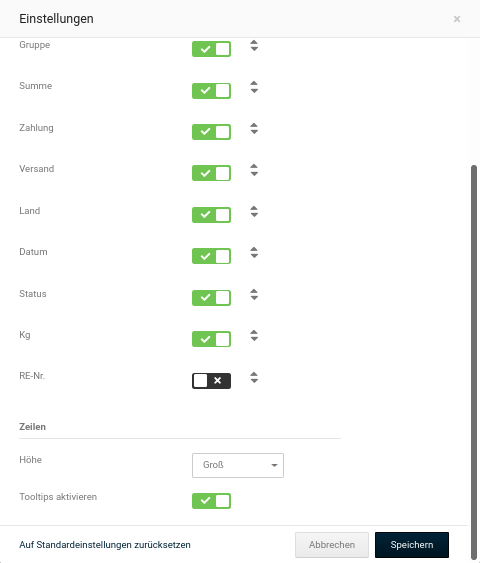
The order of the columns can be changed by moving the mouse pointer over the arrow icon and clicking and holding the left mouse button. Then drag the relevant column up or down to its new position and release the mouse button again.
Via the Height dropdown you can set the row height of the overview. Tick or untick the checkbox for Activate tooltips to switch the display of tooltips on or off.
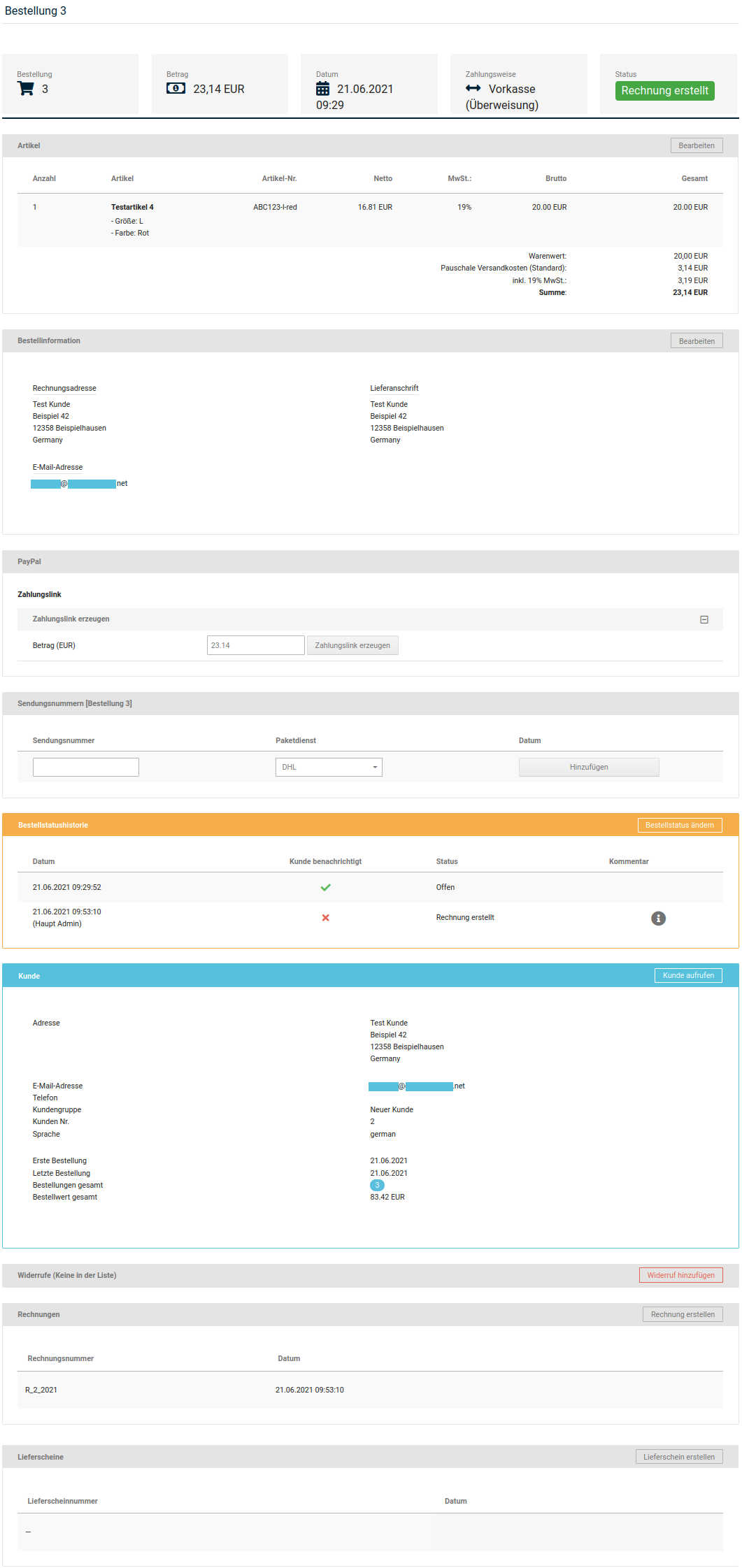
The details page of an order contains additional information, such as the payment method used, the shipping method and the invoice and delivery address.
- Select the desired order in the Orders list
- Click at the end of the row on Show or the eye icon

Note
The details page of an order contains all functions necessary for order processing. Essential functions are also available in the order overview for quick access.
Order status
The order status defines the current state of the order. The order status is visible both to the shop operator in the Gambio Admin of the shop and to the customer in the storefront.
Changing the order status of an order
You can change the order status of an individual order on the details page of the order in the Gambio Admin under Orders > Orders.
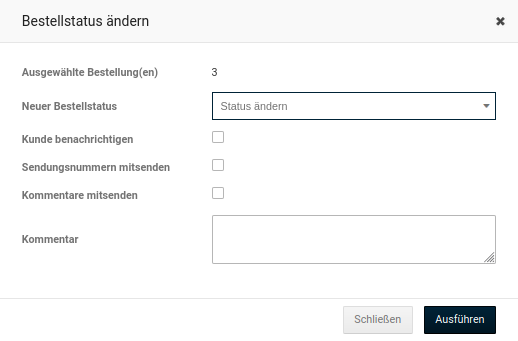
- Click on the coloured status display or the Change order status button and select the new order status from the New order status list
- Activate the checkbox Notify customer if the customer is to be informed by e-mail about the change of the order status
- Activate the checkbox Send comments if the content of the Comment field is to be sent along in the notification
- Activate the checkbox Send tracking number if you want to send the customer the tracking number and the tracking link of the respective shipping service provider with the e-mail notification.
- If you have activated the checkbox Send comments, enter a personal comment in the Comment field that is to be sent along in the notification
- Click on Execute to update the order status and, depending on the selection, send the customer a notification by e-mail
The new order status can be viewed by the customer in the storefront under Your account > Orders. If you have activated the notification, the customer will also be informed by e-mail about the change of the status of their order.
Changing the order status of several orders at the same time
You can change the order status of several orders at the same time in the order overview under Orders > Orders.
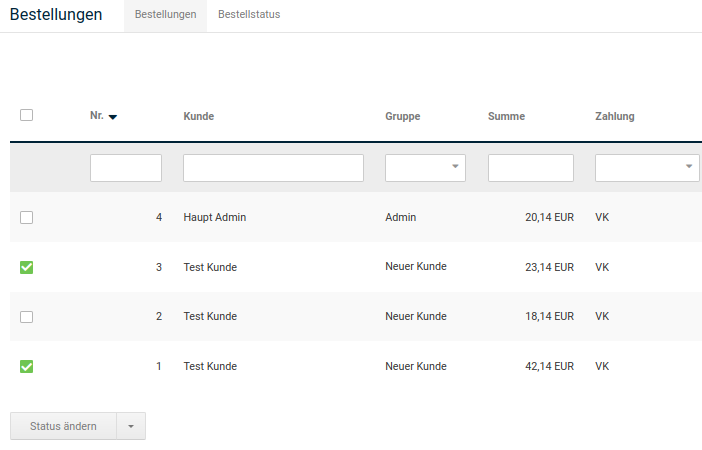
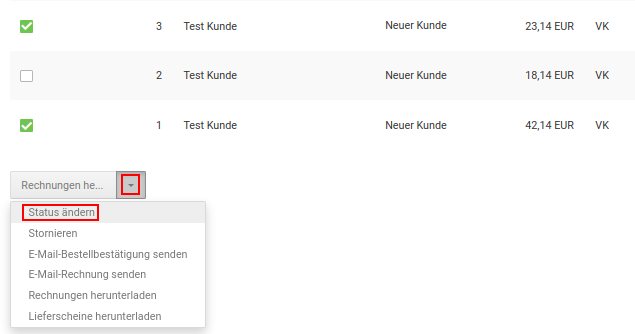
- Activate the checkboxes in the first column of the order overview list for the orders whose order status is to be changed
- Select Change status via the dropdown button and select the new order status for all activated orders
- Activate the checkbox Notify customer if the customers of the orders are to be informed by e-mail about the change of the order status
- Activate the checkbox Send tracking numbers if you want to send the customers the tracking number and the tracking link of the respective shipping service provider with the e-mail notification.
- Activate the checkbox Send comments if the content of the Comment field is to be sent along to the customers in the notification
- If you have activated the checkbox Send comments, enter a comment in the Comment field that is to be sent along to all customers in the notification
- Click on Execute to update the order status and, depending on the selection, send the customers a notification by e-mail
The new order status can be viewed by the customers of the selected orders in the storefront under Your account > Orders. If you have activated the notification, the customers will also be informed by e-mail about the change of the status of their orders.
Creating an order status
You can create new order statuses in the Gambio Admin of your shop under Orders > Orders > Order status. To do this, click on Create.
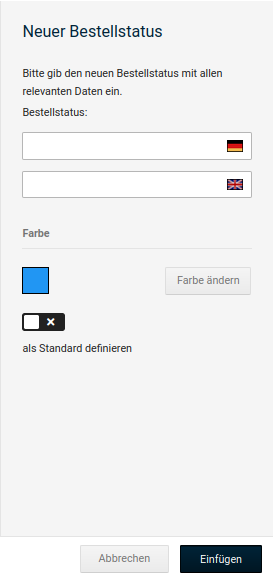
- Enter a name for the new order status in the Order status field
- Activate the setting define as default if the new order status is to be automatically assigned to every incoming order
- Click on Insert to create the new order status
Deleting an order status
You can delete existing order statuses in the Gambio Admin of your shop under Orders > Orders > Order status. The default order status as well as fixed order statuses cannot be deleted.
-
Select the order status to be deleted from the Order status list
The currently selected order status is highlighted in grey
-
Click on Delete in the right-hand column
- Make sure in the right-hand column that you have selected the correct order status and click on Delete again to confirm the deletion
Attention
Only delete order statuses that are not assigned to any order. Orders whose order status has been deleted are no longer displayed in the order overview and can only be accessed via the direct search.
Order confirmation
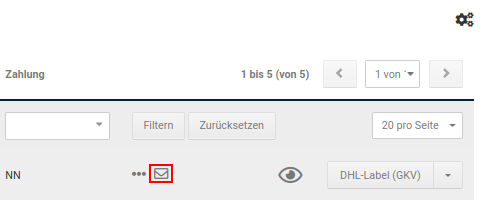
In the basic configuration, the order confirmation is automatically sent to the customer after receipt of an order and to the e-mail addresses stored under Customers > E-mails > E-mail options in the field Billing - forwarding addresses. If no order confirmation was sent by the shop system for an order, the affected order is marked with an envelope icon in the order overview under Orders > Orders.
Note
For manually created orders, no automatic order confirmation is sent by the shop system.
Displaying the order confirmation
The order confirmation can be displayed for a quick view from the Gambio Admin of your shop. In the order overview under Orders > Orders, click on the entry Show order confirmation of the dropdown button. The order confirmation for the selected order is opened in a new window.
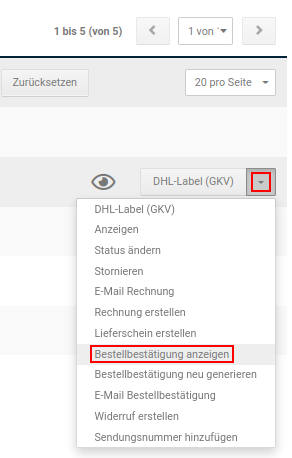
Sending the order confirmation
You send the order confirmation for an order manually in the Gambio Admin of your shop under Orders > Orders. You can enter the recipient's e-mail address individually.
- Select the order from the order overview for which you want to send an order confirmation
-
Click on E-mail order confirmation via the dropdown button
You will also find the function for sending the order confirmation on the details page of the selected order at the bottom
-
Enter a different subject for the confirmation e-mail in the Subject field
- Enter the recipient's e-mail address in the E-mail field
- Click on Send to send the confirmation e-mail to the specified e-mail address
Regenerating the order confirmation
If you make changes to an order, as described under Editing an order, you must regenerate the confirmation e-mail. In the order overview, select the order for which you want to regenerate the confirmation e-mail and click on Regenerate order confirmation via the dropdown button.
Invoice & delivery note
Note
The options for invoice and delivery note are only available in conjunction with the PDFCreator add-on module, which must be installed separately. The necessary steps are described in the installation instructions.
You can generate the invoice and the delivery note for an order on the details page of the order in the Gambio Admin of your shop under Orders > Orders. Instructions for configuring the invoice and delivery note can be found in the chapter Configuring invoice & delivery note.
Creating an invoice
If you want to send the invoice for an order by post, for example with the delivery, create the invoice in the Gambio Admin of your shop under Orders > Orders.
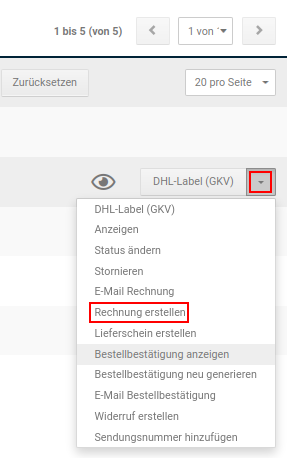
- Select the order from the order overview for which you want to generate an invoice
-
Click on Create invoice in the dropdown button
You can also execute the Create invoice function on the details page of the order below the order details
-
The order status of your order changes to Invoice created, the invoice is generated and displayed in the web browser
Attention
Each click on Create invoice generates a new invoice with its own invoice number. To view it, please click on Show invoice instead.
Sending the invoice by e-mail
If you send the invoice by e-mail, it does not have to be generated beforehand. You can send the invoice in the Gambio Admin of your shop under Orders > Orders.
- Select the order from the order overview for which you want to generate an invoice
-
Click on E-mail invoice in the dropdown button
You can also execute the E-mail invoice function on the details page of the order below the order details
-
The order status of your order changes to Invoice created, the invoice is generated and sent to the customer by e-mail
Creating a delivery note
If you want to enclose a delivery note with your delivery, create the delivery note in the Gambio Admin of your shop under Orders > Orders.
- Select the order from the order overview for which you want to generate a delivery note
-
Click on Create delivery note in the dropdown button
You can also execute the Create delivery note function on the details page of the order below the order details
-
The order status of your order remains unchanged, the delivery note is generated and displayed in the web browser