Configuring invoice & delivery note
You can adjust the appearance of the invoice and delivery note under Settings / System / Invoice & Delivery note, after opening the page.
Content
On the Content tab, you can specify content that should appear on all invoices.
Header section
On the Content tab in the Header section area, you can enter your company address and the content for the subject line. Enter the desired data and click on Save.
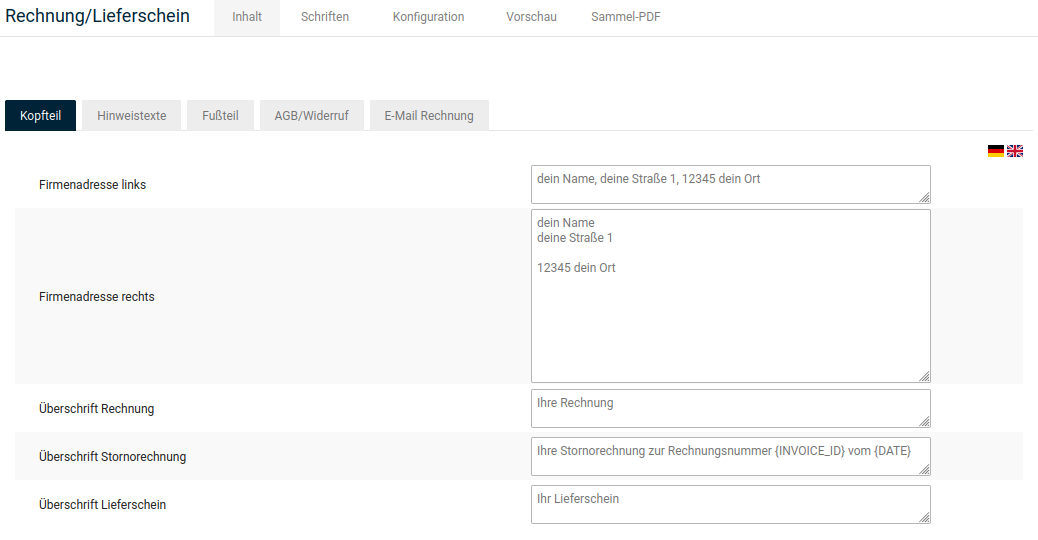
If you want to use the header section of the invoice, select the value ✔ on the Configuration tab in the Display section for the list Use header section?.
Notice texts
On the Content tab in the Notice texts section, you can store notice texts for the invoice and the delivery note, which are printed on every invoice. Enter the desired data and click on Save.
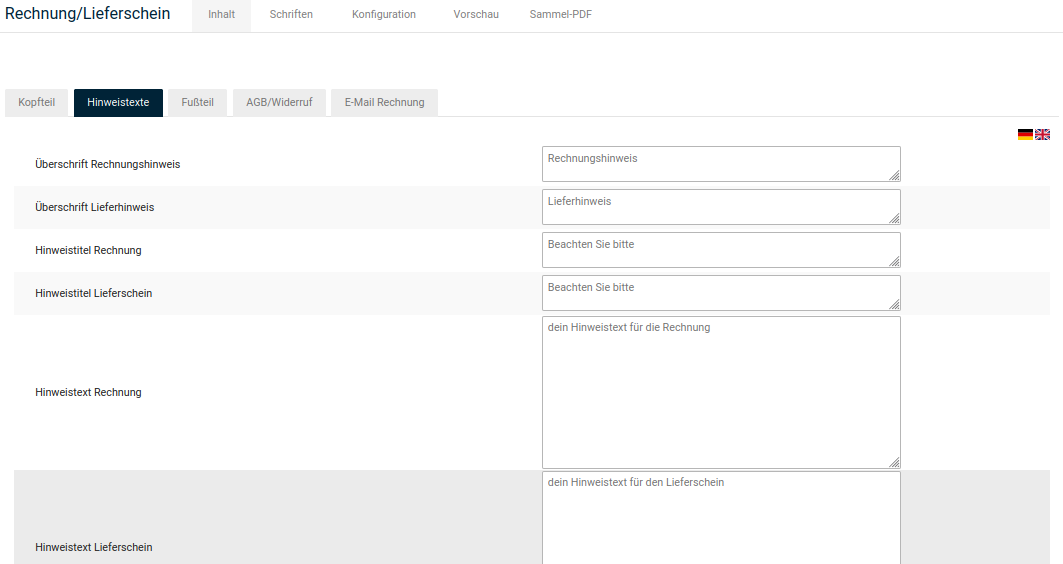
If you want to use the notice texts, select the value ✔ on the Configuration tab in the Display section for each of the checkboxes Use notice? and Use notice text?.
Footer section
On the Content tab in the Footer section area, you can enter your company address and the content for the footer of the invoice. The footer always contains four columns. Enter the desired data and click on Save.
If you want to use the footer section of the invoice, select the value ✔ on the Configuration tab in the Display section for the checkbox Use footer section?.
If one of the columns should contain bank details, set the check mark under Column contains bank details for each of them.
Terms & Conditions/Withdrawal
On the Content tab in the Terms & Conditions/Withdrawal section, you can enter the terms and conditions and the withdrawal instructions that should be displayed on the PDF invoice. Enter the desired data and click on Save.
If you want to use your terms and conditions and the right of withdrawal on the invoice, select the value ✔ on the Configuration tab in the Display section for each of the checkboxes Use terms and conditions? and Use withdrawal?.
Email invoice
On the Content tab in the Email invoice section, you can define the content of the subject line for the invoice email. Enter the email subject for the invoice email in the field Email subject and click on Save. A field for a different subject when generating multiple invoices is also available.
Fonts
On the Fonts tab, you can set the fonts, font colors and font sizes that are used on the invoice.
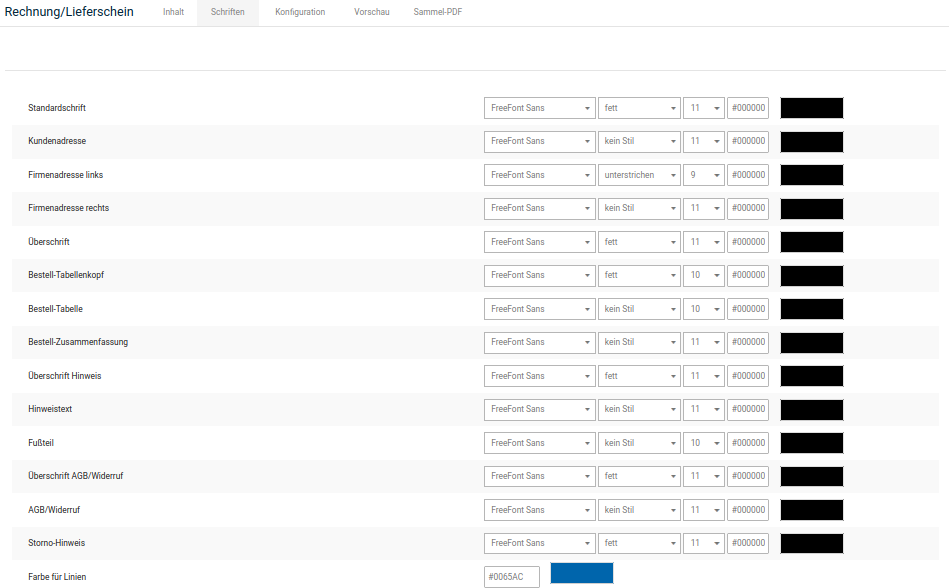
- Select the font from the first list of a font
- Select the font style from the second list of a font
- Select the font size from the third list of a font
- Enter the font color in hexadecimal coding in the text field of a font, or select the desired font color with the color wheel to the right of the text field
After making changes, click on Save to apply the changes for future invoices.
-
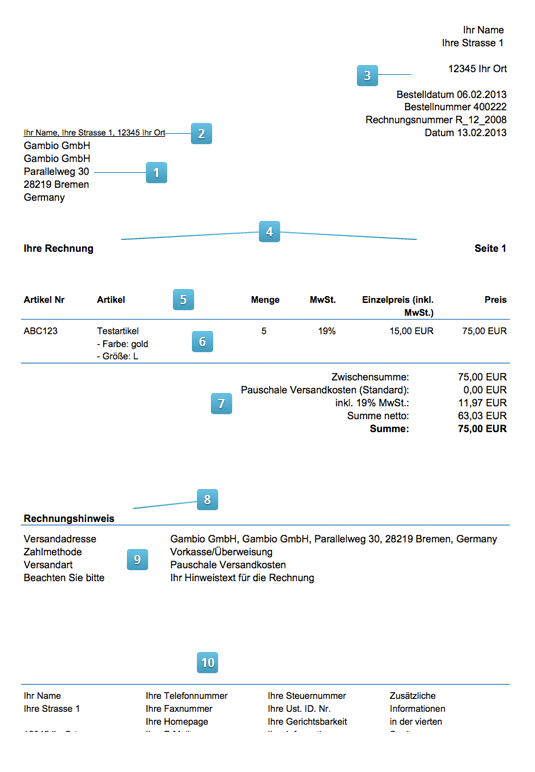
Customer address
The customer address is displayed on the left in the address window
-
Company address left
The company address left is displayed above the customer address
-
Company address right
The company address right is displayed on the right in the header section of the invoice
-
Heading
The Heading font is used for the subject and the page numbers
-
Order table header
The order table header is the title row of the product list
-
Order table
The order table contains the products of the order
-
Order summary
The order summary contains the totals block
-
Notice heading
The heading for the notice is displayed below the totals block
-
Notice text
The notice text is displayed below the heading for the notice
-
Footer section
The footer section is displayed at the bottom of every page
Configuration
On the Configuration tab, you can control which content should be displayed on the invoice and how the selected content is displayed.
Display
On the Configuration tab in the Display section, you select which content is printed on the invoice. Use the checkbox next to the desired content to set the value ✔ if the content should be displayed, or ✖ if the content should not be displayed.
After making changes, click on Save to apply the changes for future invoices.
Layout
On the Configuration tab in the Layout section, you can specify the margins on the invoice. With the lists Zoom factor of the PDF in the reader and Page layout of the PDF in the reader you set the behavior of the PDF invoice in the PDF viewing program. In the Output mode list, you can select whether PDF files are displayed in the browser after being generated or downloaded directly.
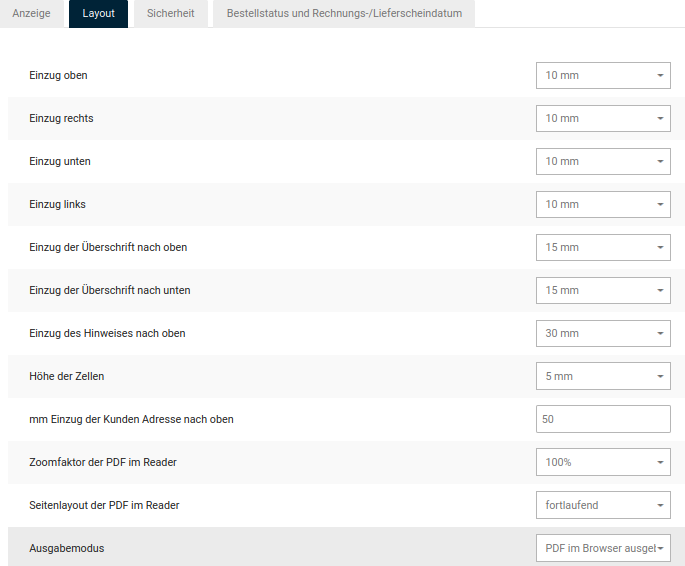
After making changes, click on Save to apply the changes for future invoices.
Security
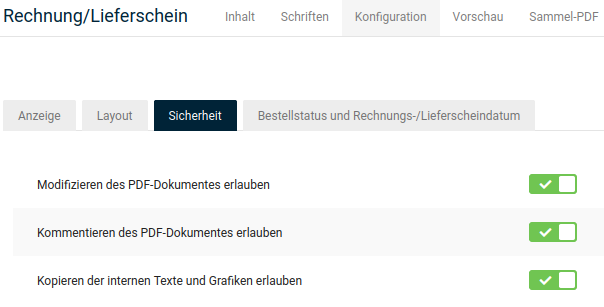
On the Configuration tab in the Security section, you can specify the PDF security settings. After making changes, click on Save to apply the changes for future invoices.
Order status and invoice date
On the Configuration tab in the Order status and invoice date section, you define which order status an order should receive when the invoice has been created or sent by email. In the list Order status to be used for determining the invoice date, select the order status that should be used for determining the invoice date. The time at which the configured order status was first reached is used as the invoice date on the invoice.
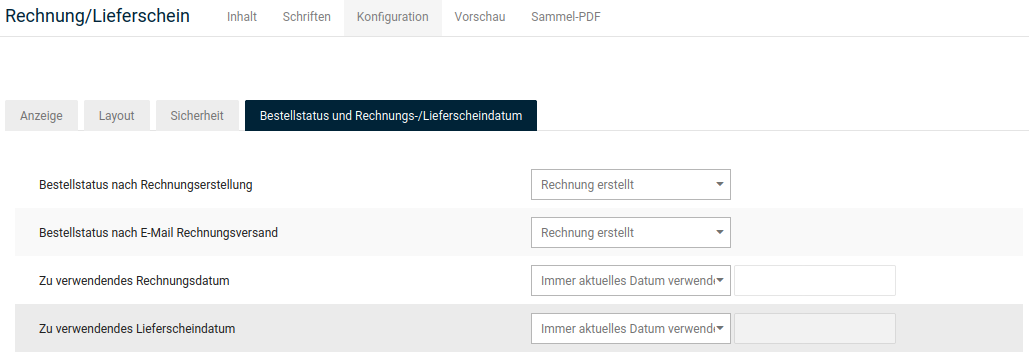
After making changes, click on Save to apply the changes for future invoices.
Preview
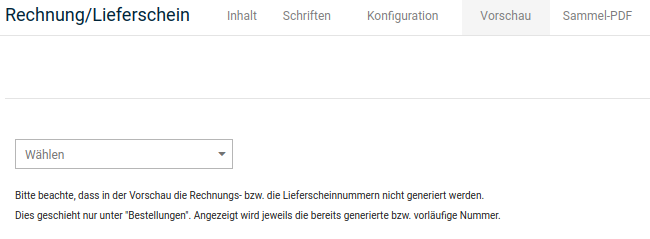
On the Preview tab, you can create a preview of an invoice or a delivery note with the current configuration.
Note
You can only generate the invoice preview if at least one order has already been received in your shop. If you are still setting up your shop, create a test order first.
- Select an order from your shop from the Select list
- Click on Invoice to generate a preview of the invoice for this order
- Click on Delivery note to generate a preview of the delivery note for this order