Tax
Attention
Changes to the tax settings can result in taxes no longer being calculated in your shop. Under certain circumstances, incorrect tax settings can prevent any totals from being calculated at all.
Admin accounts have a different priority in tax calculation than regular customer accounts and therefore do not use the configured tax settings one to one. Changes should therefore not be tested with an admin account, but with an account of the corresponding customer group.
The tax settings are set for Germany by the installation routine. If you operate your online shop in another country, the tax settings usually need to be adjusted.
Note
If you need to make changes to the tax rates, consult your tax or legal advisor beforehand about the settings that apply to you.
Necessary changes within the EU
If you operate your online shop in the European Union, changes to the tax rates under Settings / Languages, Countries, Taxes / Tax rates, after opening the page, are necessary if the tax rates in your country differ from those in Germany.
- Select the tax rate Standard rate for the tax zone Tax zone EU
- Click on Edit
- Change the value in the field Tax rate to the tax rate valid for your country
-
Adjust the description according to the tax rate
Note that, for technical reasons, the description must end with % MwSt..
-
Make the changes for your country in the tax rate reduced tax rate for the tax zone Tax zone EU
Necessary changes outside the EU
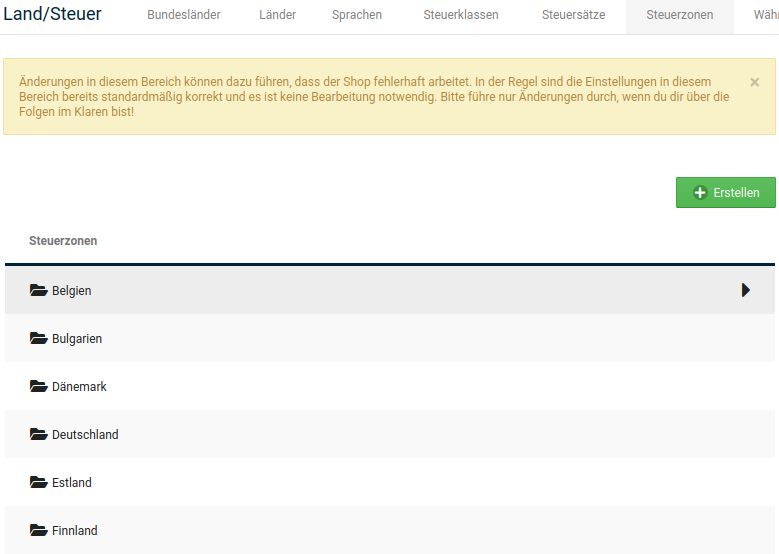
If you operate your online shop outside the European Union, you must create a new tax zone for your country under Settings / Languages, Countries, Taxes / Tax zones, after opening the page.
-
Click on Create
The input form for a new tax zone opens in the right column.
-
Enter a name for the new tax zone in the field Name of the tax zone
- Enter a short description of the tax zone in the field Description
-
Click on Insert
The new tax zone is added in the left column.
-
Select the new tax zone
The active tax zone is highlighted in grey.
-
Click on Details (►)
- Click on Create
- From the list Country in the right column, select the country from which you operate your shop
- Leave the value All federal states selected in the list Federal state
- Click on Insert
Your country has been added to the new tax zone.
Now remove your country from the tax zone Tax zone EU foreign countries under Settings / Languages, Countries, Taxes / Tax zones, after opening the page.
-
Select the tax zone Tax zone EU foreign countries
The active tax zone is highlighted in grey.
-
Click on Details (►)
- Select your country in the country list
- Click on Delete in the right column
- Click on Delete again to confirm the deletion
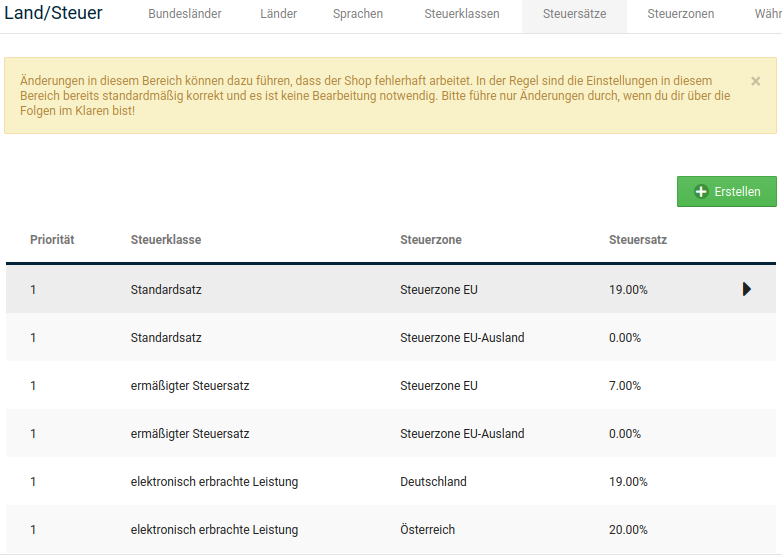
Now define the tax rates for your country. To do this, create new tax rates under Settings / Languages, Countries, Taxes / Tax rates, after opening the page.
-
Click on Create
The input form for a new tax rate opens in the right column.
-
Select the desired tax class from the list Name of the tax class
- Select the new tax zone from the list Tax zone
-
Enter the tax rate valid for your country as a percentage in the field Tax rate (%)
For fractional tax rates, use a period as the decimal separator.
-
In the field Description, enter the description for the tax rate that is to be displayed in the totals block
Note that, for technical reasons, the description must end with % MwSt..
-
Enter the priority of the tax rate in the field Priority
The standard rate and the reduced tax rate should be assigned the same priority if mixed tax rates are to be added together in the totals block.
-
Click on Insert
- Repeat the process if additional tax classes are required for your country
Tax classes
Under Settings / Languages, Countries, Taxes / Tax classes, after opening the page, you will find the individual tax classes. These are used so that the individual tax rates can be configured using a corresponding identifier. By default, the tax classes reduced tax rate, electronically supplied service and standard rate are present in the shop.
Attention
Changes in this area can cause the shop to work incorrectly. As a rule, the settings in this area are already correct by default and no editing is necessary. Please only make changes if you are aware of the consequences!
By clicking on the Create button, another tax class can be created and added. At least a name must be assigned here. Clicking on Insert creates the tax class with the entries made. Clicking on Cancel discards the entries.
Existing tax classes can be adjusted after selection (the row is highlighted in grey) by clicking on the Edit button. Clicking on Delete removes the respective tax class.
Moving countries to other tax zones
Note
We assume the default settings here, i.e. that, for example, the tax rates have not been changed so far.
Whether taxes are calculated for orders from a specific country depends, among other things, on the respective tax zone in which the country in question has been entered. For countries in the Tax zone EU, 19% VAT is calculated as the standard rate and 7% VAT as the reduced rate by default. Within the Tax zone EU foreign countries, both rates are 0%.
Not calculating taxes for certain countries
If you do not want to calculate tax for certain countries, you can remove them from the Tax zone EU and move them to the Tax zone EU foreign countries.
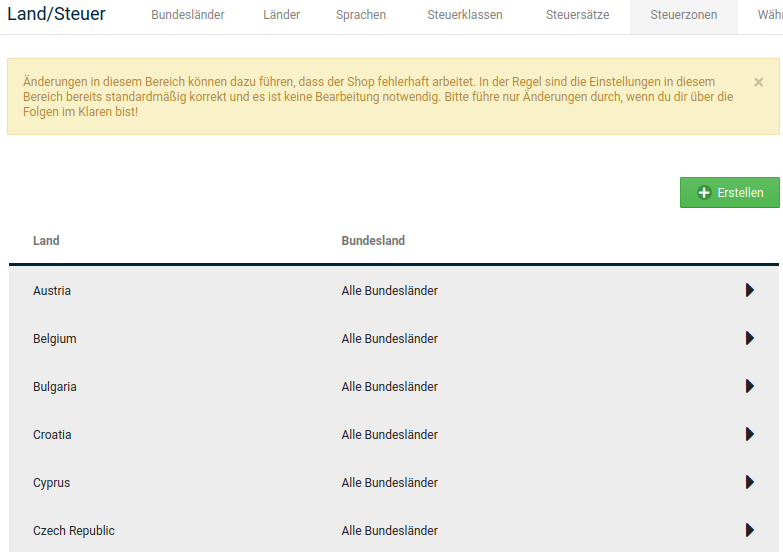
To do this, go to Settings / Languages, Countries, Taxes / Tax zones, after opening the page, and switch to the second page. Select the Tax zone EU with a mouse click and then switch to the detail view via the triangle symbol. Select the respective country and click on Delete. Confirm the security prompt if no taxes are to be calculated for the country in question.
Now select the Tax zone EU foreign countries and open the detail view there as well, as described above. Click on Create to create the previously deleted countries under the new tax zone.
Calculating taxes for certain countries
If you want to calculate taxes for certain countries, you can remove them from the Tax zone EU foreign countries and move them to the Tax zone EU.
To do this, go to Settings / Languages, Countries, Taxes / Tax zones, after opening the page, and switch to the second page. Select the Tax zone EU foreign countries with a mouse click and then switch to the detail view via the triangle symbol. Select the respective country and click on Delete. Confirm the security prompt if taxes are to be calculated for the country in question.
Now select the Tax zone EU and open the detail view there as well, as described above. Click on Create to create the previously deleted countries under the new tax zone.
Tax rates
Introduction
On 01.07.2021, a change in the law comes into force, according to which, from a total turnover of 10,000 euros per year in other EU countries, the tax rate of the respective country must be displayed, calculated and paid. In addition to the standard rate and reduced tax rate, there is a whole range of more specialised tax classes that may apply depending on the type of product, such as for foodstuffs or books.
In this chapter, we describe the relationships between the components used in the shop for tax calculation (tax classes, tax zones and tax rates) and explain, using an example, how a tax rate can be created for such a case.
Attention
Within the scope of this manual, we can only describe the technical functions and procedures in the shop, but cannot provide a tax law classification. Please contact your legal advisor or tax consultant or our partners for legal certainty.
You can find a list of our partners for legal certainty at the following link:
https://www.gambio.de/shop/schnittstellen
Components of the tax calculation and their function
Tax class
The tax class determines which type of tax rate is calculated, depending on what type of product is sold. By default, the tax classes Standard rate, reduced rate and electronically supplied service are available in the shop for this purpose. The tax class is set in the respective product or in the associated module (e.g. shipping module).
Due to the new regulations, it is now more likely that you will need new tax classes, e.g. for books or foodstuffs.
Tax zone
Until now, mainly the Tax zone EU and Tax zone EU foreign countries have been used in the shop. This has simplified the configuration, since specifying one tax zone includes many countries that do not have to be specified individually.
Note
The shop also contains a separate tax zone for each EU country. These special zones were previously only intended for the special case of the tax class electronically supplied service.
Attention
If tax rates with the tax class standard rate or reduced rate are used in the shop for the tax zones of individual EU countries, the tax zone EU must not be used for these rates, as this would otherwise result in the tax being calculated twice.
Tax rate
The tax rate represents the actual use case. The following is configured for each tax rate:
- Tax class: which type of tax rate is calculated here (standard rate, reduced rate, foodstuffs, books, etc.)?
- Tax zone: for which tax zone (can contain one or more countries) is this tax rate calculated?
- Tax rate (%): the actual percentage value that is calculated
Creating a new tax rate
Tax settings can be made in the shop under Settings / Languages, Countries, Taxes. Scroll down here to one of the areas Tax classes, Tax zones or Tax rates or enter the respective term in the search field and click on the button Open.
Attention
The cases described here are purely fictional examples to describe the necessary settings. We do not claim at any point that the values used are correct or applicable to the respective use case.
New tax rate for an existing tax zone
Example
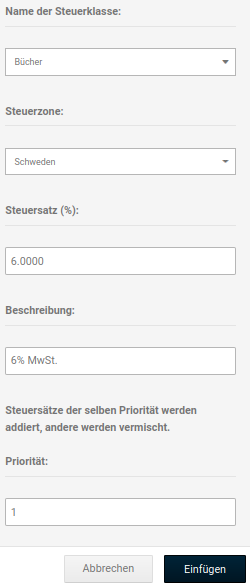
Books are to be sold to Sweden. The tax rate is 6%. If a tax rate is to be created for one country, the existing tax zones can be used.
Creating a tax class
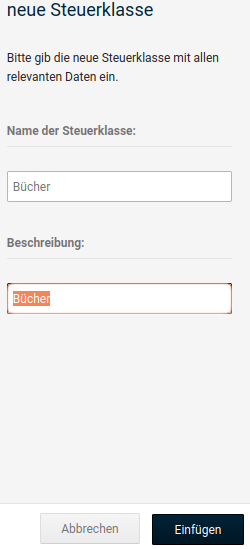
To do this, first go to the Tax classes tab and click on the Create button. Enter the name of the tax class and optionally a description here. Confirm by clicking on the Insert button.
Creating a tax rate
Then switch to the Tax rate tab and click on the Create button. Enter the information following the same pattern as shown in the illustration below.
Attention
The exact notation must be adhered to in every case! Pay particular attention here that the decimal places for the tax rate must be separated with a period.
The description must necessarily be specified according to the pattern NUMBER% MwSt..
The priority should be set to 1 for all tax rates.
Note
If in doubt, you can 'crib' from one of the rates created by default, such as the Standard rate for the Tax zone EU, to use the correct notation
Assigning the tax class
Finally, the new tax class can be assigned to the products in question. To do this, edit them under Products > Products/Categories and scroll all the way down in the product form to the section Price options.
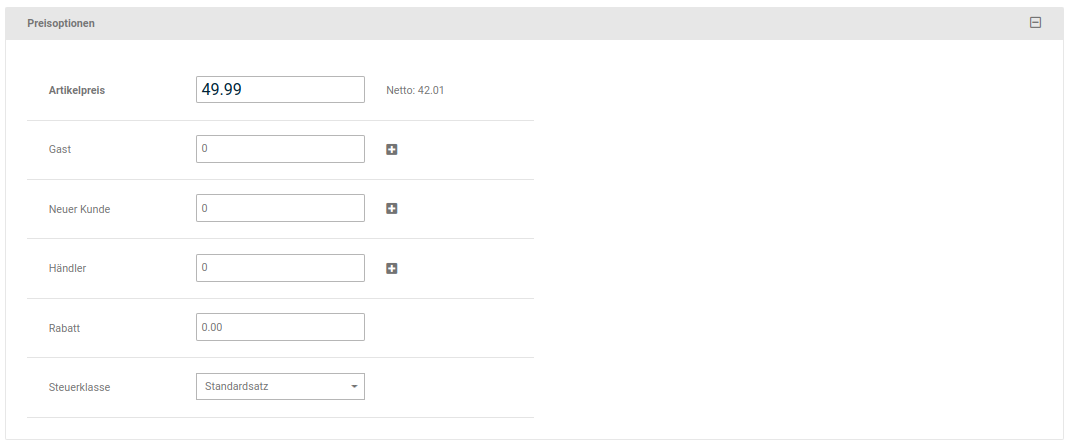
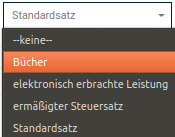
Here, under Tax class, select the new entry Books.
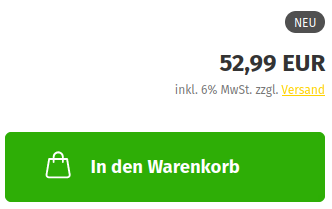
For customers from Sweden, the new tax rate is now displayed for the product in question:
Note
The changes may only become visible after logging in to the shop again.
In addition, an admin account should not be used for the check, as it uses different tax settings by default.
Combining several countries in one tax zone
If the same tax rate is calculated in several countries for the same product group, it makes sense to combine these countries in one tax zone.
Example
In Bulgaria, France and Austria, the same tax rate of 20% is calculated for child car seats.
Creating a tax zone
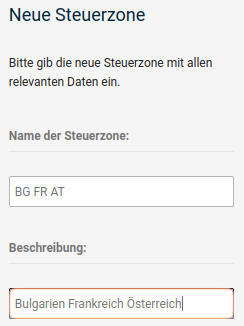
Switch to the Tax zones tab and click on the green Create button. Enter a name for the tax zone and optionally a description.
Note
The number of characters for Name of the tax zone is limited. More extensive information should therefore be stored as Description.
Adding countries to the new tax zone
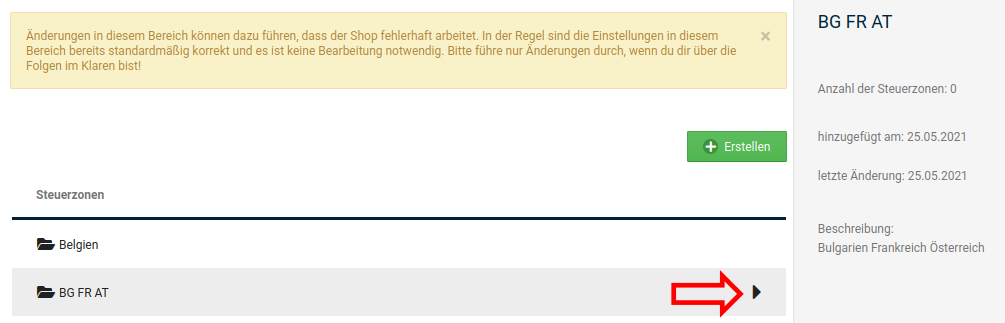
The new tax zone does not yet contain any countries. By clicking on the black triangle at the end of the row, the detail view can be opened to add countries:
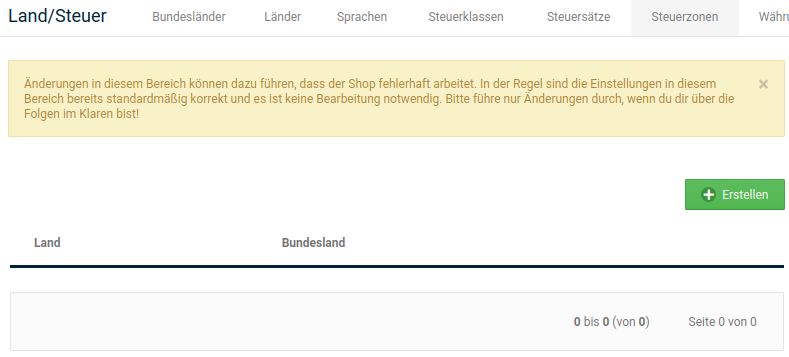
Click on the Create button to add a country to the zone:
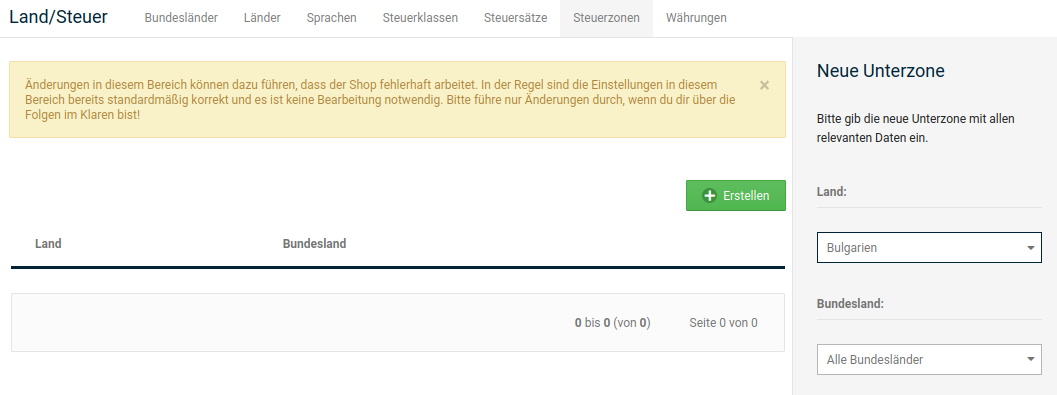
Select the country from the dropdown and click on Insert.
Attention
Under Federal state, the entry All federal states must be selected.
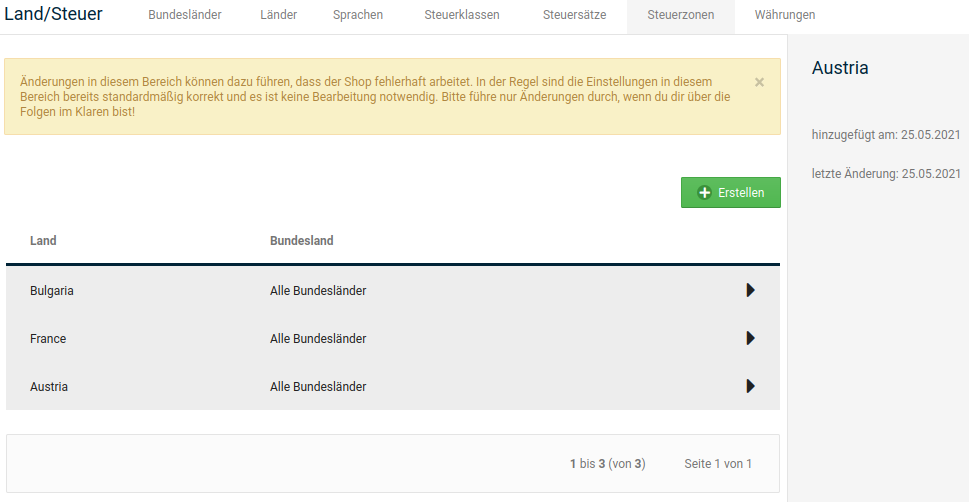
Repeat this until all desired countries have been created in the tax zone.
Continue as described under New tax rate for an existing tax zone and create the required tax class and the new tax rate.
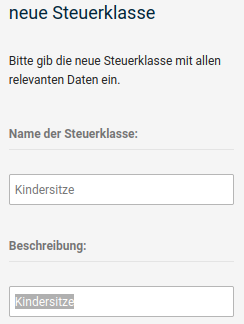
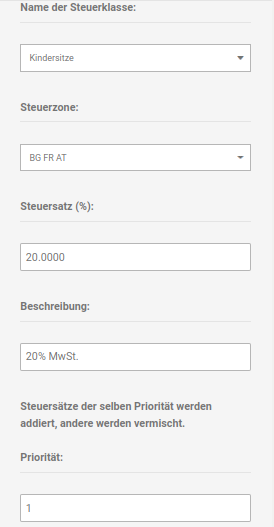
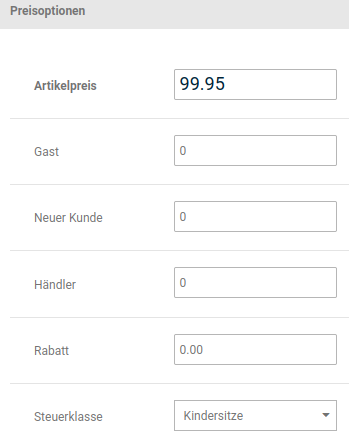
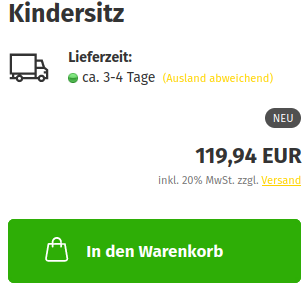
After making all the settings, the new tax rate for child car seats is displayed for Bulgaria, France and Austria.