Order Totals
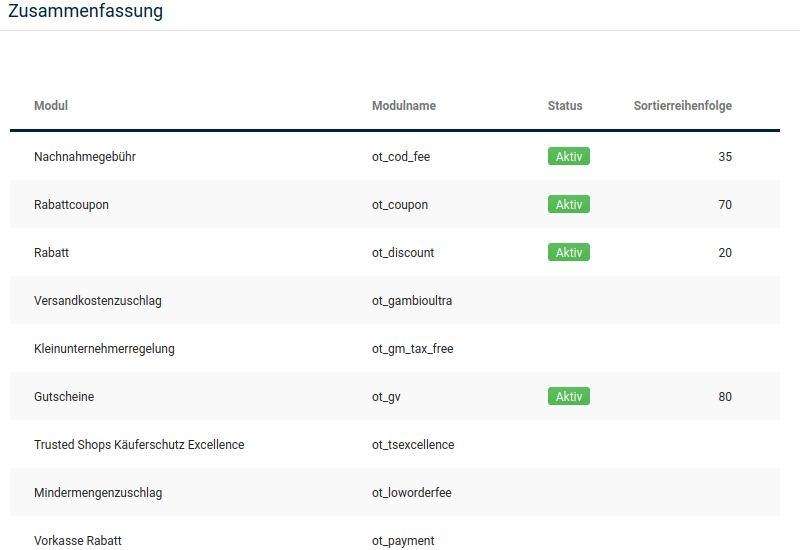
Discounts
Discount coupons
The module Discount coupons is required to take discount coupons into account when calculating the totals.
Discount
The module Discount is required to take customer group discounts into account when calculating the totals.
Gift vouchers
The module Gift vouchers is required to take gift vouchers into account when calculating the totals.
Prepayment discount
With the module Prepayment discount, you grant an invoice discount on certain payment methods.
Installation
The module can be installed under Modules > Order Totals,
Attention
As soon as a discount scale has been created, payment methods must also be specified for it; otherwise, problems can occur in the ordering process.
Configuration
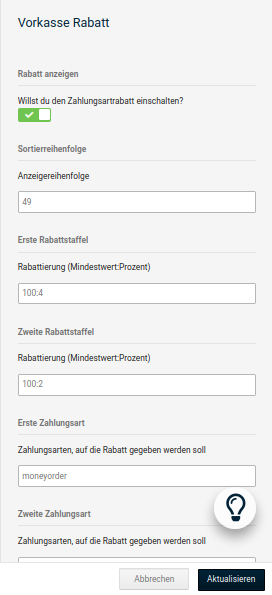
| Field name | Description |
|---|---|
| Display discount | Here the module is activated or deactivated. |
| Sort order | The sort order affects the calculation of the individual items in the order summary. Changes should therefore be avoided if possible. The default value here is 49. |
| First discount scale | The first discount scale can be stored here. With 100:4, a 4% discount is granted for orders of 100 euros or more. This discount scale refers to the payment modules that were specified under First payment method. |
| Second discount scale | The second discount scale can be stored here. With 100:4, a 4% discount is granted for orders of 100 euros or more. This discount scale refers to the payment modules that were specified under Second payment method. |
| First payment method | Here, the payment method to which the discount should apply is stored using the module name. For invoice, invoice would have to be entered. The names of the modules can be found under Modules > Payment methods > Other in brackets after the module names. Several payment methods can be stored for one discount if they are specified comma-separated and without spaces, e.g. paypal,cod. |
| Second payment method | See First payment method. |
| Including shipping costs | Specifies whether the shipping costs should also be discounted or whether only the pure merchandise value should be used as the basis for the discount |
| Including VAT | Determines whether the value added tax should be recalculated after the discount is applied. This would reduce the tax. |
| Allowed zones | Here, the display of the module can be restricted to certain countries. The entry DE,AT,CH ensures that the module is only displayed for Germany, Austria and Switzerland. |
| Tax class | Here you select which tax rate should be assumed. The discount amount then contains a proportionate share of value added tax. If no tax class is selected, the discount amount accordingly does not contain any tax share. |
Fees
With the following modules, you display fees in the order summary. You can find the modules in the Gambio Admin of your shop under Modules > Order Totals.
Cash on delivery fee
You can install the module for calculating the cash on delivery fee in the Gambio Admin of your shop under Modules > Order Totals.
- Select the module Cash on delivery fee in the module list
- Click on Install in the right column
- Click on Edit in the right column
- Configure the module according to the table Configuration of the module Cash on delivery fee
- Click on Update in the right column to save the changes
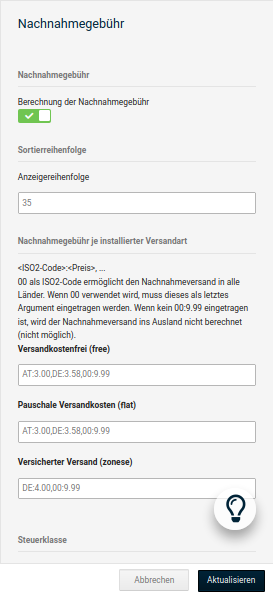
| Field name | Description |
|---|---|
| Cash on delivery fee | If ✔, the module is shown and calculated in the order summary and on the invoice [✔] |
| Sort order | determines at which position in the order summary the module is output; this affects the calculation [35] |
| Cash on delivery fee per installed shipping method | contains the cash on delivery fees per shipping method in the format ISO2:fees(net, example: DE:2.35); all countries not listed separately are combined with the universal code 00 |
| Tax class | a list of the configured tax classes; the fee is calculated based on the selected tax class |
| Transmission fee per installed shipping method | A transmission fee can additionally be charged. The configuration of the fees is done in the same way as for the cash on delivery fee. |
Shipping surcharge
With the module Shipping surcharge, you can calculate a surcharge on the regular shipping costs. You define the amount of the surcharge per product. The module for the shipping surcharge can be installed in the Gambio Admin of your shop under Modules > Order Totals.
- Select the module Shipping surcharge in the module list
- Click on Install in the right column
- Click on Edit in the right column
- Configure the module according to the table Configuration of the module Shipping surcharge
- Click on Update in the right column to save the changes
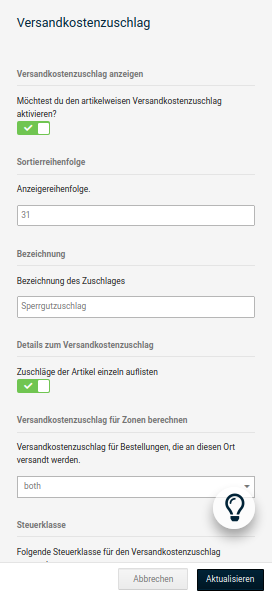
| Field name | Description |
|---|---|
| Display shipping surcharge | if ✔, the module is shown and calculated in the order summary and on the invoice [✔] |
| Sort order | determines at which position in the order summary the module is output [31] |
| Designation | the name with which the module is output in the order summary [Bulky goods surcharge] |
| Details of the shipping surcharge | if ✔, the surcharges to be calculated are itemised individually [✔] |
| Calculate shipping surcharge for zones | determines whether the surcharge is levied only for national, only for international or for all orders |
| Tax class | a list of the configured tax classes; the fee is calculated based on the selected tax class |
Low order quantity surcharge
With the module Low order quantity surcharge, you can calculate a surcharge on orders whose merchandise value is below a defined threshold. The module for the low order quantity surcharge can be installed in the Gambio Admin of your shop under Modules > Order Totals.
- Select the module Low order quantity surcharge in the module list
- Click on Install in the right column
- Click on Edit in the right column
- Configure the module according to the table Configuration of the module Low order quantity surcharge
- Click on Update in the right column to save the changes
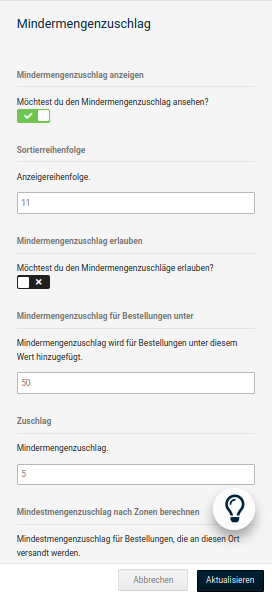
| Field name | Description |
|---|---|
| Display low order quantity surcharge | If ✔, the module is shown and calculated in the order summary and on the invoice [✔] |
| Sort order | determines at which position in the order summary the module is output [4] |
| Allow low order quantity surcharge | If ✔, the configured surcharge is calculated [✔] |
| Low order quantity surcharge for orders under | threshold value up to which the surcharge is calculated |
| Surcharge | amount of the surcharge to be calculated |
| Calculate low order quantity surcharge by zones | determines whether the surcharge is levied only for national, only for international or for all orders |
| Tax class | a list of the configured tax classes; the fee is calculated based on the selected tax class |
Personal delivery
If you ship goods that must be received personally by the recipient, you can book the option Personal delivery with your shipping company. The costs for personal delivery are calculated in the shop with the module Personal delivery. You install the module in the Gambio Admin of your shop under Modules > Order Totals.
- Select the module Personal delivery in the module list
- Click on Install in the right column
- Click on Edit in the right column
- Configure the module according to the table Configuration of the module Personal delivery
- Click on Update in the right column to save the changes
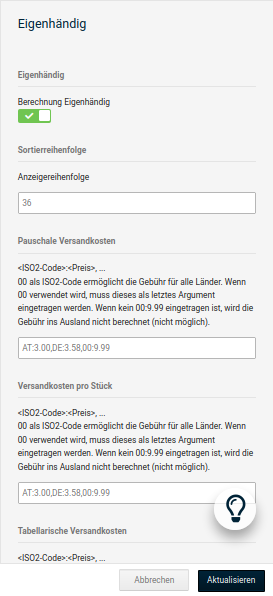
| Field name | Description |
|---|---|
| Personal delivery | If ✔, the module is shown and calculated in the order summary and on the invoice [✔] |
| Sort order | determines at which position in the order summary the module is output [36] |
| [Shipping method] | contains the fees per shipping method in the format ISO2:fees(net, example: DE:2.35); all countries not listed separately are combined with the universal code 00 |
| Tax class | a list of the configured tax classes; the fee is calculated based on the selected tax class |
Shipping costs
The module Shipping costs calculates the shipping costs in the shop that you have stored under Modules > Shipping methods. The shipping costs module is already preinstalled after the installation of the shop system.
- Select the module Shipping costs in the module list
- Click on Edit in the right column
- Carry out the configuration of the module according to the table Configuration of the module Shipping costs
- Click on Update in the right column to save the changes
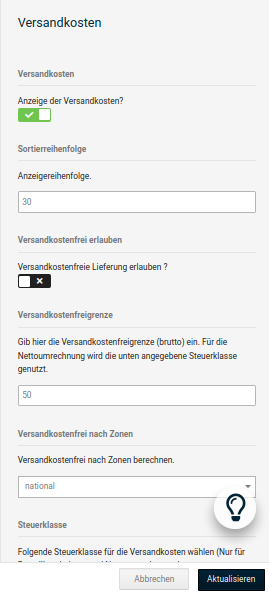
| Field name | Description |
|---|---|
| Shipping costs | If ✔, the module is shown and calculated in the order summary and on the invoice [✔] |
| Sort order | determines at which position in the order summary the module is output [30] |
| Allow free shipping | if ✔, the shipping costs are refunded directly by the shipping costs module from a separately configured invoice amount [✖] |
| Free shipping for orders from | threshold value from which the shipping costs are refunded |
| Free shipping by zones | determines whether the shipping costs are refunded only for national, only for international or for all orders |
| Tax class | a list of the configured tax classes; the fee is calculated based on the selected tax class |
Totals
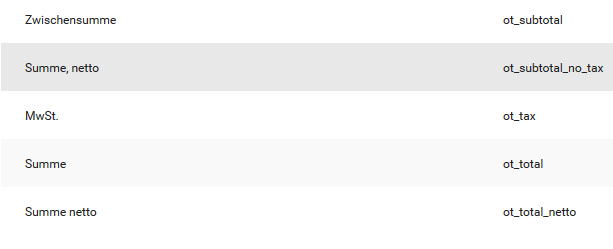
With the following modules, you display the subtotals and the total in the order summary. You can find the modules in the Gambio Admin of your shop under Modules > Order Totals.
Attention
These modules are absolutely required for the correct calculation of the order totals! Only make changes to these modules under the instruction of the Gambio support team.
Subtotal
The module Subtotal is responsible for calculating and displaying the subtotal of the merchandise value. Depending on the configuration in the customer group, the module calculates the net or the gross subtotal. The subtotal is shown directly after the product list of the order.
Total, net
The module Total, net is responsible for calculating and displaying the net final total for customer groups in which the price display in the shop is configured excluding taxes. The net final total is shown in the totals block before the tax.
VAT
The module VAT is responsible for calculating and displaying the tax contained in an order.
Total
The module Total is responsible for calculating and displaying the gross final total. For orders from customers in customer groups in which the price display in the shop is configured excluding taxes, the gross total is only displayed if showing the taxes on the invoice is activated in the customer group.
Total net
The module Total net is responsible for calculating and displaying the net total for customer groups in which the price display in the shop is configured including taxes. The net total is shown in the totals block after the included tax.
Legal
Small business regulation
The module Small business regulation is used when, instead of the included value added tax, the notice about the exemption according to the small business regulation is output. The small business regulation is output in the totals block instead of the module VAT.