Logo Manager
The shop system uses various logos. You can upload the logos used by the system in the Gambio Admin under Settings / Layout & Design / Logo Manager, after opening the page.
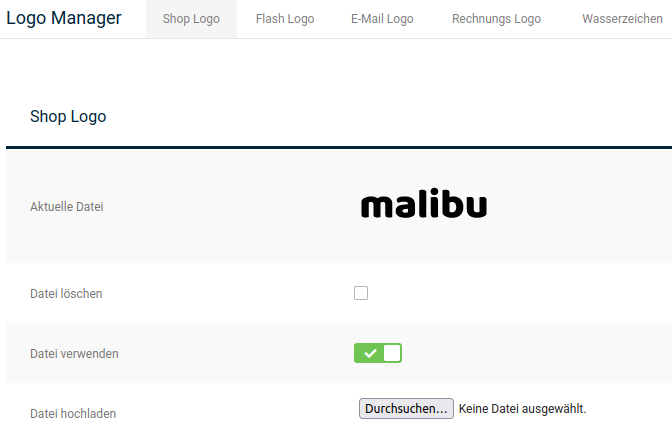
Shop logo
The shop logo is embedded in the storefront as shown in the figure Storefront. You can upload the shop logo in the Gambio Admin under Settings / Layout & Design / Logo Manager, after opening the page, on the Shop Logo tab.
- If a shop logo is already set, activate the checkbox Delete file and click on Save
- At Upload file, click on Browse or Choose file (depending on the browser) and select the new shop logo in the dialog window
- Click on Save
- Activate the setting Use file
- Click on Save to use the new shop logo
Email logo
The email logo is embedded in the header area of the order confirmation email. You can upload the email logo in the Gambio Admin under Settings / Layout & Design / Logo Manager, after opening the page, on the Email Logo tab.
- If an email logo is already set, activate the checkbox Delete file and click on Save
- At Upload file, click on Browse or Choose file (depending on the browser) and select the new email logo in the dialog window
- Click on Save
- Activate the checkbox Use file
- Click on Save to use the new email logo
Invoice logo
The invoice logo is embedded on the PDF invoice and the PDF delivery note in the upper right area. You can upload the invoice logo in the Gambio Admin under Settings / Layout & Design / Logo Manager, after opening the page, on the Invoice Logo tab.
Attention
For the invoice logo, no image file with transparency effects should be used (e.g. for images in PNG format), as errors may otherwise occur.
- If an invoice logo is already set, activate the checkbox Delete file and click on Save
- At Upload file, click on Browse or Choose file (depending on the browser) and select the new PDF logo in the dialog window
- Click on Save
- Activate the checkbox Use file
- Click on Save to use the new PDF logo
Note
The maximum width for the PDF logo is 10.5 centimeters at 72 dpi, minus the distance from the right page margin configured under Settings / System / Invoice & Delivery note, after clicking on open. The height for the PDF logo is not limited.
Watermark
Note
In current shop versions, the watermark can no longer be configured.
Favicon
The favicon is embedded in the address bar of the browser; in most browsers, the favicon is located to the left of the URL. You can upload the favicon in the Gambio Admin under Settings / Layout & Design / Logo Manager, after opening the page, on the Favicon tab.
- If a favicon is already set, activate the checkbox Delete file and click on Save
- At Upload file, click on Browse or Choose file (depending on the browser) and select the new favicon in the dialog window
- Click on Save
- Activate the checkbox Use file
- Click on Save to use the new favicon
Note
The favicon must be in the Windows ICO format. The resolution of the favicon must be 16x16 or 32x32 pixels.
Apple Touch Icon
The Apple Touch Icon can be set up under Settings / Layout & Design / Logo Manager, after opening the page, as follows:
- If an Apple Touch Icon is already set, activate the checkbox Delete file and click on Save
- At Upload file, click on Browse or Choose file (depending on the browser) and select the new Apple Touch Icon in the dialog window
- Click on Save
- Activate the checkbox Use file
- Click on Save to use the new Apple Touch Icon
Note
The PNG format is intended for Apple Touch Icons. The image file should have square dimensions.
Category icon
The category icon is embedded in front of the category name in the category navigation in the menu on the left. You can upload the category icon in the Gambio Admin under Settings / Layout & Design / Logo Manager, after opening the page, on the Category Icon tab.
- If a category icon is already set, activate the checkbox Delete file and click on Save
- At Upload file, click on Browse or Choose file (depending on the browser) and select the new category icon in the dialog window
- Click on Save to use the new category icon
Note
The category icon that you upload under Settings / Layout & Design / Logo Manager, after opening the page, is used if you do not upload an icon in the category itself. Category icons that are uploaded directly in a category override the default icon that you upload in the Logo Manager.