Shop Online/Offline
Via the menu item Content > Shop online/offline, a so-called offline page can be placed in front of the shop. In this way it is not possible for visitors and customers to see the content of the shop or to place orders. This is particularly useful when the shop is being set up for the first time or is being restructured.
Attention
When working on the shop, it should absolutely be taken offline. If this is not done, customers will be shown, for example, incomplete terms and conditions or test products that cannot be delivered.
There is a risk of a warning notice here; a simple note such as This shop is online for test purposes only. is not sufficient.
In addition, via the so-called holiday mode you also have the option of displaying a notification without taking the shop offline. Orders are thus still possible, but customers can be informed by a text message, for example, that the processing of orders may be delayed.
Shop status
Via the Current shop status switch, the shop can be turned on or off. The current status is indicated by the appearance of the button:
If the shop has been taken offline via the Current shop status switch, the window for the Offline message is displayed. Here the content of the offline page can be defined.
Once you have made the setting for the respective status, please click Save so that it takes effect.
Attention
By default, content is predefined for the offline page. It contains a Login link that points to the admin login page of the shop. In this way you can log in to your shop when it is set to offline.
If this link is no longer displayed on your page, you can call it up manually. To do so, simply add
/login_admin.php
to your shop address, so that it looks as follows in the address bar of your browser:
http://www.shop.de/login_admin.php
(www.shop.de must be replaced here with your shop address)
Holiday mode
The holiday mode message can be displayed either in a so-called TopBar, in which case the notice appears in a bar at the top edge of the shop window, or in a popup window. Click the respective tab Top-Bar or Pop-Up to make the respective setting.
An individual text can be set up for each of the two variants; please use the input windows TopBar content or Popup content for this. Using the Status TopBar and Status Popup switches, the respective message can be turned on or off:
✔ Holiday mode activated
✖ Holiday mode deactivated
For the TopBar, the background color and the display mode can additionally be defined.
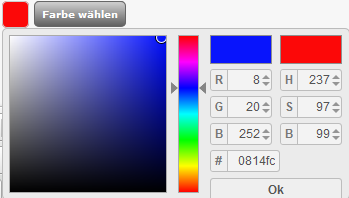
To choose the color, please click the Choose color button. A selection window opens in which the color is entered either by means of the exact color code or selected with the help of a preview window. To confirm the color, please click OK.
Via the country flags, individual content can be created for each language. Once you have made the setting for the respective status, please click Save so that it takes effect.
Time-controlled status change
Both the shop status (online/offline) and the individual variants of holiday mode can be changed on a time-controlled basis. For this, the setup of a so-called cron job is necessary with your hosting provider. You can copy the intended URL for setting up this cron job from the Cron job URL field at the bottom of the page.
To define a time-controlled process, please enter a corresponding label in the Name input field. In the Time column you can set the exact point in time at which the process is to be triggered.
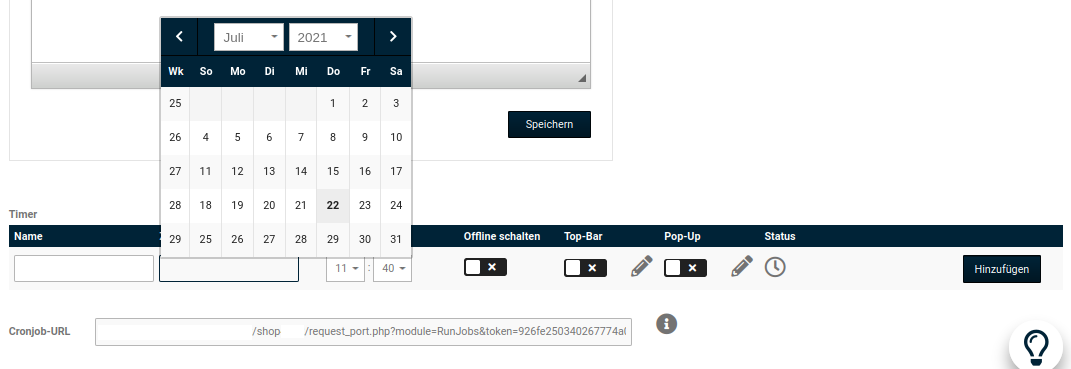
Which action is to be carried out can be defined via the checkboxes in the Take offline, Top-Bar and Pop-Up columns. Set the respective option here to enable the function, or remove it to disable the function again. Via the pencil symbol, a separate text is defined for each automated process. Clicking Add creates the process.
Note
Delivery status and product status can also be adjusted on a time-controlled basis. Further information on this can be found in the chapter Timer.
Via the pencil symbol an existing process can be edited. Make the desired changes and click Save to apply them. Clicking Cancel takes you back without saving the changes.
Clicking the trash can symbol lets you delete an existing process.
In the Status row, the respective status of a created process can be viewed. To do so, move the mouse pointer over the displayed symbol; a corresponding message is shown.