Countries
Note
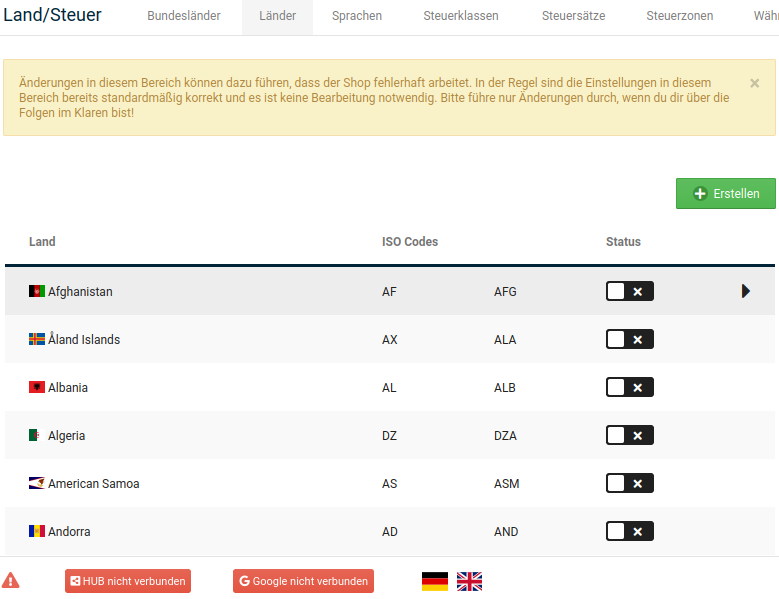
In the installation routine, only shipping within Germany is activated. If you want to operate your shop in another country or ship to other countries, all destination countries must be activated separately under Settings / Languages, Countries, Taxes / Countries, after calling up the page.
Activating countries
Countries that customers can select when creating an address must be activated individually. For the country group Germany, Austria and Switzerland as well as for all countries, you will find buttons below the country list for activating them at the same time.
Click on Activate D, A, CH to activate the country group Germany, Austria and Switzerland for selection in address forms.
Click on activate all to activate all countries for selection in address forms.
Activating individual countries
This is how you activate an individual country for selection in address forms:
- Open your online shop in the Gambio Admin under Settings / Languages, Countries, Taxes / Countries
- Find the desired country in the list
- Click on the box in the Status column so that a checkmark is displayed there.
Deactivating countries
Countries that customers are no longer allowed to select when creating an address must be deactivated individually.
Click on Deactivate all below the country list to deactivate all countries for selection in address forms.
Deactivating individual countries
This is how you deactivate an individual country for selection in address forms:
- Open your online shop in the Gambio Admin under Settings / Languages, Countries, Taxes / Countries
- Find the desired country in the list
- Click on the blue box with the checkmark in the Status column
Adding countries
If you want to allow shipping to a country that is not included in the list, add the country under Settings / Languages, Countries, Taxes / Countries, after calling up the page.
-
Click on Create
The entry form for a new country opens in the right-hand column
-
Enter the name of the country in the Name field
-
Enter the two-letter ISO code of the country in the ISO Code (2) field
The two-letter ISO code is used for the assignment of the shipping costs.
-
Enter the three-letter ISO code of the country in the ISO Code (3) field
-
Select the address format to be used for the new country from the Address format list
An overview of the available address formats can be found in the following examples
-
Click on Insert
Attention
The ISO code is used to identify your country when calculating the shipping costs. ISO codes must be unique; they must not appear a second time in the country list. ISO codes may also only consist of letters, preferably capital letters.
Example address format 1
Max Mustermann
Musterweg 1A
Musterstadt, 12345
Bundesland, Musterland
Example address format 2
Max Mustermann
Musterweg 1A
Musterstadt, Bundesland 12345
Musterland
Example address format 3
Max Mustermann
Musterweg 1A
Musterstadt
12345 – Bundesland, Musterland
Example address format 4
Erika Mustermann
Musterweg 27B
Musterstadt (12345)
Musterland
Example address format 5
Erika Mustermann
Musterweg 27B
12345 Musterstadt
Musterland
Finally, your new country must be assigned to a tax zone so that the taxes can be determined correctly when calculating the totals. Open the Gambio Admin of your shop under Settings / Languages, Countries, Taxes / Tax zones.
- Select the tax zone to which your new country belongs
- Click on Details (►)
- Click on Create
- Select your new country from the Country list
- Click on Insert
Your new country has been assigned to the selected tax zone.
Attention
Each country may only be assigned to one tax zone at a time. If you assign a country to more than one tax zone, the taxes cannot be calculated correctly.
Deleting countries
Attention
Only delete countries that you have created yourself!
If you no longer need a newly created country, you can remove it again from the country list under Settings / Languages, Countries, Taxes / Countries.
-
Select the country to be deleted from the country list
The selected row is highlighted in gray.
-
Check in the right-hand column that the correct country is selected
- Click on Delete
- Click on Delete again to confirm the deletion
Federal states
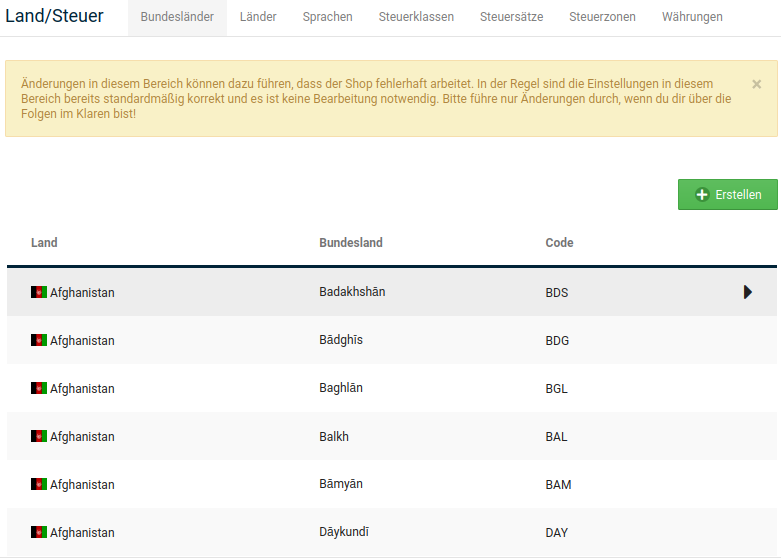
You can define the federal states for countries you have created yourself and preset countries under Settings / Languages, Countries, Taxes / Federal states, after calling up the page.
Note
In the scope of installation, only federal states for European countries and large countries outside Europe are created. Political developments cannot be taken into account in every shop version, so in some cases federal states may no longer be up to date.
Adding a federal state
If you create a new country, or if a new federal state has been established in a delivery destination, create a new federal state under Settings / Languages, Countries, Taxes / Federal states, after calling up the page.
- Click on Create above the federal state list
- Enter the name of the federal state in the Name of the federal state field
- Enter the short name of the federal state in the Code of the federal state field
- Select the country to which you are assigning the federal state from the Country list
- Click on Insert
Editing a federal state
If the details of a federal state in one of your delivery destinations have been changed, adjust the respective federal state under Settings / Languages, Countries, Taxes / Federal states, after calling up the page.
-
Select the federal state to be edited from the Federal states list
The active federal state is highlighted in gray.
-
Click on Edit
- Make the desired changes
- Click on Update
Deleting a federal state
If you no longer need a federal state from a country you have created yourself, delete the federal state under Settings / Languages, Countries, Taxes / Federal states, after calling up the page.
-
Select the federal state to be deleted from the Federal states list
The active federal state is highlighted in gray.
-
Click on Delete
- Click on Delete again to confirm the deletion of the selected federal state