The settings page can be reached via the menu item Settings in the Gambio Admin (route: /admin/configurations). The basic settings of the shop are managed centrally here. The page is divided into the following categories:
Shop
Customers
Products & Categories
Layout & Design
Legal
Delivery
Search engine optimization
Languages, Countries, Taxes
System
At the top of the page, a search bar is available with which entries can be filtered. The view is adjusted immediately as you type and matches are highlighted.
At the bottom of the page is the Save button. This is grayed out as long as no changes have been made. The Save button applies changed settings from all areas and categories.
Which account type should be preselected in the registration process (Guest account: no checkmark set for creating a customer account, Customer account: checkmark set for creating a customer account)
Deletion of guest accounts
Should the guest account be deleted after a successful order?
Address book entries
Maximum permitted number of address book entries
Order overview
Maximum number of orders that should be displayed in the overview under Your account.
Default value for trader status
Default value for the trader status during customer registration, also applies if the setting is not displayed.
Order overview box
Maximum number of products that should be displayed in the customer's personal order overview box
Customer group check
Activates the customer group check for restricting access to content by customer group. You can find more information in the chapter Customer group check.
Customer group for new customers
Customer group to which a customer is assigned after registration.
Type of account creation
Which type of account should be able to be created during registration?
with the account creation Customer account, only registered customers can order in your shop
with the account creation Guest account, no customer accounts can be created for regular customers
with the account creation both, customers can register in your shop or order without a customer account
Determines whether the salutation must be filled in during customer registration.
Confirmation e-mail upon account creation
Should a confirmation e-mail be sent to the customer after account creation?
Display additional address field
Should the additional address field be displayed during customer registration?
Trader status
Query of the trader status during customer registration
Company
Query for company and VAT ID during customer registration
Company as mandatory field
Determines whether specifying the company is a mandatory field during customer registration.
Date of birth
Query of the date of birth during customer registration
Fax number
Query of the fax number during customer registration
Salutation
Query of the salutation during customer registration
First & last name optional
Should specifying first and last name be optional during customer registration if a company name is provided?
Separate street and house number
Should two separate input fields be used for street and house number during customer registration?
Attention
External modules (payment modules, ERP, merchandise management systems etc.) must be able to process street and house number separately. If you are not sure, leave this option deactivated.
Field name
Description
State
Query of the state during customer registration
District
Query of the district during customer registration
Telephone number
Query of the telephone number during customer registration
Via the minimum length, fields can be defined as mandatory fields. If a value greater than 0 is entered for the minimum length, the field in question is a mandatory field.
Note
By default, the company cannot be set as a mandatory entry. The minimum length is only checked if an entry is made in this field.
Should the product number of the property combination (variant) of a product be appended to the product number of the main product instead of replacing it?
Max. characters for product names in the "Order overview" menu box
Limitation of the product name in the "Order overview" menu box
Display MSRP for special offer prices
If the checkmark is set, the original product price is displayed for special offers with the addition MSRP. The addition can be changed if required under Content > Customize texts.
Display normal price for discounted prices
If the checkmark is set, the normal price and the percentage saving are additionally displayed for a product with a product discount
Display normal price for reduced customer group and graduated prices
If the checkmark is set, the normal price is additionally displayed for a product with customer group or graduated prices
Do not prevent the aggregation of product stocks when determining prices
If the checkmark is set, the total order quantity is taken into account for graduated prices when a product with GX-Customizer is ordered multiple times. This also applies if the customer orders different variations of the product via the GX-Customizer set.
Bestsellers
Maximum number of bestsellers that should be displayed.
New products list
Maximum number of new products that should be displayed in the list.
Bestsellers
Minimum number of bestsellers that should be displayed.
The search in the header suggests search terms based on the input.
Search combination
Should all search terms appear in the search result (and) or does at least one search term have to appear (or)?
Search in product attributes/product properties
If this is deactivated, the information from the attributes and properties is no longer taken into account in the search. Since searching in the product attributes and properties leads to a far more comprehensive search, this can lead to very long loading times when executing the search in shops with many attributes or properties. Deactivating it can therefore improve the performance of the shop.
Search in product descriptions
If this item is deactivated, the shop only searches the product names, product numbers and EANs for the search term
Determines exactly where on the product details page the Customizer set is displayed.
Ignore set width and display maximum width in product details view?
With ✔, the width setting of the area defined in the set is not used. Instead, the maximum available space in the respective part of the product details page is used. With ✖, the width set in the area is the maximum width.
Truncating text entries in overviews
Texts entered by the customer are truncated to the specified number of characters in the shopping cart, on the order confirmation page before completing the order, in the Gambio Admin in the orders overview and in the order details view in the product listing (0 = no truncation). The entire text is still displayed in the set, in the print version of the order confirmation, in the order confirmation e-mail, in the PDF invoice and in the PDF delivery note.
Exclude spaces when calculating the maximum number of characters in text input fields?
If this setting is activated, spaces are not counted when limiting the number of characters.
Display tabs for switching areas on the product details page?
If the checkmark is set, the Customizer set can be displayed as a separate tab (see Set position)
Number of permitted file uploads per visitor (0 = no limit)
Limits the number of files that can be uploaded via the GX-Customizer.
Period in minutes for which the limit on the number of file uploads applies
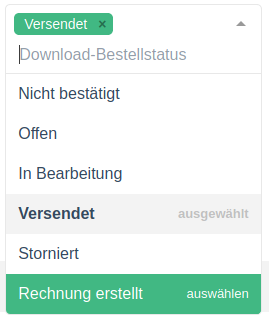
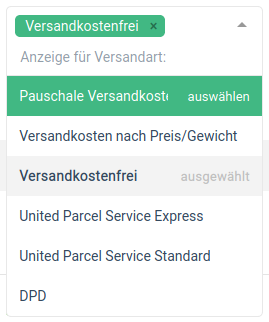
This area uses an extended dropdown menu for selecting entries.
Expand the dropdown as usual via the downward-pointing triangle symbol. Entries that have already been selected are displayed with a gray background.
When hovering, entries that can be selected are highlighted in green. Entries that are already selected and can be deselected are highlighted in red.
Entries can also be removed again by clicking on the x behind the name.
Field name
Description
Allow download of products
This activates the download product function. Set this setting if you want to offer download products.
Download by redirect
This setting can be used to enable a browser redirect for product downloads. This setting is not set by default.
Attention
Please only activate this function if you are absolutely sure that it is required. Otherwise, downloading files may be impaired or made impossible by this setting.
On non-Linux/Unix systems, this setting should be switched off.
Field name
Description
Excluded payment modules
Payment methods not permitted for download products.
Product announcements are displayed in the swiper on the start page.
Display recommendations in swiper
Recommendations are displayed in the swiper on the start page.
Display offers in swiper
Special offers are displayed in the swiper on the start page.
Display new products in swiper
New products are displayed in the swiper on the start page.
Period (days) for new products
Period in days for how long a product is considered new
Special offers
Maximum number of special offers that should be displayed.
Product announcements
Maximum number of announced products that should be displayed on the start page.
Selection pool of new products
From how many new products should the randomly displayed new products in the box and on the start page be selected?
Selection pool of special offers
From how many special offers should the randomly displayed special offers in the box and on the start page be selected?
Max. characters for product names on the start page
Default for the maximum number of characters for product names on the start page. The actual number also depends on the word separation and the tile size.
Number of offers on the start page
Number of special offers that are displayed on the start page.
Number of new products on the start page
Number of new products that are displayed on the start page.
Number of recommended products on the start page
Number of recommendations that are displayed on the start page.
Order for product announcements
Should product announcements be displayed in ascending or descending order?
Sort product announcements by
Should product announcements be sorted by release date or product name?
Number of characters after which product names are truncated in the "flyover".
Length limitation of the product name in the flyover.
Number of characters after which the product short text is truncated in the "flyover".
Length limitation of the short description in the flyover.
Display of the manufacturer image on the product details page
Activate additional fields on the details page
The contents of the additional fields are displayed on the details page
Display of the property combination selection
Determines how the selection of property combinations is displayed on the product details page.
Activate image zoom
Activate the magnifier function for the product image
Activate wish list
Activate the wish list on the product details page
Activate "Question about product" module?
The link Question about product is displayed on the product details page below the shopping cart button
Activate Facebook "Like" button on details page
Activate the Like button on the product details page
Activate WhatsApp share button on details page
Activate the WhatsApp share button on the product details page
Activate Tweet button (Twitter) on details page
Activate the Tweet button on the product details page
Activate Pinterest button on details page
Activate the Pinterest button on the product details page
Include image gallery as lightbox
The image gallery is displayed as a lightbox
Activate image gallery
Activates the image gallery on the product details page (activated by default).
Activate "Print data sheet" link on details page
Displays the link for printing the data sheet on the details page.
Note
The function Print data sheet may not be available in all themes.
Field name
Description
Display product number
Activate display of the product number on the product details page
Also purchased
maximum number of also purchased products that should be displayed in the product details view
Period (days) for also purchased products
Period in days for how old the order of the also purchased product may be.
Reverse cross marketing
maximum number of reverse cross marketing products that should be displayed in the box This product is e.g. compatible with in the product details view
Also purchased
Minimum number of also purchased products that should be displayed in the product view.
Use customer e-mail address as sender of the "Question about product" module
Sets the customer's e-mail address as the sender instead of the sender set in the e-mail options.
Reverse cross-marketing
Reverse cross-marketing is an additional function to cross selling (see chapter Cross Selling), via which further products can be recommended for a selected product. If reverse cross-marketing is activated, a back-link takes place from the recommended product to the original product.
Note
With a larger number of products, reverse cross-marketing can increase the load on your server. After activation, please check whether the shop has noticeably slowed down when opening products. If this is the case, reverse cross-marketing should not be used if possible.
When customer reviews for a product are displayed, the name of the author is also mentioned. Via this setting you can determine that either the entire name is listed or, optionally, the first or last name is shortened. The following values can be selected:
Do not shorten name: first and last name are displayed
Shorten first name: Only the first letter of the first name and the last name are displayed
Shorten last name: The first name and only the first letter of the last name are displayed
Note
A change to the setting only affects new customer reviews. Existing reviews remain unchanged in the display of the author.
Field name
Description
Display product reviews in the product list and in the tiled product listing?
Display review stars in product overviews
Display product reviews in the tab
Customer reviews are displayed in a product tab and no longer below the product description
Reviews in product details view
Number of displayed reviews in the product details view
Reviews
Minimum length of the text input for reviews
New reviews
Maximum number of new reviews that should be displayed per page
Selection pool of reviews
From how many reviews should the randomly displayed reviews in the box be selected?
In the shop system, the product images are automatically adjusted to the various source sizes when they are uploaded. Copies are created for each product image that are scaled for their use. The actual display size depends on the settings in StyleEdit. However, a change to the source sizes can have considerable effects on image quality and loading time.
Note
Source size is not the same as displayed image size. In Honeygrid and Malibu, the displayed image size depends on the settings in StyleEdit. The size settings in this area primarily affect the quality of the source images.
Field name
Description
Use small product images in overviews and swipers
Use of the smaller thumbnails instead of the info images
Calculate image size
if activated, the image variants are automatically calculated by the shop system
Image quality
the JPEG quality of the converted images in percent
Width of the product thumbnails
Width of the preview images in product lists if Use small product images in overviews and swipers is activated.
Height of the product thumbnails
Height of the preview images in product lists if Use small product images in overviews and swipers is activated.
Width of the product info images
Width of the product image on the product details page and of large preview images if Use small product images in overviews and swipers is not activated.
Height of the product info images
Height of the product image on the product details page and of large preview images if Use small product images in overviews and swipers is not activated.
Width of the product popup images
Width of the images in large view for flyover, zoom function and product image lightbox
Height of the product popup images
Height of the images in large view for flyover, zoom function and product image lightbox
Please only make changes to the legal settings in consultation with your legal advisor. Improper changes to the settings carry the risk of a warning letter!
Should the right of withdrawal be displayed in the checkout process?
confirm in the checkout process
Should the right of withdrawal be confirmed by the customer in the checkout process?
Offer web form
Should the link to the online withdrawal form be displayed?
Offer PDF form
Should the withdrawal form be available as a PDF file?
Display right of withdrawal link within the order information under My account
The section Withdrawal form is displayed in the individual orders under Your account. This contains the references under Offer web form and Offer PDF form.
Attach privacy policy as PDF to the order confirmation
The privacy policy is added to the order confirmation as a PDF attachment.
Attach withdrawal notice as PDF to the order confirmation
The withdrawal notice is added to the order confirmation as a PDF attachment.
Attach withdrawal form as PDF to the order confirmation
The withdrawal form is added to the order confirmation as a PDF attachment.
Download delay upon waiver of the right of withdrawal
Time until the downloading of a download product is possible if the right of withdrawal has been waived.
Download delay without waiver of the right of withdrawal
Time until the downloading of a download product is possible if the right of withdrawal has not been waived.
Display waiver of the right of withdrawal for download products
Display the selection for waiving the right of withdrawal for download products in the checkout process?
Display waiver of the right of withdrawal for services
Display the selection for waiving the right of withdrawal for services in the checkout process?
Waiver of the right of withdrawal for download products as a mandatory field
Must the right of withdrawal be compulsorily waived for download products?
Waiver of the right of withdrawal for services as a mandatory field
Must the right of withdrawal be compulsorily waived for services?
In the basic configuration, the VAT is displayed below the product price on all pages from which a product can be placed in the shopping cart. Deactivate the checkbox if you want to switch off the display.
Also display VAT if it equals 0
Set the checkmark if you also want to display the VAT when the tax rate is 0%.
Small business regulation: display "No tax disclosure in acc. with small business reg. §19 UStG" instead of the VAT specification for each price
Activates the display for the small business regulation in the products.
Via open, the page for creating and configuring the delivery statuses can be displayed.
Activate delivery status display
Activates or deactivates the delivery status display in the entire shop
Update delivery status automatically
The checkmark should be set here if the delivery status should be updated after an order. If the checkmark is not set, no update takes place.
Shipping costs in product info
Displays a link to the shipping cost information in the product
Display shipping weight in the checkout process
Displays the shipping weight in the checkout process
Display full country name for shipping country
Displays the full country name instead of the country code
Shipping weight in the shopping cart
Displays the shipping weight in the shopping cart
Shipping cost calculator in the shopping cart
Activates the shipping cost calculation in the shopping cart
Service without shipping
Enables the ordering of services without a shipping method
Postal code of the shipping location
Postal code of the location from which shipping takes place
Shipping country
Country of the location from which shipping takes place
Maximum weight that can be shipped as one package
Enter the maximum possible weight per package. The entry is made in kilograms
Shipping costs content page ID
Internal ID of the content for shipping & payment information, 3889891 by default
Empty package weight
If you want to take the weight of the packaging into account in the shipping costs, you can enter a fixed value here, for example 0.4 if the packaging should always be taken into account at 400g.
For larger empty packages - weight increase in %
This entry is also optional and is only taken into account if the empty package weight has not been filled in. So you have the option of either specifying the empty package weight with a fixed weight or a weight increase that amounts to a certain percentage of the product weight. So if you assume when calculating the shipping costs that the weight of the packaging will always be approx. 10% of the total weight, enter a 10 here.
Click on open to display the configuration page for generating the sitemaps
Default change frequency
At what intervals should the sitemap be checked for changes by search engines.
Note
The change frequency set in the shop is merely a guideline. The actual frequency with which the sitemap is updated depends on the respective search engine.
Field name
Description
Default priority
Which priority should be set for sitemap entries by default?
Activate automatic sending of e-mails (for example customer account creation, order confirmations)
E-mail logo
Should the e-mail logo be displayed?
E-mail from
The e-mail address that should be used when sending (sendmail).
Sender of the order confirmation mail
With some server and e-mail configurations, e-mail receipt by the customer can fail. If your customers do not receive order confirmation mails, make sure that the option is set to Operator e‑mail.
Path to sendmail
Path to the sendmail program, by default: /usr/sbin/sendmail
E-mail transport method
Defines whether the server uses the PHP mail function, a local connection to the "sendmail program", or whether it requires an SMTP connection via TCP/IP. Servers running on Windows or MacOS should use SMTP. "mail" is the default and should be activated if e-mails are sent successfully.
E-mail linefeeds
Defines the characters that should be used to separate the mail headers.
Send HTML e-mails
Sending e-mails as MIME HTML or plain text
Checking the e-mail addresses via DNS
Check customer e-mails for reachability before sending automatic mails
Maximum number of e-mails per dispatch
Limits the number of e-mails that can be sent at the same time
E-mail signature
This signature is inserted in your e-mail templates in place of the variable {$EMAIL_SIGNATURE_TEXT}.
E-mail signature (HTML)
This HTML signature is inserted in your e-mail templates in place of the variable {$EMAIL_SIGNATURE_HTML}.
SMTP username
Username for sending e-mails via SMTP
SMTP port
Port for sending e-mails via SMTP (default: 25)
SMTP password
Password for sending e-mails via SMTP
Address of the SMTP server
The address of the server for sending e-mails via SMTP
Address of the SMTP backup server
If the server for sending e-mails via SMTP is not reachable, e-mails are sent via the backup server
This area concerns the so-called support system of the shop. Account creation mails or confirmation mails for password changes, for example, are sent via this.
Field name
Description
Technical support - e-mail address
Enter a correct sender address here for sending the e-mails via the support system.
Technical support - forwarding addresses
Optional: enter additional e-mail addresses here to which the e-mails of the support system should also be sent (comma-separated, without spaces).
Technical support - e-mail address, name
Sender name for sending the e-mails via the support system.
Technical support - reply address
Enter an e-mail address here to which customers can reply.
Select password_hash to encrypt passwords with maximum strength (recommended). Select md5 if you use external interfaces that compare passwords directly via the database and do not support password_hash-encrypted passwords.
Re-encrypt customer passwords with the current default encryption at the next login if necessary? (recommended)
Activate this option if you want to change the default encryption and customers (including admin accounts!) should still be able to log in with their previously saved passwords. Otherwise, logging in is no longer possible and a new password must be set via the Forgot password function.
Security codes are intended to prevent input forms from being used by automatic scripts, so-called bots. For this purpose, users must verify their request via a security code or another confirmation.
Field name
Description
Type of security query
Standard: is generated by the shop; a letter and number code is displayed in an image made of lines, which must be entered by the customer
reCAPTCHA v2: is a different, more secure form of security query and cannot be overcome so easily by bots, thus providing better protection against spam.
Note
In order to participate in reCaptcha v2, you must register for it. You can do this at https://developers.google.com/recaptcha/. You will receive the public key and private key after registering for reCaptcha v2. Then enter these in the security center in the shop. You can also obtain the API key at the following link if you have already registered for reCAPTCHA v2: https://www.google.com/recaptcha/admin/create Please note that this will have no effect on spam via the withdrawal form. The withdrawal form must not contain a security query, so the reCAPTCHA v2 is not displayed there either.
Click on open to display the configuration page for the shop online / offline page.
Switch offline
Activate this setting to place a so-called offline page in front of the shop. In this way, it is not possible for visitors and customers to see the contents of the shop or to place orders. This is particularly useful when the shop is being set up for the first time or restructured. The shop remains accessible for administrators.
Attention
When working on the shop, it should definitely be switched offline. If this is not done, the customer will be shown e.g. incomplete terms and conditions or test products that cannot be delivered. There is potentially the risk of a warning letter here; a simple notice such as This shop is only online for testing purposes. may not be sufficient under certain circumstances.
Attention
By default, content is provided for the offline page. This contains a Login link that refers to the admin login page of the shop. In this way, you can log into your shop when it is set to offline. If this link is no longer displayed on your page, you can open it manually. To do this, simply add a /login_admin.php to your shop address so that it looks like this in the address bar of your browser: www.shop.de/login_admin.php (www.shop.de must be replaced here by your shop address)
The WYSIWYG (What You See Is What You Get) editor is a text input field with a built-in preview function. The so-called CK Editor is used for this.
Number of customers per page
How many customers should be displayed per page in the overview in the Gambio Admin?
Number of orders per page
How many orders should be displayed per page in the overview in the Gambio Admin?
Number of products per page
How many products should be displayed per page in the overview in the Gambio Admin?
Menu entries without translation
Display menu entries without translation in the Gambio Admin.
Favorites box always expanded
Always displays the favorites box expanded.
Page token system
The page token system is an additional security system that works with the help of timestamps and randomly generated hash values. From this, a unique control value, the so-called token, is calculated for each session. This is compared when pages of the Gambio Admin are opened.
Activate product navigator?
The product navigator is an additional selection in the product details view, via which the customer can switch from product to product within a category. This means it is not necessary to open the category again.
Activate linking/copying
Via this function it is possible to copy or link a product into several categories under Products > Products/Categories in the Gambio Admin. To do this, the categories simply need to be checked after clicking on the Copy button. This function is activated by default.
Gross prices in the Gambio Admin?
Product prices are entered either gross (setting activated) or net (setting deactivated).
Conversion precision for decimal places
Number of decimal places that are stored internally. Default value: 4
Default payment method for manually created orders
Select here which payment method should be preselected for orders created manually in the Gambio Admin.
If this option is set to ✔, the customer's browser is checked to see whether it contains a correct referer. If the customer's browser is not recognized, logging in may become impossible for them. This option is not set by default.
Checking the IP address
If this option has been set, it is checked whether the customer's IP address has changed between page views. If this is the case, the session is forcibly ended and the customer is no longer logged in. This can occur very unexpectedly, for example if the IP address has been changed on the customer's side by reconnecting to the internet. This option should therefore also not be set, in order to avoid the loss of the session.
Renew session
This option renews the session ID when the customer logs out and logs in again during a session. However, since some servers do this on their own, this setting is not set by default. If the session was successfully renewed, the shopping cart and login are retained.
Avoid spider sessions?
This can prevent search engine bots from receiving a session in the shop. With a session, these bots could place products in the shopping cart and would be counted as normal visitors. The setting is set by default.
Session validity period
Determines the duration in minutes for how long a session in the Gambio Admin is valid. After this defined time has expired, the session is removed and a new login is required!
By activating HTTP caching, the browser does not download the shop's JavaScripts from the server again if it already has them in the cache (temporary storage).
Switch on GZip compression
Switch on HTTP GZip compression to optimize the page loading speed.
Compression level
Select a compression level between 1 (minimum) and 9 (maximum).
Switch on HTML compression
HTML compression removes unnecessary spaces from the code of the pages, but makes error diagnosis more difficult.
Cache-friendly file names
Via the setting Cache-friendly file names, the names of certain resources (JavaScript, CSS) can be automatically adjusted so that they are not stored in the browser cache, but are retrieved up to date each time the relevant page is loaded.
Output CSS inline in the head
If the checkmark is set, the CSS code is output in the head area of the page instead of linking the external CSS file.
Saving the time required to calculate scripts up to the output of the page. However, this function also generates a certain server load. Depending on the server, the load caused by saving the calculation time can be minimal to considerable. If you use a slow server, this function should be deactivated if possible.
Storage location of the log file for the calculation time
The absolute directory path with the file name of the log file is entered here. By default, this field is filled as follows: /var/log/www/tep/page_parse_time.log
Display calculation time of the pages
If the saving of the calculation time for pages is switched on, it can be displayed in the footer (bottom of the page).
SQL logging in the frontend
Database-modifying SQL commands in the frontend are logged. This would be the case, for example, when a customer places an order.
SQL logging in the backend
Database-modifying SQL commands in the backend are logged, as is the case with all changes to products, content, etc.
Maximum file size
Maximum file size of the SQL logging file in MB. If the limit is exceeded, the log file is created under a new name compressed in gz format. This prevents the log file from becoming unnecessarily large.
Saving all database queries
Saving the individual database queries in the log file for calculation times. Database queries are all retrievals of data that take place in the shop.
E-mail error reports to
E-mail address to which error reports should be sent. To not send any reports, the field can simply be left empty. To send error reports to Gambio Support, the address debug@gambio-support.de can be entered.