Languages
Creating languages
The shop system is delivered fully localised in English and German. Additional languages can be added afterwards. This requires steps both in the administration area/Gambio Admin of the shop and on the FTP server.
Creating the language in the administration area/Gambio Admin
In the Gambio Admin, open the menu item Settings / Languages, Countries, Taxes / Languages and click on open if necessary and then on Create. A column opens on the right side. This is where the shop-side setup of the language takes place. However, the main part is only created by copying the corresponding files to the FTP server. Creating the language solely in the administration area/Gambio Admin is not a complete installation.
Note
A language newly created in the Gambio Admin cannot be activated until the installation of the language directory on the FTP server is complete. Outstanding files and directories are displayed with a corresponding notice.
When creating the language in the Gambio Admin, you have the following configuration options: First, choose whether you want to create a new language or copy an existing language. The latter is the intended choice, as database contents of the source language are adopted this way. In this case, set the language from which you want to copy the contents under Source language (default: German).
Under Name, enter the name of the language (example: Spanish). The two-letter ISO code for your language must be entered in the field Coding (example for Spanish: es), and the intended character encoding in the field Charset: utf-8. Under Directory, specify the name of the directory to be uploaded on your FTP server (example: spanish). Please pay attention to the exact spelling for these two entries!
This is necessary so that the shop can refer to the correct directories and files. Otherwise, the translated language files cannot be found. In the field Sort order, you can enter the desired sort order of the language. The sort order affects the position of the input fields for this language in the product and category input forms as well as in the language selection in the administration area and storefront.
In addition, settings for the formats of date and time, as well as the currency used, must be made. Below you will find the default values for the source language German.
| Field name | Default value (language German) |
|---|---|
| Date format | d.m.Y |
| Date format (day, long) | %A, %d. %B %Y |
| Date format (day, short) | %d.%m.%Y |
| Date format (day and time) | %d.%m.%Y %H:%M:%S |
| Date format (date of birth) | tt.mm.jjjj |
| HTML parameters | dir="ltr" lang="de" |
| Currency | EUR |
| Date format (PHP, day and time) | d.m.Y H:i:s |
Change the entry lang="de" here according to the country code, in our example to lang="es". For other languages outside the euro area, the currency code EUR under Currency may also need to be adjusted.
Creating the language on the FTP server
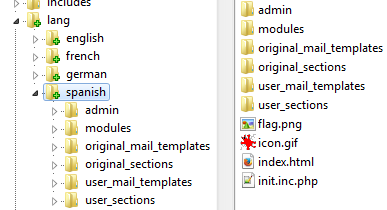
Copy the directory Shopsystem\Dateien\lang\german from the installation CD or from the installation archive of your shop of version series 2.3 or higher to your computer. Alternatively, you can also download the folder directly from your FTP server. As an example, the language Spanish is added below. Rename the previously copied directory german on your computer to spanish. We recommend using the English name of the language in lowercase letters. Change to the directory spanish on your computer. Now, various adjustments must be made to the files
/spanish/init.inc.php
and
/spanish/admin/init.inc.php
.
Change the entries
@setlocale(LC_TIME, 'de_DE.utf8', 'de_DE.UTF-8', 'de_DE@euro', 'de_DE', 'de-DE', 'de', 'ge', 'German');
so that instead of de or DE, the respective country code, in our example es or ES, is used. In addition, the name of the language in the last two quotation marks must be adjusted.
Before the actual translation is carried out, the content of the folder original_sections should be copied to the folder user_sections. This way, the original of the respective language package is available at any time.
Then carry out the translation in the files and subdirectories of the folder user_sections. Finally, upload the entire language directory, in our example the folder spanish, to the subfolder /lang/ of your shop.
In addition, the files used for the respective country flag:
- /lang/spanish/flag.png
- /lang/spanish/icon.gif
- /lang/spanish/admin/images/icon.gif
should be replaced. Typical sizes are
- flag.png: 16x11 px
- icon.gif: 32x35 px (visible: 23x16 px)
- /admin/images/icon.gif: 18x13px
Note
The icon.gif used by default in the Gambio Admin can optionally also be replaced by a file with a different name. The file name can be adjusted when editing the language under Settings / Languages, Countries, Taxes / Languages, after opening the page, in the input field Symbol. Please note that this file must be stored both in the language directory, e.g. /lang/spanish/, and in the subfolder /admin/images/ of the language directory (e.g. /lang/spanish/admin/images/).
Adjustments and translations for additional modules
Modules from external providers often use their own language files, which must be adjusted separately. Some of these modules are included in the basic scope of the shop; by default, e.g. yoochoose and shopgate are affected here.
If no changes are made here, the German language is used by default. If you do not use any of the modules mentioned, you can skip this section.
yoochoose
The integration for yoochoose takes place in the file /lang/spanish/admin/init.inc.php. Change the following path specification here:
$coo_lang_file_master->init_from_lang_file('admin/yoochoose/yoo_lang_german.php');
In the subfolder /admin/yoochoose/ of the shop directory, the files
- yoo_lang_english.php
- yoo_lang_german.php
- yoo_lang_spanish.php
are available. Change the file name here accordingly. If necessary, translations may still need to be made in the newly assigned file yoo_lang_... itself.
Shopgate
The integration of Shopgate takes place in the file _/lang/spanish/modules/payment/_shopgate.php. There you will find the line:
require_once DIR_FS_CATALOG.'shopgate/gambiogx/lang/german/modules/payment/shopgate.php';
Here, the folder german located in the subfolder /shopgate/gambiogx/lang/ should be downloaded and renamed. Carry out the translations in the contained files accordingly and rename the file /admin/german.php according to the language. For our example, the file would therefore be called /admin/spanish.php. Then upload the directory again.
Activating the language in the shop
After all changes on the FTP server have been completed, the language can be activated in the administration area/Gambio Admin. To do this, go to Settings / Languages, Countries, Taxes / Languages and set the checkmarks for active in frontend or active in backend for the respective language. Afterwards, the caches for texts and e-mail templates must be cleared under Toolbox > Cache.
Attention
When making changes to the languages, clearing the caches is always required. Otherwise, error messages and faulty displays can occur in the shop.
Converting existing languages (Legacy)
Legacy note
This section is only relevant if language packages from very old shop versions need to be adopted. It can be skipped for current installations.
The current language system requires a specific file system structure for language packages. Additional languages originating from very old shop versions may need to be adjusted manually in accordance with the current requirements.
Example of a language package for French (folder name french, ISO code fr):
The following files must be renamed:
lang/french/french.php
to
lang/french/init.inc.php
lang/french/admin/french.php
to
lang/french/admin/init.inc.php
lang/french/fr.png
to
lang/french/flag.png
lang/french/sections
to
lang/french/original_sections
lang/french/mail_templates
to
lang/french/original_mail_templates
lang/french/original_mail_templates/admin/_samples/create_account_mail.txt
to
lang/french/original_mail_templates/admin/_samples/admin_create_account_mail.txt
lang/french/original_mail_templates/admin/_samples/create_account_mail.html
to
lang/french/original_mail_templates/admin/_samples/admin_create_account_mail.html
if present, also rename:
lang/french/original_mail_templates/admin/create_account_mail.html
to
lang/french/original_mail_templates/admin/admin_create_account_mail.html
lang/french/original_mail_templates/admin/create_account_mail.txt
to
lang/french/original_mail_templates/admin/admin_create_account_mail.txt
The following files must be moved:
_lang/french/original_mail_templates/admin _entire content
to
lang/french/original_mail_templates
The _samples folders are merged during the move.
lang/french/original_mail_templates/_samples (entire content WITHOUT overwriting)
to
lang/french/original_mail_templates
Files that already exist are retained. The files that were possibly not moved in this way can be deleted.
Create folders:
lang/french/user_mail_templates
lang/french/user_sections
In the administration area/Gambio Admin of the shop, the button Clear cache for texts must now be clicked under the menu item Toolbox > Cache.
Afterwards, it should be possible to switch to the French language in the shop without error messages appearing.
With the new shop version, texts have been changed and added. These are missing in additional language packages and would have to be maintained subsequently.
In this case, the shop displays the value from the default language for these texts, which is defined in the administration area/Gambio Admin under the menu item Languages.