Legal Settings
Attention
Please only make changes to the legal settings in consultation with your legal advisor. Improper changes to the settings carry the risk of a warning notice (Abmahnung)!
Settings for small businesses
Under certain conditions, small businesses in Germany do not pay value-added tax and therefore do not have to show any value-added tax in the shop. The shop system offers a function with which the product price is entered normally, but the included tax is not shown.
- Under Settings / Legal / VAT display, activate the checkbox Small business regulation
- Under Modules > Summary, install the Small business regulation module
- Under Modules > Summary, uninstall the VAT module.
For product prices and future orders, instead of the value-added tax, a note is displayed stating that the tax is not shown due to the small business regulation.
Note
When setting up products on the product details page, select the regular tax rate for your products from the Tax rate list. If the requirements are no longer met, this means that not all product prices have to be created anew.
Consumer Rights Directive
With the entry into force of the Consumer Rights Directive, there have been numerous changes in the shop. This part of the manual shows you in a step-by-step guide how the individual components can be set.
Attention
The presence of the components is not sufficient for the legal protection of your shop. The implementation of the Consumer Rights Directive requires, among other things, that various configurations be made. This chapter offers you an overview of the setting options.
Integrating the legal texts
First of all, the legal texts on the right of withdrawal should be stored. This is done under Content > Content Manager > Elements; here several contents are available through which the withdrawal texts are managed. These include the contents Right of withdrawal 1 to Right of withdrawal 4 (ID 3889896 to 3889899). The withdrawal text can be distributed across these contents, depending on the thematic delineation. It is then displayed graphically divided into separate text boxes during the order process. It is not necessary to use all contents, but the text must be stored in at least one of these contents. As a summary for the withdrawal texts, the content Right of withdrawal & sample withdrawal form (ID 3889895) is available in the Pages area of the Content Manager, under which the individual withdrawal texts are combined and which also contains a download option for the withdrawal form.
Attention
The content Right of withdrawal & sample withdrawal form only serves to combine the texts under Right of withdrawal 1 to Right of withdrawal 4. Please do not enter any texts under Right of withdrawal & sample withdrawal form, as these are not intended here!
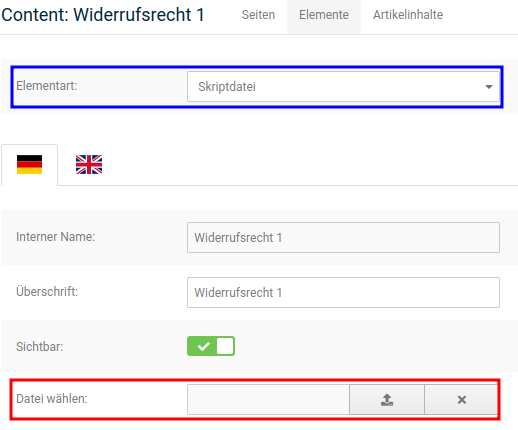
To store your texts for the right of withdrawal, please click on Edit for one of the contents Right of withdrawal 1 to Right of withdrawal 4 (ID 3889896 to 3889899). Now the respective withdrawal instructions can be inserted into the text field. If you obtain the texts from an external provider, such as Janolaw, the associated file can be integrated via Choose file after the Element type has been changed to Script file. Finally, please set the checkmark at visible. Only when the content is set to visible will it also be displayed and used.
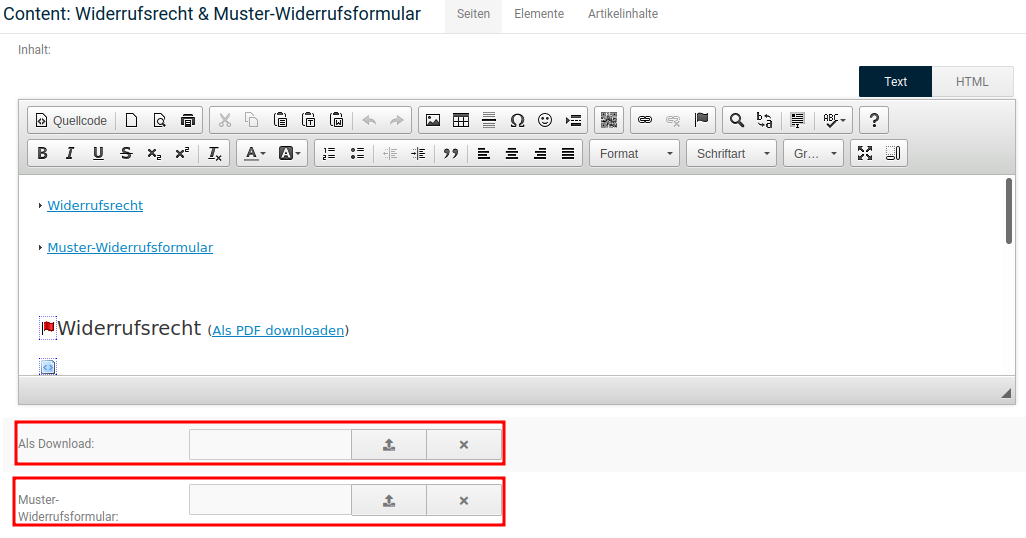
The withdrawal texts can also be downloaded in the shop as a PDF file. Normally, these files are generated in the shop from the respective contents of the individual contents (3889896 to 3889899). Alternatively, however, a separate file can also be stored for this purpose. This file does not necessarily have to be in PDF format. When editing the content Right of withdrawal & sample withdrawal form (ID 3889895), it can be uploaded to the shop via As download. A file that has been set up here is provided for download instead of the automatically generated PDF.
Note
In contrast to texts, the content Right of withdrawal & sample withdrawal form (group 3889895) can also be used for a PDF file to be stored. This content also has an additional setting option for the Sample withdrawal form.
The shop contains a sample withdrawal form in PDF format. However, there is also the option to replace this file with your own form. This setting can be made under Content > Content Manager in the content Right of withdrawal & sample withdrawal form (ID 3889895).
Note
You will find further information on uploading files in the chapter Using the file manager.
Upload the file, as already described, to the shop via Sample withdrawal form.
Defining the shipping & payment conditions
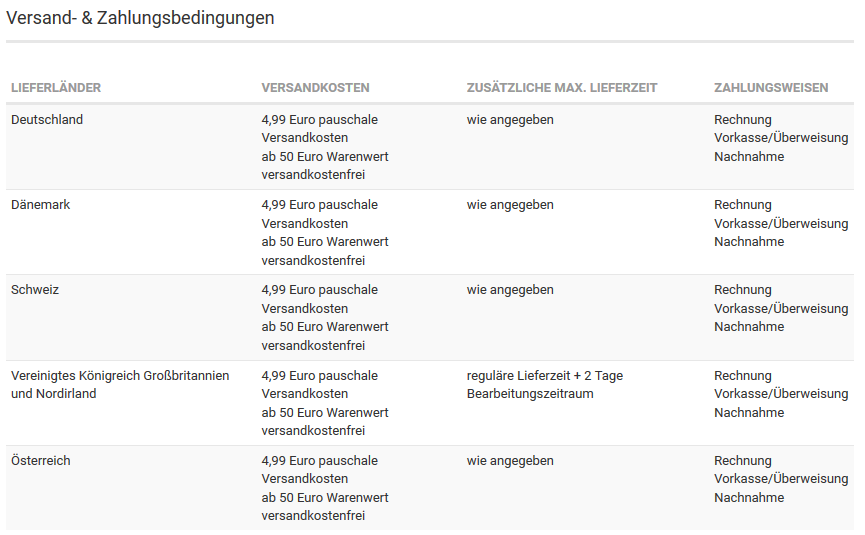
The content Shipping & payment conditions (ID 3889891) has a matrix for listing the shipping costs and payment methods for the countries activated in the shop. In the text field, this matrix is integrated with the help of the placeholder {$shipping_and_payment_ matrix}. This is present in the content by default.
Attention
Without the placeholder {$shipping_and_payment_matrix}, the matrix is not displayed. This text must therefore remain in the content if the matrix is to be used.
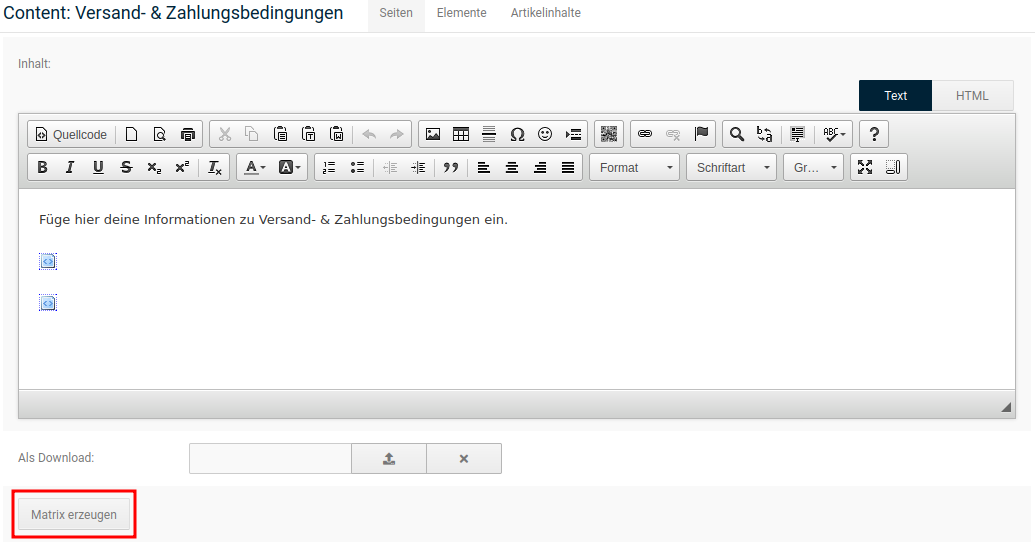
To generate this content for your shop, open Content > Content Manager and edit the content Shipping & payment conditions (ID 3889891). Click on the Generate matrix button, which you will find on the left below the text input field.
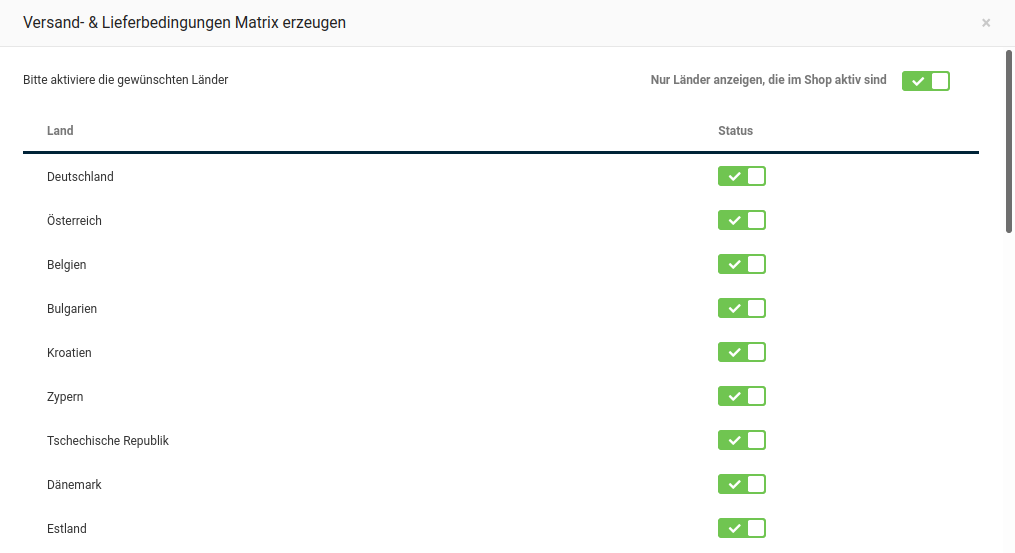
In the first step, the shipping countries are confirmed. These are listed in alphabetical order with their respective status. With the help of the checkmark that can be set for the field Only show countries that are active in the shop, the selection can be restricted accordingly. Activate or deactivate the countries by setting or removing the associated checkmark in the Status column in order to define the composition of your shipping countries.
Note
The countries activated for shipping and the countries activated for the matrix are independent of each other. The countries displayed as activated in the matrix therefore do not necessarily have to be activated under Settings / Languages, Countries, Taxes / Languages. Changes in one area have no effect on the other area.
By clicking on Next, the selection is confirmed and the view switches to the input areas of the matrix.
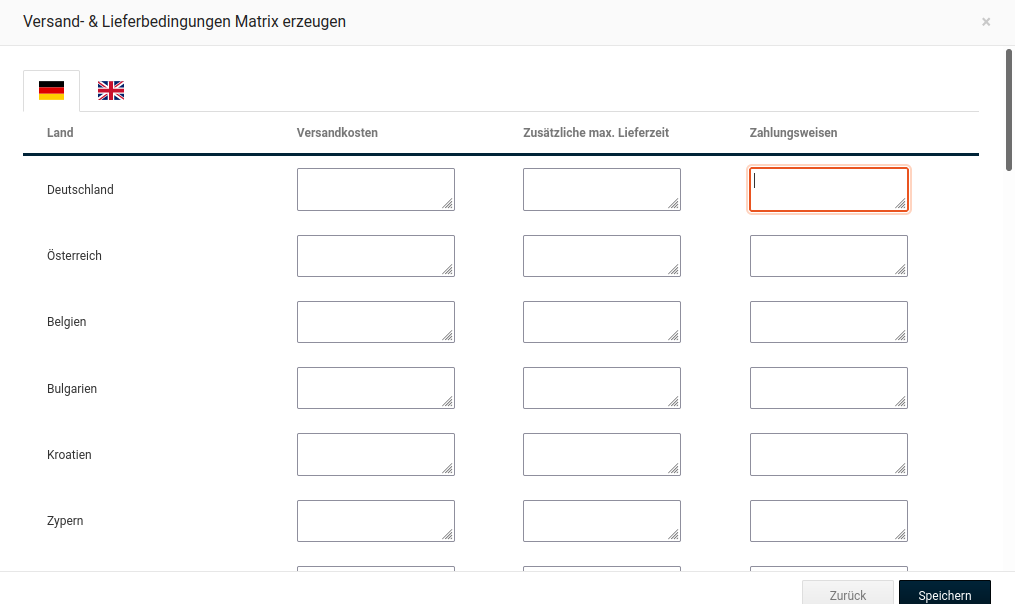
Here, the following information can be entered individually for each country
- Shipping notes: this field is displayed in the shop as Shipping costs; here the individual shipping costs as well as notes on them can be listed.
- Additional max. delivery time
- Payment notes: this field is displayed in the shop as Payment methods; here the available payment methods (e.g. PayPal or advance payment/bank transfer) as well as notes on them are listed.
The entry can be made separately by language (German/English by default). If you switch between the languages using the flags at the top left, the entries made in the respective other area are retained.
By clicking on Save, the settings from both steps are saved. By clicking on Back, the country selection is called up again. Even when switching between the two screens, the settings made in the respective other part are retained.
Contact information
The formal contents of the withdrawal form also include the contact information. It is entered under Settings / Shop / Shop operator.
| Field name | Description |
|---|---|
| First name | The first name of the shop operator |
| Last name | The last name of the shop operator |
| Street name | The street name of the company headquarters |
| House number | The house number of the company headquarters |
| Postal code | The postal code of the company headquarters |
| City | The city of the company headquarters |
| Telephone number | The telephone number of the shop operator |
| Fax number | The fax number of the shop operator |
Setting up the right of withdrawal
The basic settings for the right of withdrawal are made under Settings / Legal / Withdrawal. These include, in order:
| Field name | Description |
|---|---|
| Offer web form | Should the link to the online withdrawal form be displayed? |
| Offer PDF form | Should the withdrawal form be available as a PDF file? |
| Content ID | ID number of the main withdrawal content: 3889895 |
Note
This setting is only displayed if the assigned content ID does not correspond to the default value 3889895.
| Field name | Description |
|---|---|
| Offer web form | Offer withdrawal form to be filled out online |
| Offer PDF form | Offer withdrawal form for download as PDF |
| Show withdrawal right link within the order information under My account | The Withdrawal form section is displayed in the individual orders under Your account. This contains the references under Offer web form and Offer PDF form. |
| Attach terms and conditions as PDF to order confirmation | The terms and conditions are added to the order confirmation as a PDF attachment. |
| Attach withdrawal instructions as PDF to order confirmation | The withdrawal instructions are added to the order confirmation as a PDF attachment. |
| Attach withdrawal form as PDF to order confirmation | The withdrawal form is added to the order confirmation as a PDF attachment. |
| Download delay when waiving the right of withdrawal | Time until downloading a download product is possible if the right of withdrawal has been waived. |
| Download delay without waiving the right of withdrawal | Time until downloading a download product is possible if the right of withdrawal has not been waived. |
| Waiving the right of withdrawal for download products as a mandatory field | Must the right of withdrawal necessarily be waived for download products? |
| Waiving the right of withdrawal for services as a mandatory field | Must the right of withdrawal necessarily be waived for services? |
Define here in which format you would like to offer the withdrawal form, as a PDF download and/or online form. Set whether the link to the right of withdrawal should be displayed under Your account. In addition, you can choose which of your legal information (terms and conditions, withdrawal instructions, withdrawal form) should be added as an attachment to the order confirmation. Furthermore, you can set whether waiving the right of withdrawal for download products or services should be made a mandatory entry. Finally, you can define the so-called download delay, both with and without waiving the right of withdrawal.
Defining the product type
According to the Consumer Rights Directive, a distinction is made between standard products (material products), download products and services among the products available in the shop. This classification is necessary on the shop side in order to be able to waive the right of withdrawal, if applicable, for downloads and services. In addition, there is the option to define the aforementioned waiver as a mandatory entry in the order process.
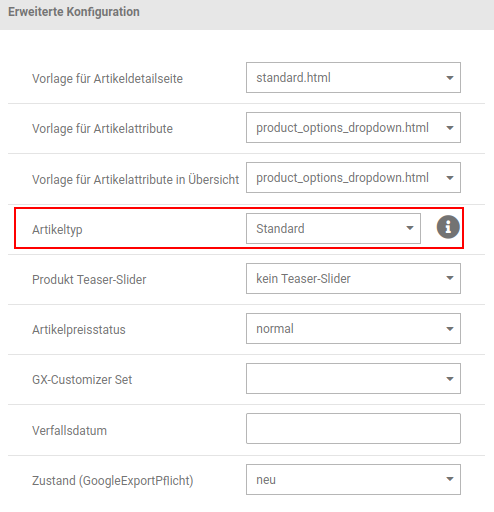
To make the setting in your products, edit them under Products > Products/Categories. Alternatively, the Edit product button in the product detail view can also be used.
The classification is done via the Product type drop-down menu. Here you can choose between Standard, Download and Service. The default setting when creating a new product is Standard.
The aforementioned setting is also part of imports and exports under Products > CSV Import/Export or Import/Export > Product data (old). Here the field product_type is used for the corresponding entry; the following numeric values are available for the individual selection options (German/English):
| Value | Meaning |
|---|---|
| 1 | Standard/Default |
| 2 | Download/Download |
| 3 | Dienstleistung/Service |
Under Products > Import/Export, the column bears the designation p_type.
Marking delivery times
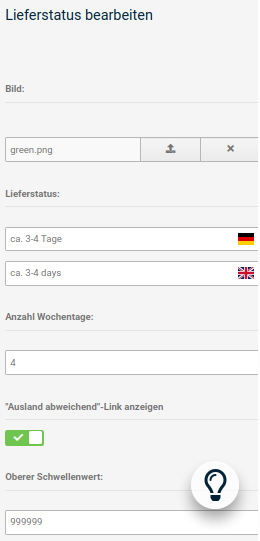
The delivery time specification has been expanded to include the link Different abroad. This link refers to the Shipping & payment conditions page and informs your customers that the specified delivery times do not apply to shipping abroad.
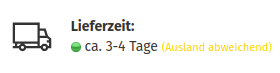
The display of this link can be activated or deactivated for each individual status under Settings / Delivery / Delivery status after calling up the page. To do this, select the respective status and click on the Edit button.