Shipping methods
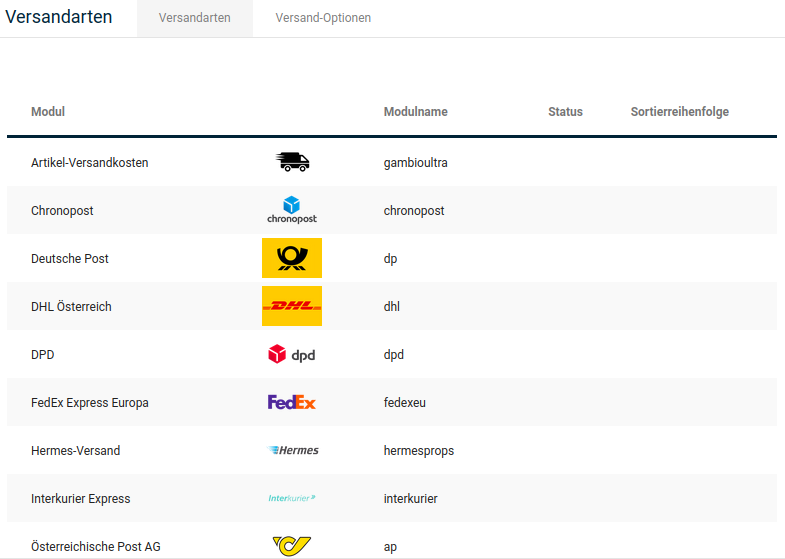
In the Gambio Admin under Modules > Shipping methods, various modules are available with which you can configure your shipping costs.
Note
Please note that the shipping costs stored in the modules for certain shipping service providers may not be up to date, as they only serve as an example.
Weight-based
The basic scope of the system mainly provides shipping methods that determine the shipping costs based on the total weight of the order. Some shipping methods offer several zones for the shipping cost scale, so that the shipping costs can be configured for different delivery zones.
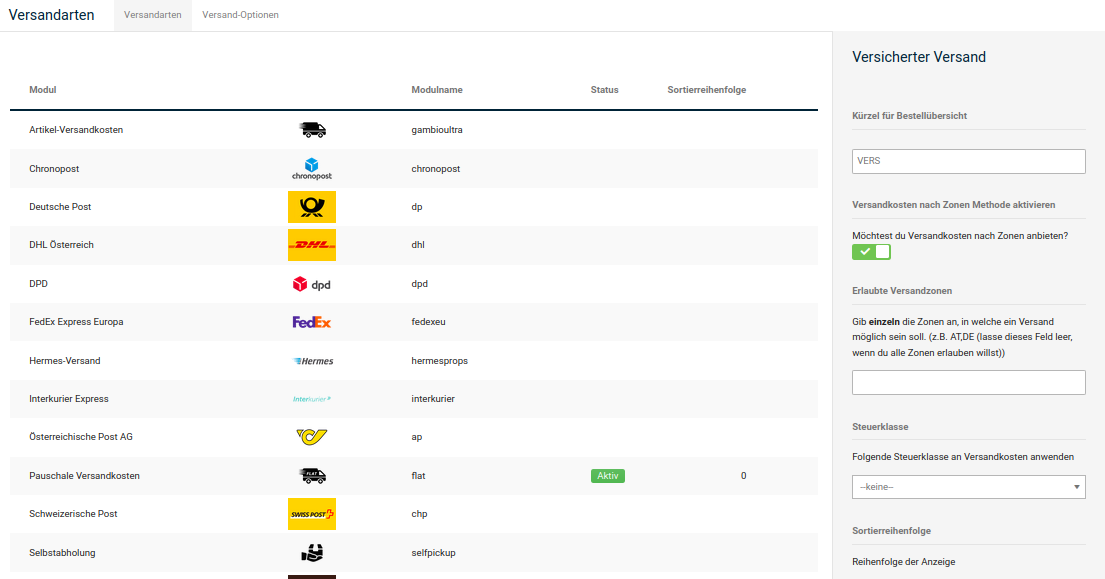
The shipping costs are entered in the field Shipping costs, or, for shipping by zones, in the field Zone [x] shipping costs, comma-separated and without spaces in the format weight_up_to:shipping costs. The following overview contains field names and descriptions that apply to all weight-based modules.
| Field name | Description |
|---|---|
| Activate shipping costs […] method | If activated, the module is offered when choosing the shipping method |
| Allowed shipping zones | If used, the module is only offered for the zones that are stored comma-separated when choosing the shipping method |
| Tax class | The tax class according to which the shipping costs are to be taxed |
| Sort order | Display order when choosing the shipping method |
| Zone [1,...,n] countries | Comma-separated list of the two-digit ISO codes of the countries from zone [1,...,n] |
| Zone [1,...,n] shipping costs | Comma-separated list of the shipping costs for zone [1,...,n] in the format WeightUpTo:Costs (example: 4:2.5 => 2.50 EUR up to 4 kg) |
| Zone [1,...,n] handling fees | Handling fees for shipping to zone [1,...,n] |
Note
Weight-based shipping modules developed for specific transport companies contain special fields that are only relevant for that company. Information on the meaning of the individual fields can be found in the offer of the transport company.
Example configuration of a weight-based module
Note
All listed shipping costs and weight specifications are purely fictitious and are only used for this example.
In this example, we assume you want to ship goods to several countries and the costs depend on the shipping weight. In addition, there are different shipping costs for different countries.
A zone-based module is suitable here, such as Uninsured shipping (zones). In the Gambio Admin of your shop, go to Modules > Shipping methods and select the module Uninsured shipping (zones) from the list so that the corresponding row is highlighted in blue. Click on the Install button, if not already done. Now the module is ready and can be configured.
Click on Edit to make the settings for the module. We assume that, in addition to Germany, shipping is to be made to Switzerland, Austria and Great Britain.
Example
| Germany: | Austria: |
|---|---|
| up to 5 kilos weight: 3.49 euros | up to 5 kilos weight: 4.50 euros |
| up to 10 kilos weight: 7.55 euros | up to 10 kilos weight: 8.50 euros |
| up to 15 kilos weight: 10.59 euros | |
| everything above: 14.50 euros |
| Great Britain: | Switzerland: |
|---|---|
| up to 5 kilos weight: 7.50 euros | up to 5 kilos weight: 4.50 euros |
| up to 10 kilos weight: 10.50 euros | up to 10 kilos weight: 8.50 euros |
| everything above: 20.50 euros |
The first step is to define the shipping zones. First of all, we enter the country codes in the field Allowed shipping zones:
DE,CH,AT,GB
This restricts the use of the module so that shipping with this module is only possible to these countries.
Attention
Please make sure that all countries you want to ship to are activated under Settings / Languages, Countries, Taxes / Countries, after opening the page.
Then follows the distribution of the countries to the actual shipping zones. Since we assume identical shipping costs for Austria and Switzerland, both countries can be entered in one zone. In summary, this looks as follows:
Example
Zone 1 countries
DE
Zone 2 countries
CH,AT
Zone 3 countries
GB
Now the shipping costs for each zone can be scaled by weight:
Example
Zone 1 shipping costs
5:3.49,10:7.55,15:10.59,999999:14.5
Zone 2 shipping costs
5:4.5,10:8.5
Zone 3 shipping costs
5:7.5,10:10.5,999999:20.5
In zones 1 and 3, fictitious upper limits are specified as the last scale level to cover the requirement everything above. It is assumed here that a weight of 999999 kilos will not be reached by any order.
Note
The fictitious scale can also be used to define flat-rate shipping costs for several zones. In this case, a scale level with the fictitious value is created:
999999:5
would stand for flat-rate shipping costs of 5 euros.
Attention
When entering the scales, . and , must not be confused. The full stop serves as the decimal separator, for example between kilos and grams or euros and cents. The comma is used to separate the individual scale levels from each other:
5.5:7.49,10.5:9.72
Cost-based
In addition to the weight-based shipping methods, the module Shipping by price/weight can be used to calculate the shipping costs based on the total value of the shopping cart.
Install the shipping module Shipping by price/weight. Activate the option Price under Shipping costs method. Enter the shipping costs under Shipping costs, comma-separated and without spaces in the format goods_value_up_to:shipping costs.
Example configuration of the cost-based shipping module
With the module Shipping costs by price/weight (table), the scale can in principle be defined as in the module Uninsured shipping (zones). However, there is a choice here between scaling by weight (as described in the previous chapter) and price. In addition, this module does not have the division into different zones; the entered scale applies to all countries under Allowed shipping zones. Enter here the country codes of all countries for which this shipping method should be available. In this example, we assume shipping costs based on order value.
Select the setting Price under Shipping costs method; now the order value in the set currency (for example euros) is used for the scale instead of the weight. Let's assume you want to charge 3.50 euros shipping costs up to an order value of 50 euros. Up to 75 euros, 5.66 euros are to be charged and from 125 euros, 7.99 euros. Use the following scale for this:
50:3.5,75:5.66,125:7.99
Note
The entered scale can be adopted one to one for weights; to do this, change the Shipping costs method from Price to Weight. Instead of the set currency, the shipping weight is now used.
Free shipping
Two methods are available for free deliveries:
Shipping method Free shipping
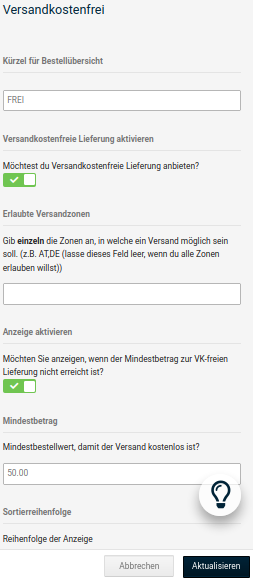
Under Modules > Shipping methods you will find the module Free shipping. Enter the desired minimum order value in it. Until the minimum order value is reached, the shipping module displays a message stating that shipping is free from the configured amount. Once the minimum order value has been reached, the customer can choose between normal shipping and free shipping.
Order summary module Shipping costs
Under Modules > Order summary you will find the module Shipping costs. Edit the configuration of this module and activate the option Allow free shipping. Enter the desired minimum order value for free shipments in the field Free shipping for orders from and specify under Free shipping by zones the zones for which free shipping is to be considered. Unlike the shipping costs module, this function hides all other shipping methods except self-collection once the configured minimum order value is reached and informs the customer that the order will be shipped free of charge. Before the threshold value is reached, the customer is not informed about the threshold value with this method.
If you want to offer a different threshold value for free deliveries for domestic and foreign countries, you can combine both modules.
Others
In addition to the weight- and cost-based shipping methods, further shipping methods with special functions are available.
Product shipping costs
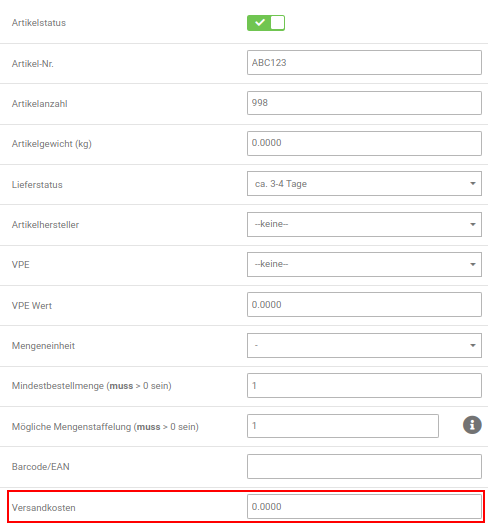
In the product shipping costs module, the basic shipping costs are calculated weight-based by zones. In addition to the weight-based shipping costs, the shipping costs stored in the product input form are calculated from the products in the shopping cart. The shipping costs are calculated not per line item, but per product.
Note
The product shipping costs should not be used together with the order summary module Shipping surcharge. Both modules work with the Shipping costs field of the product input form; the additional shipping costs are calculated twice if used at the same time.
Attention
When using the product shipping costs module, a scale should be entered in any case. Otherwise, an error message may occur during the ordering process and the module will not be available.
A fictitious scale can be used for this, which does not change the shipping costs, e.g.
9999999:0
Example configuration of the product shipping costs module
In our example, we assume that differing shipping costs per unit are to be used for all products. It should also be taken into account that at least 5 euros shipping costs are to be charged for the entire shipment up to 31 kilos weight. This applies to all shipping countries; these are entered in Zone 1 countries.
For simplicity's sake, let's assume you have 3 products: Apple pie, Alphabet soup and Citrus fruits. For Apple pie, 2.50 euros shipping is to be charged per unit, for Alphabet soup 3.50 euros and for Citrus fruits 4.50 euros. These shipping costs have been stored in the products (Products > Products / Categories, Edit button).
To ensure the minimum shipping, we define flat-rate shipping costs up to 31 kilos for Zone 1 shipping costs with the following scale:
31:2.5
The shipping costs per unit of the various products and the scale entered in the module are added together. As an example, the following order:
Example
| Product | Quantity | Individual shipping | Total shipping |
|---|---|---|---|
| Apple pie | 2 | 2.50 euros | 5.00 euros |
| Alphabet soup | 3 | 3.50 euros | 10.50 euros |
| Citrus fruits | 1 | 4.50 euros | 4.50 euros |
| Shipping up to 31 kg | 2.50 euros | ||
| Total | 22.50 euros |
Flat-rate shipping costs
With the shipping method Flat-rate shipping costs, a flat shipping fee is charged for every order. The flat fee is independent of the order weight, the number of products and the goods value.
Shipping costs per unit
With the shipping method Shipping costs per unit, a flat shipping cost value is charged for each product in the shopping cart.
List of shipping methods
| Shipping method (module name) | Type |
|---|---|
| Product shipping costs (gambioultra) | weight-based, zones, others |
| Chronopost Zone Rates (chronopost) | weight-based, zones |
| Deutsche Post (dp) | weight-based, zones |
| DHL Austria (dhl) | weight-based, zones |
| DPD (dpd) | weight-based, zones |
| FedEx Express Europe (fedexeu) | weight-based, zones |
| Interkurier Express (interkurier) | weight-based, zones |
| Österreichische Post AG (ap) | weight-based, zones |
| Flat-rate shipping costs (flat) | others |
| Swiss Post (chp) | weight-based, zones |
| Self-collection (selfpickup) | others |
| United Parcel Service Express (upse) | weight-based, zones |
| United Parcel Service Standard (ups) | weight-based, zones |
| Uninsured shipping (zones) | weight-based, zones |
| Shipping costs by price/weight (table) | weight-based, cost-based |
| Shipping costs per unit (item) | others |
| Free shipping (freeamount) | free shipping |
| Insured shipping (zonese) | weight-based, zones |