Customer groups
With customer groups you organize your customers according to any criteria. Each customer is a member of one customer group and cannot be assigned to multiple customer groups. With customer group prices, you can create special prices that apply exclusively to specific customer circles.
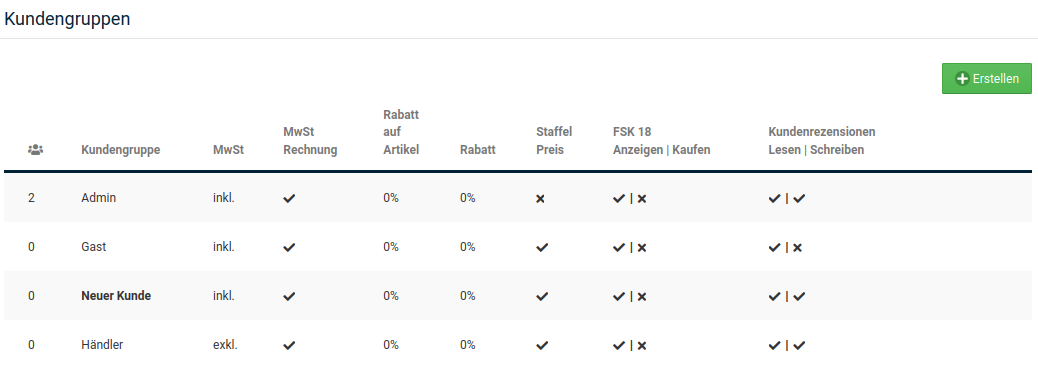
Creating customer groups
You can create new customer groups in the Gambio Admin of your shop under Customers > Customer groups.
-
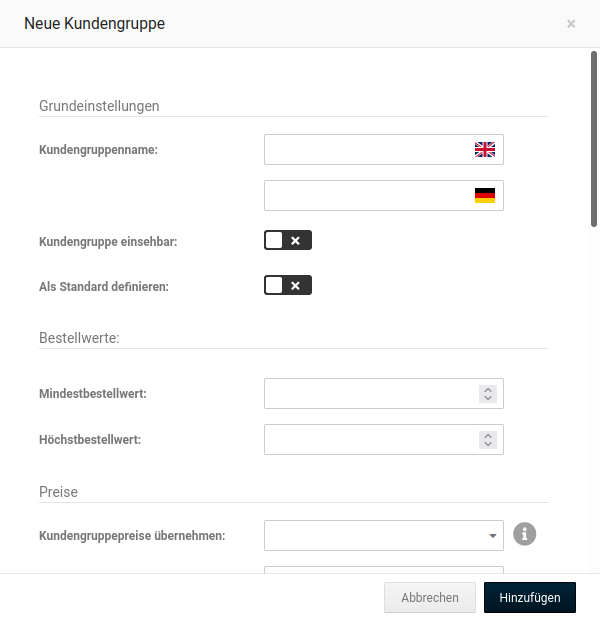
Click on Create above the customer group list
The customer group input form opens
-
Enter a name for your new customer group in the Customer group name field
- Configure the customer group according to the table Overview of the customer group input form
- From the list Apply customer group prices, select the customer group whose customer group prices should be imported into the new customer group for product prices
- Click on Add to add the new customer group
| Field name | Description |
|---|---|
| Customer group name | Field for the name of the customer group |
| Customer group visible | With ✔, the name of the customer group is displayed in the storefront in the dropdown of the login button in the secondary navigation |
| Define as default | If activated, the current customer group is defined as the default customer group |
| Minimum order value | Minimum order value for the customer group (optional) |
| Maximum order value | Maximum value for the customer group (optional) |
| Apply customer group prices | Applies the product prices from the selected group |
| Prices | Selection list for displaying prices including or excluding VAT |
| Show VAT on invoice | With ✖, the VAT is not shown on the invoice |
| Price display | With ✖, no prices are displayed in the shop; the purchase options are deactivated |
| Maximum discount on products | Field for the maximum product discount; discounts entered in products are granted up to this value |
| Attributes & properties | With ✔, product attributes and product properties are also reduced with the product discount |
| Discount on entire order | Field for the discount on the entire order |
| Discount on total order value | With ✔, the percentage from the previous field is shown in the order summary as a reduction on the total invoice |
| Activate graduated prices | With ✔, graduated prices set up for this customer group are displayed |
| Disallowed payment methods | Comma-separated list of payment methods not allowed for this customer group, specified by module name, e.g. invoice,cod for invoice and cash on delivery |
| Disallowed shipping methods | Comma-separated list of shipping methods not allowed for this customer group, specified by module name, e.g. flat,table for flat shipping costs and shipping costs by price/weight |
| Buy FSK18 products | With ✔, customers of this group can purchase products marked as FSK18 |
| Show FSK18 products | With ✔, customers of this group are shown products that are marked as FSK18 |
| Review products | With ✔, customers of this group can write customer reviews and rate products |
| Read customer reviews | With ✔, customers of this group can view customer reviews |
Editing customer groups
You can adjust the settings of existing customer groups in the Gambio Admin of your shop under Customers > Customer groups.
Attention
The customer groups Admin and Guest have special tasks and behave differently in places than a newly created group. They should therefore not be used for other purposes.
- Select the customer group to be edited from the Customer groups list by moving the mouse pointer into the corresponding row
- Click on the pencil icon
- Make the desired changes according to the table Overview of the customer group input form
- Click on Update to apply the changes
Assigning customer groups
You can assign existing customer accounts to a customer group under Customers > Customers.
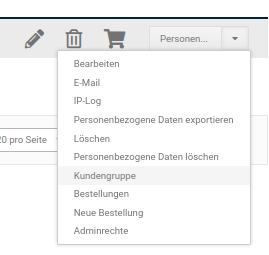
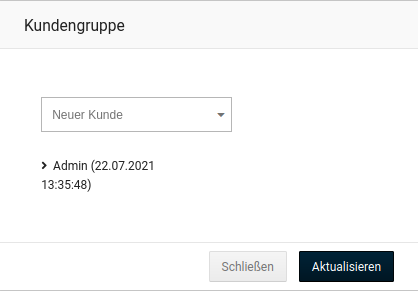
- Select the customer who should be assigned to a new customer group from the Customers list
- Click on Customer group via the dropdown button
- Select the desired customer group to which the selected customer should be assigned
- Click on Update to assign the customer to the new customer group
Deleting customer groups
You can delete customer groups that are no longer needed in the Gambio Admin of your shop under Customers > Customer groups.
Attention
Customer groups cannot be deleted if at least one customer is still in them. Assign customers from customer groups to be deleted to an alternative customer group, as described in the chapter Assigning customer groups. Deleting the customer groups included in the basic scope (Admin, Guest, New customer, Merchant) is not intended by default.
- Select the customer group to be deleted from the Customer groups list by moving the mouse pointer into the corresponding row
- Click on the trash can icon that is now displayed
- Check in the displayed confirmation prompt whether the correct customer group has been selected and click on Delete again to confirm the irrevocable deletion of the customer group