Additional modules
The shop has so-called additional modules; these are small auxiliary programs that support the basic functions.
Note
Most additional modules are located in the Settings area (see chapter Settings).
WYSIWYG editor
Activating the WYSIWYG editor
The WYSIWYG (What You See Is What You Get) editor is a text input field with a built-in preview function. The so-called CK Editor is used for this purpose. It is mainly used for product and category descriptions, as well as contents (information pages, which are managed under Content > Content Manager), but is also used elsewhere.
This function is activated by default and the entered text is displayed largely as it will be shown in the shop. If the WYSIWYG editor is switched off, only a simple text input field is available, which displays the content as HTML code.
Note
To view the HTML code, the Source code button of the CK Editor can also be used. It is therefore not necessary to switch off the editor entirely for this purpose.
Gift voucher system
The gift voucher system allows gift voucher and discount coupon codes to be entered in the shopping cart. If the setting Activate gift voucher system? is set to ✔, the corresponding box is displayed in the shopping cart.
Note
Only if the gift voucher system is activated are the corresponding menu items displayed in the Gambio Admin.
The following input fields are also available to you:
- Length of the gift voucher code
- Welcome gift voucher value
- Welcome discount coupon code
Here you can optionally send a gift voucher or a discount coupon as a welcome gift when an account is created. For the gift voucher, the value and the length of the automatically generated code can be defined here.
The coupon must first be created under Gift vouchers > Discount coupons. Afterwards, the corresponding code can be entered here to use the coupon as a welcome gift.
Attention
The field Length of the gift voucher code cannot hold a custom code, but only defines how long the automatically generated code should be. If anything other than a positive number is entered here, errors may occur in the shop.
Please also note the maximum value of 16.
Product modules
Customer group check
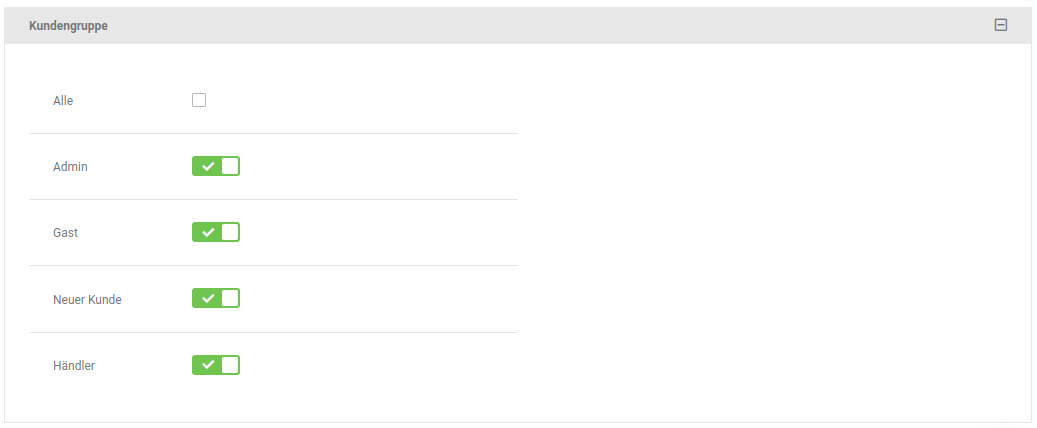
The customer group check can be used to configure which customer group (e.g. new customer, guest, etc.) may access which content. This includes products, categories as well as contents (information pages). If the customer group check is activated, the setting Customer group is added when creating or editing a product, content or category. Every customer group with a checkmark set can access the respective content.
Product navigator
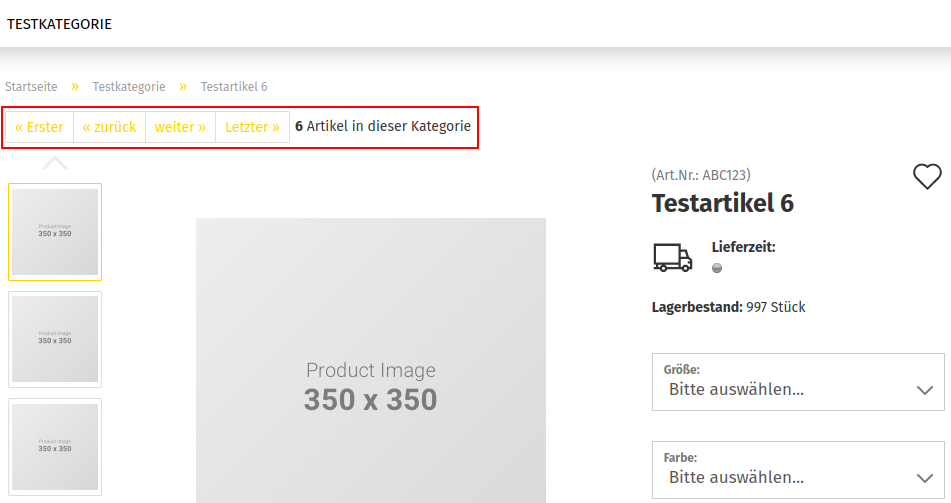
The product navigator is an additional selection in the product detail view, which allows the customer to switch from product to product within a category. This means it is not necessary to open the category again.
Activate linking/copying
This function makes it possible to copy or link a product to multiple categories under Products > Products/Categories in the Gambio Admin. To do this, simply check the categories after clicking the Copy button. This function is activated by default.
Reverse cross-marketing
Reverse cross-marketing is an additional function to Cross Selling (see chapter Cross Selling), which allows further products to be recommended for a selected product. If reverse cross-marketing is activated, a back-link is created from the recommended product to the original product.
Note
With a larger number of products, reverse cross-marketing can increase the load on your server. After activation, please check whether the shop has noticeably slowed down when opening products. If this is the case, reverse cross-marketing should not be used if possible.
Page token system
The page token system is an additional security system that works with the help of timestamps and randomly generated hash values. From this, a unique control value, the so-called token, is calculated for each session. This is verified when pages of the Gambio Admin are accessed.
Under certain conditions, problems can occur with this module that make using the Gambio Admin difficult. Therefore, the page token system can be switched off in this case. To do this, set the setting Page token system to ✖.