Editing an order
You can make changes to an order in the Gambio Admin of your shop under Orders > Orders. Select the order to be changed from the order overview. The currently selected order is highlighted in grey. In the dropdown button, click on Show and, on the details page of the order, click on Edit to change the data for the respective section
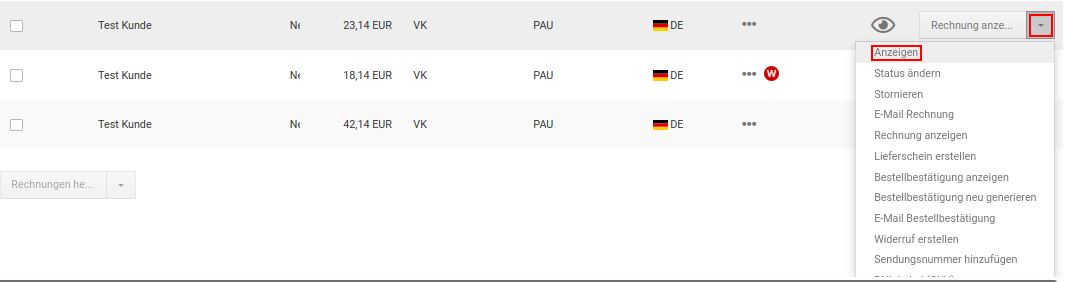
Changing customer data
For an existing order, you can change the customer data, such as the shipping and billing address, in the order input form. On the details page of the order, click on Edit to open the order input form.
- In the Order information section, click on Edit
-
Change the customer addresses if required
The changes to the customer data are not saved in the customer account
-
From the dropdown Customer group in the order, select the customer group of the customer that should apply to this order
- Change the fields E-mail, Telephone and VAT ID if required
- Click on Apply to save the changes to the customer data
Changing products
You can add new products to an existing order via the order input form. On the details page of the order, click on Edit in the Products section to open the order input form.
Attention
Gift voucher products can only be ordered directly in the shop. Manually creating or subsequently editing an order with gift voucher products is not intended; gift vouchers added or edited in this way are not processed by the gift voucher system.
Instead of a manually created order, the function Log in as customer via the dropdown button of the respective customer account under Customers > Customers should be used to place an order on behalf of the customer.
Adding products
- In the Product search field, enter the name or part of the name of the product to be added; leave the field empty to display all products
- Click on Search
- In the field in the Quantity column, enter the ordered quantity of the product to be added
- Click on Insert next to the product number of the product to be added, to add the product to the list above the product search
- Repeat steps 2 to 5 until the desired changes have been made
- Click on Save behind the respective product to save the changes
Adding product variants
If you have added a product with product attributes, you must enter the available variants by hand.
- In the Products section, click on Edit
- In the row of the product with product attributes, click on Product options or Properties
- Select the respective option values or combinations and tick the checkbox Finish post-processing and recalculate order. Finally, click on Close
- The selected options are now assigned to the product and are displayed on the details page of the order
Changing product variants
- In the Products section, click on Edit
- In the row of the product with product attributes, click on Product options or Properties
- Select the respective option values or combinations and tick the checkbox Finish post-processing and recalculate order. Finally, click on Close
- The selected options are now assigned to the product and are displayed on the details page of the order
Removing products
- In the Products section, click on Edit
- Next to the product you want to delete, click on Delete
- Click on Finish post-processing and recalculate order. and finally on Close
Regenerating order totals
You can generate the order totals in the order input form. On the details page of the order, click on Edit to open the order input form
Changing the language of the order
- Click on Edit and then on the tab Shipping methods, payment methods and totals
- Under Language, select the language that will be used in the order confirmation and on the invoice, and click on Save
Changing the payment method and shipping method
- Click on Edit and then on the tab Shipping methods, payment methods and totals
- Under Payment method, select the desired payment method from the New list and click on Save
- Under Shipping method, select the desired shipping method from the New list
- Enter the amount of the shipping costs in the Price field
- Click on Save to save the shipping costs
The shipping costs are automatically entered in the summary.