Parcel Services
Via the parcel services it is possible to link orders in the shop with the tracking of the respective shipping service provider.
Creating and editing parcel services
Under Settings / Delivery / Shipping service providers, after calling up the page Parcel services, you can store and edit the service providers. Click Create to create a new parcel sender. Under Name, enter a general designation, e.g. DHL.
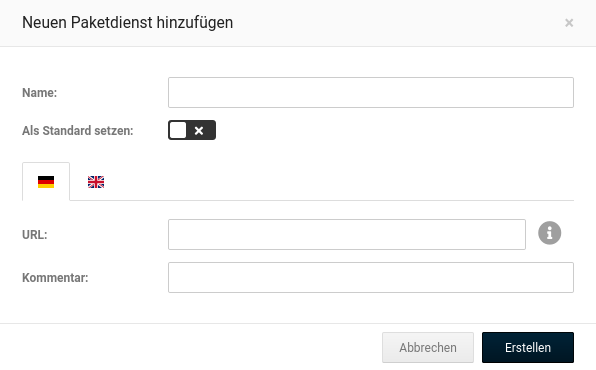
In the field URL, please enter the internet address at which the shipment tracking of the respective service provider can be called up. For the shipment number, enter the placeholder {TRACKING_NUMBER} here.
In the comment field, additional text about the parcel service can be stored that is shown to the customer when they call up their order under Your account.
If you usually use one provider among several parcel services, you can set the checkbox for Default. The parcel service is then pre-selected when assigning the shipment number to an order (see Assigning a shipment number).
By clicking Save, the parcel service is created or the change is applied. Via Close you can leave the entry window without applying the changes.
Via the pencil symbol you can edit a created parcel service. Via the trash can symbol you can delete a created parcel service again.
Assigning a shipment number
To assign a parcel service to an order, please go to the menu Orders > Orders in the Gambio Admin. Select the order by clicking on it so that it is highlighted in blue, and click the eye symbol to call up the order.
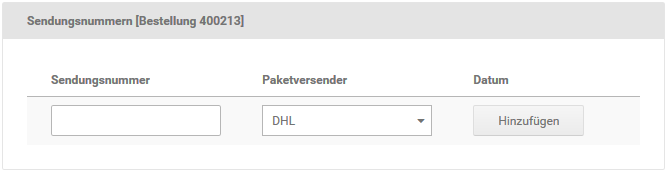
Enter the shipment number in the input field Shipment number and select the associated shipping service provider in the drop-down menu. Finally, click Add.
Now the customer, when they call up their order under Your account, can reach the shipment tracking of the respective provider directly via a link.
The assigned shipment number, the parcel service, and the date of the assignment are now displayed in the detail view of the order.