Currencies
During the installation of the shop system, the currencies Euro, Swiss Franc and US Dollar are created with estimated exchange rates. The exchange rates are not updated automatically.
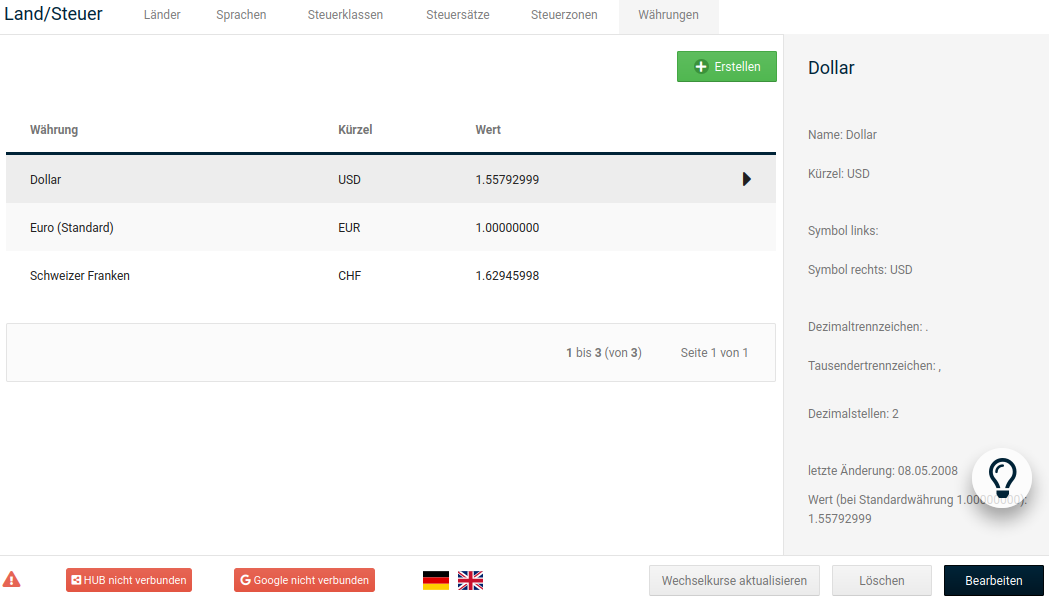
Updating exchange rates
In the Gambio Admin of your shop, under Settings / Languages, Countries, Taxes / Currencies, after calling up the page, click on Update exchange rates. The exchange rates of all currencies are queried free of charge from an external service provider. The currency defined as the default currency is used as the reference rate.
Note
Under certain circumstances, individual currency rates may not be updated. Whether all currency rates could be updated can be seen in the success and error messages above the table. If retrieving an exchange rate fails, perform the action again.
Adding a currency
If you would like to offer further currencies, add a new currency under Settings / Languages, Countries, Taxes / Currencies, after calling up the page.
- Click on Create
-
Enter the name in the field Name and the abbreviation for the currency in the field Abbreviation
Note that the currency abbreviation must comply with the ISO standardization so that exchange rates can be queried correctly.
-
Enter the currency symbol in the field Symbol left or Symbol right
Note that special characters may under certain circumstances not be displayed correctly. In case of doubt, enter the abbreviation as the symbol as well.
-
Enter the formatting characters that apply to your currency in the fields Decimal separator, Thousands separator and Decimal places
European currencies usually use a comma as the decimal separator, no thousands separator and two decimal places.
-
If you know the current exchange rate to the default currency, enter the rate in the field Value
- Activate the checkbox define as default to set the new currency as the default currency
- Click on Insert
- Update the exchange rates for the currencies, as described under Updating exchange rates
Changing the default currency
Usually all prices in the shop are displayed in the default currency. The currency must in this case be switched via one of the currency changers in the upper right menu or in the left menu bar. If you operate your shop outside the Eurozone, the default currency must be adjusted under Settings / Languages, Countries, Taxes / Currencies, after calling up the page.
-
In the list Currencies, mark the currency that you would like to set as the default currency
The currently marked currency is highlighted in gray.
-
Click on Edit
- Activate the checkbox define as default
- Enter the value 1.0000 without quotation marks in the field Value
- Click on Update
- Update the exchange rates for the currencies, as described under Updating exchange rates
Note
Changes to the default currency only take effect after logging in to the shop again. If you make changes to the default currency, log out of your shop and log in again.
Deleting a currency
If you no longer need a currency, you can remove it under Settings / Languages, Countries, Taxes / Currencies, after calling up the page. The default currency cannot be deleted. If you would like to delete the default currency, first set a new default currency, as described under Changing the default currency.
-
In the list Currencies, mark the currency that you would like to set as the default currency
The currently marked currency is highlighted in gray.
-
Click on Delete
- Click on Delete again to confirm the deletion.