XRechnung and ZUGFeRD
XRechnung is the German standard for electronic invoices. Unlike a regular PDF invoice, it contains the invoice data as a structured XML file that accounting and ERP systems can read automatically. ZUGFeRD combines both: a readable PDF invoice with the XML file embedded in it.
With the XRechnung ZUGFeRD module, your shop automatically creates an XRechnung for every invoice to a business customer. You can:
- download the XRechnung as an XML file for every order
- embed the XRechnung directly in the PDF invoice (ZUGFeRD)
- send the XML file to your customer automatically by e-mail
- store a buyer reference (Leitweg-ID) and buyer reference e-mail address for invoices to public authorities
The module creates invoices in the XRechnung 3.0 format according to the European standard EN 16931. Embedded invoices comply with ZUGFeRD 2.3 in the XRECHNUNG profile.
Legal note
Germany is introducing mandatory e-invoicing between businesses step by step. Please check with your tax advisor from when you have to issue e-invoices and which exceptions apply to you. Invoices to private customers are not affected.
Requirements
- Shop version 26.04.1 or higher
- PHP 8.1 or higher and MySQL 8.0 or higher
The module only creates an XRechnung if all of the following details are available. If one is missing, the shop creates only the PDF invoice as usual.
| Detail | Where to enter it |
|---|---|
| VAT ID number or commercial register number | Module configuration, section Module Configuration |
| Phone number of the shop owner | Settings / Shop / Shop owner, field Phone |
| Company name in the customer's billing address | Customer account or order |
The company in the billing address decides whether an order counts as a business order. Orders without a company name do not get an XRechnung.
Note
To let your customers enter a company during registration, the setting Company under Settings / Customers / Customer data must be enabled (see chapter Settings).
Installing the module
- In the Gambio Admin, open the menu item Store (Gambio Store)
- Search for XRechnung ZUGFeRD and install the package
- Open Modules > Module Center
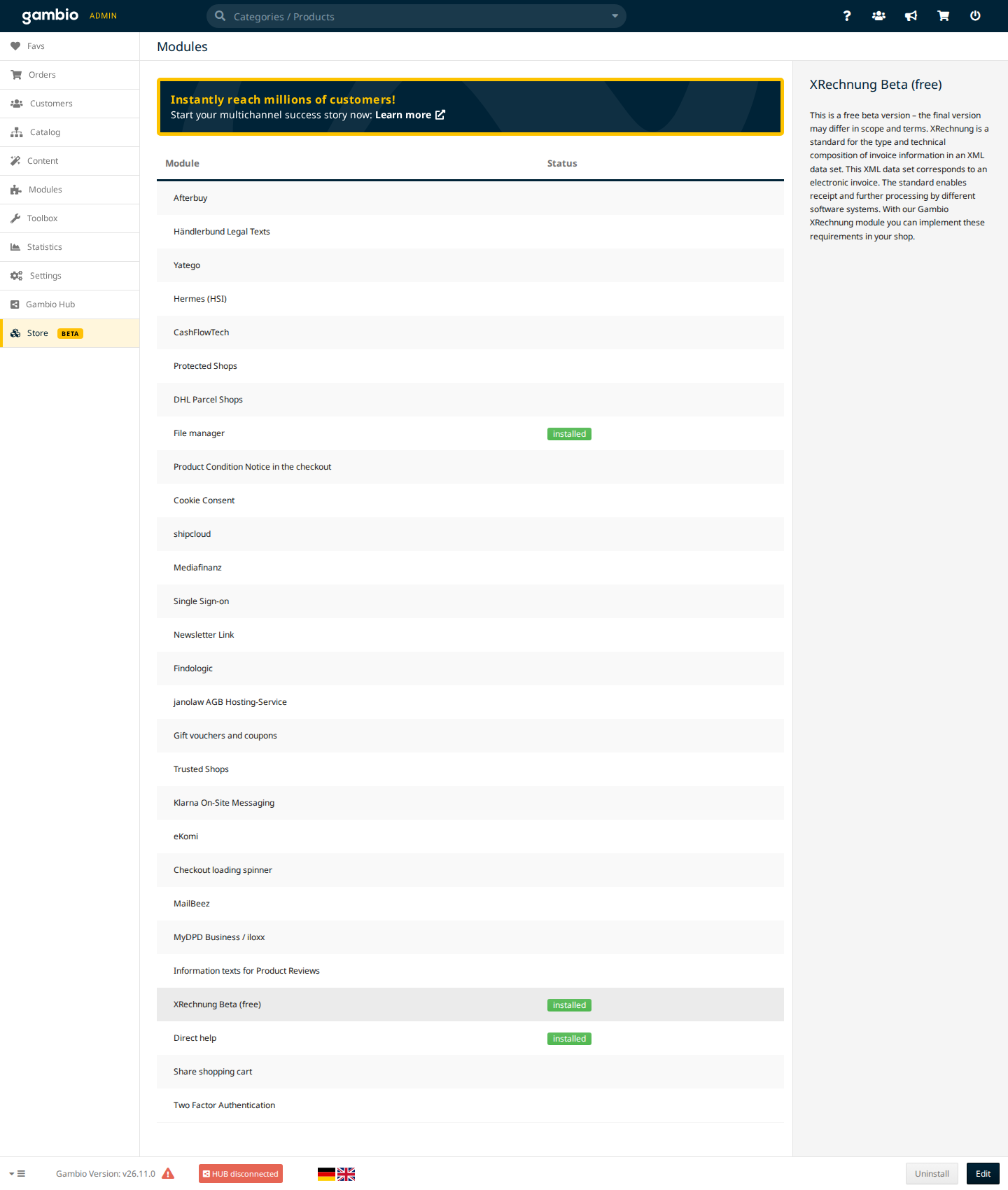
- Select the entry XRechnung Beta (free) and click Install
After installation, the Module Center shows the status installed for the entry. The buttons Uninstall and Edit then appear at the bottom right.
Configuring the module
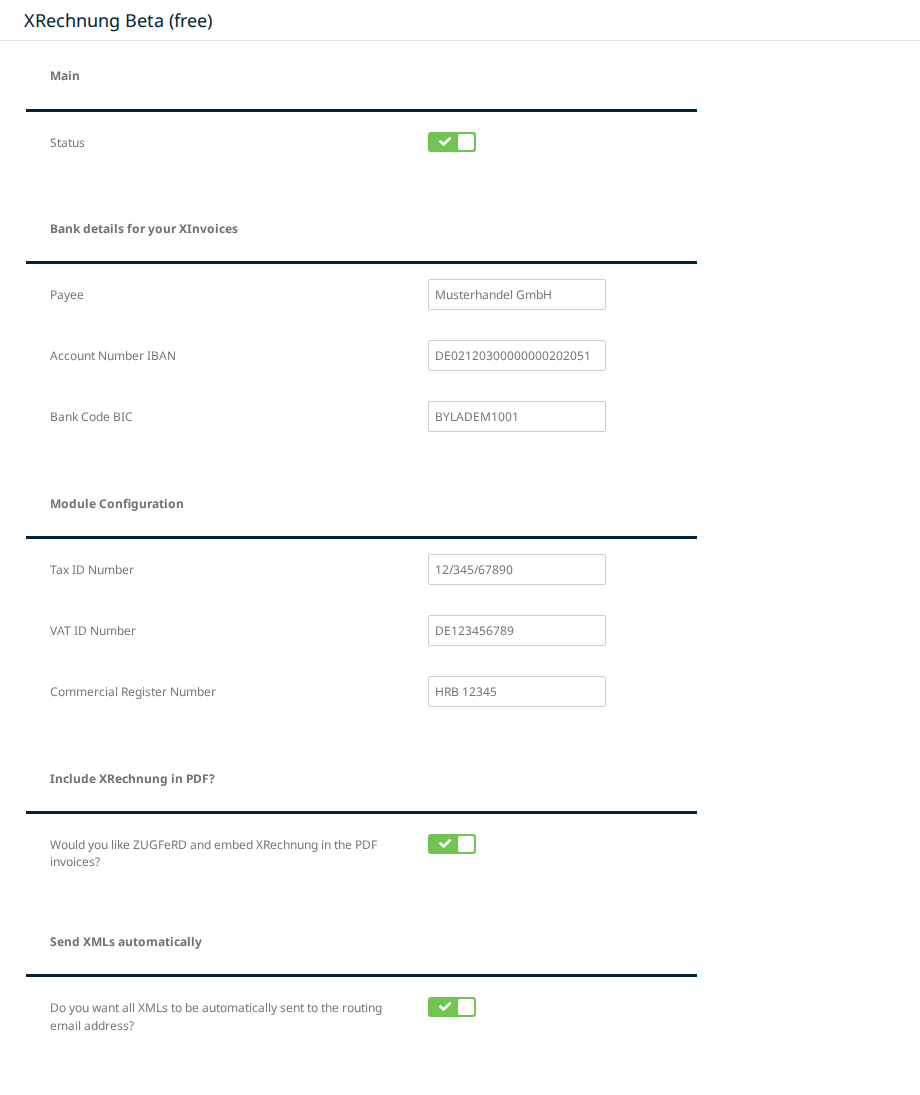
Under Modules > Module Center, select the entry XRechnung Beta (free) and click Edit. The configuration has five sections. After making changes, click Save at the bottom right.
Main
The Status switch activates or deactivates the module. If the switch is off, the shop does not create any XRechnung.
Bank details for your XInvoices
| Field name | Description |
|---|---|
| Payee | Name of the account holder |
| Account Number IBAN | IBAN of your business account |
| Bank Code BIC | BIC of your business account |
The bank details appear in the XRechnung as payment information, for example for prepayment or purchase on account. Enter them so your customer knows where to pay.
Module Configuration
| Field name | Description |
|---|---|
| Tax ID Number | Your tax number from the tax office |
| VAT ID Number | Your VAT identification number |
| Commercial Register Number | Your commercial register number |
Enter at least the VAT ID number or the commercial register number. If you have a VAT ID number, the XRechnung uses it. Otherwise it uses the tax number.
Attention
The tax number alone is not enough. If you do not have a VAT ID number, you must also enter the commercial register number. Otherwise the module does not create an XRechnung.
Include XRechnung in PDF?
If Would you like ZUGFeRD and embed XRechnung in the PDF invoices? is checked, the module embeds the XRechnung in the PDF invoice. The PDF invoice is then saved as PDF/A-3. Your customer receives a single document that they can read and process automatically at the same time.
This setting is enabled by default. If you uncheck it, the shop creates a regular PDF invoice and the XRechnung as a separate XML file. The separate XML file is available for download in both cases.
Send XMLs automatically
If Do you want all XMLs to be automatically sent to the routing email address? is checked, the shop sends the XML file by e-mail for every new invoice. This setting is enabled by default.
- The recipient is the customer's buyer reference e-mail address
- If no buyer reference e-mail address is stored, the e-mail goes to the e-mail address from the order
- The sender is the shop owner's e-mail address
- The subject is Your XRechnung as XML document.
Note
This e-mail does not replace sending the PDF invoice. You send the PDF invoice as usual (see chapter Processing orders).
Buyer reference and buyer reference e-mail address
The buyer reference (in Germany: Leitweg-ID) is an identifier that public authorities and public sector clients assign for receiving e-invoices. Your customer gives it to you. For invoices to companies you usually do not need a buyer reference. In that case leave the fields empty.
Entered by the customer
If the company query is enabled, the shop shows two additional fields in the company section, below the VAT number, during registration and when the customer edits their account data:
- Buyer Reference
- Buyer Reference E-Mail Address
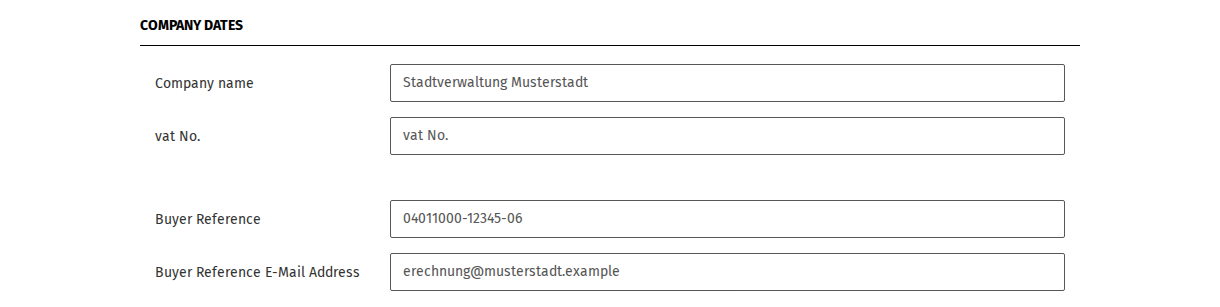
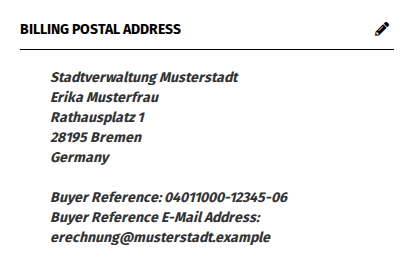
Both fields are optional. If the customer has filled in both fields, they see the details below their billing address on the order confirmation page.
Entered in the Gambio Admin
You can also enter or change the details yourself, for example if the customer sends them to you by e-mail.
- Open the order details page under Orders > Orders
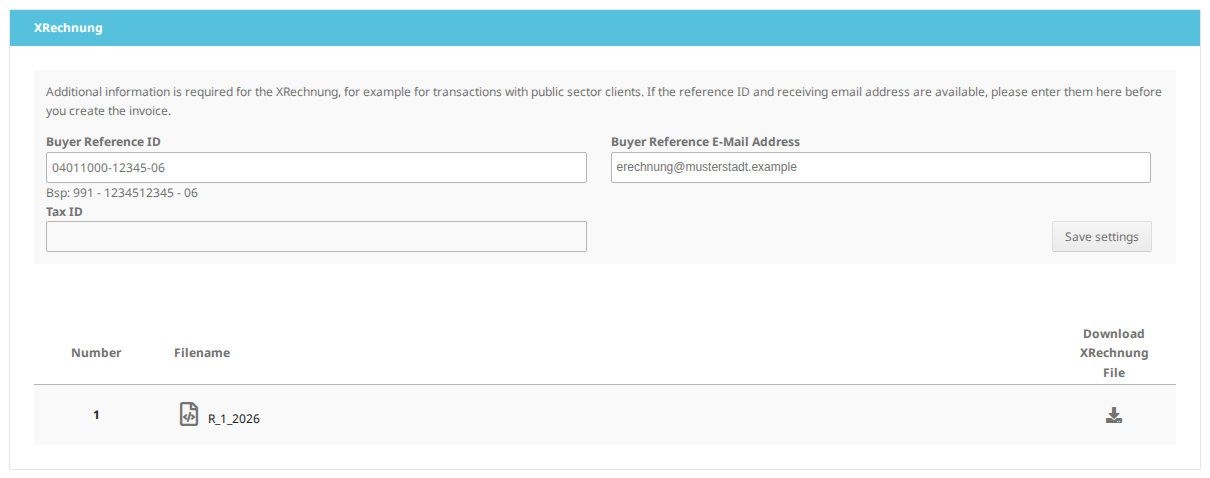
- In the XRechnung section, enter the Buyer Reference ID and the Buyer Reference E-Mail Address
- Click Save settings
For registered customers, the shop saves the details in the customer account. They then also apply to later orders. For guest orders, it saves them for this order only.
The Tax ID field shows the VAT ID number the customer entered in the order. It cannot be edited here.
Note
Enter the details before you create the invoice. An XRechnung that has already been created is not changed afterwards.
Creating an XRechnung
You do not create the XRechnung separately. It is created automatically when you create the PDF invoice:
- Open the order under Orders > Orders
- Check whether the XRechnung section shows any hints (see below)
- Create the invoice as usual via Create invoice (see chapter Processing orders)
The shop now creates the PDF invoice and the XRechnung. Depending on the configuration, it embeds the XRechnung in the PDF and sends the XML file by e-mail. The invoice preview does not create an XRechnung.
Hints in the XRechnung section
| Hint | Meaning |
|---|---|
| To create XInvoices, you need to add important information. | Tax details are missing in the module configuration. The link in the hint opens the configuration. |
| Important: A company name must be set in the billing address. | The billing address of the order has no company. No XRechnung is created for this order. |
Downloading an XRechnung
In the XRechnung section of the order details page, the shop lists all XRechnung files of this order with number and file name. The file name matches the invoice number, for example R_1_2026. Click the file name or the download icon to open or download the XML file.
If you create an invoice for an order again, another XRechnung is created. The previous files remain in the list.
If the list shows No XRechnung has been created yet, no invoice has been created yet or a requirement was missing when the invoice was created.
Frequently asked questions
Why was no XRechnung created?
Check these points:
- Is the module installed in the Module Center?
- Does the billing address of the order have a company name?
- Is the VAT ID number or the commercial register number entered in the module configuration?
- Is a phone number entered under Settings / Shop / Shop owner?
Once you have added the missing detail, create the invoice again.
Do private customers receive an XRechnung?
No. The module only creates an XRechnung for orders with a company name in the billing address. Private customers receive the PDF invoice as before.
Where are the XML files stored on the server?
In the export/invoice/xml/ directory of your shop.